- Ever sent a message and immediately wished you had a tiny “take that back” button? Fortunately, iPhone users have one.
- If you’re searching for how to unsend a message on iPhone, Apple provides an Undo Send option in the Messages app. It can retract a recently sent iMessage when the requirements are met.
- The catch is timing. You have only two minutes after sending an iMessage to use Undo Send. Also, this feature does not work with regular SMS messages.
- So, if you accidentally sent a message to the wrong conversation or spotted a mistake right after tapping Send, act quickly.
- This guide explains the process in simple steps. It also covers which messages you can unsend, what the other person sees, and what to do when the Undo Send option does not appear.
How to Unsend a Message on iPhone
- The process is quick once you know where the option lives.
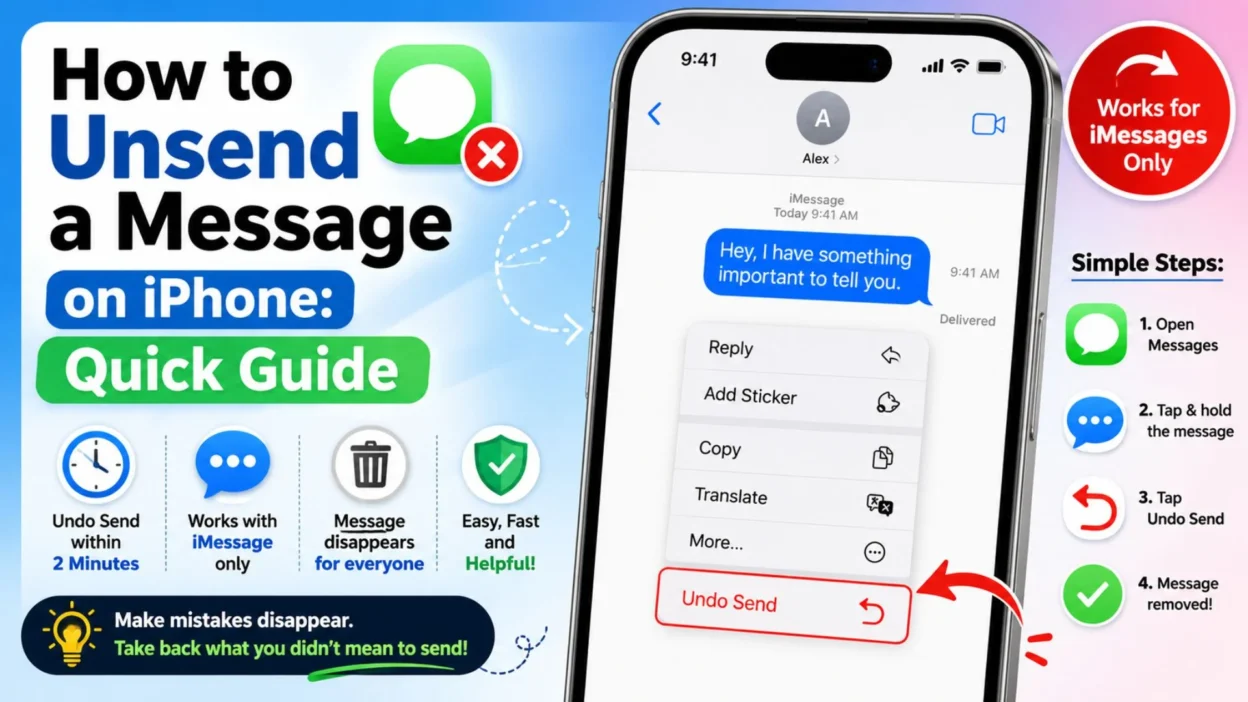
- Open the Messages app on your iPhone.
- Open the conversation containing the message you want to retract.
- Touch and hold the message bubble you recently sent.
- Tap “Undo Send.”
- The message will disappear from the conversation, and a notice will indicate that you unsent it.
- That’s it. There is no separate confirmation step in the standard process.
- The important part is acting within the allowed time. Apple currently states that an iMessage can be unsent for up to two minutes after sending.
Apple Support: How to unsend messages on iPhone
Can You Unsend Any iPhone Message?
- No. The feature has specific requirements.
- iMessage: Yes, you can use Undo Send when the message meets Apple’s requirements.
- SMS: No, SMS messages cannot be unsent using this feature.
- MMS: The Undo Send feature is not available for standard SMS/MMS communication.
- Recently sent messages: The two-minute window matters. Once that window passes, Undo Send is no longer available for that message.
- Therefore, the first thing to check is whether your message is an iMessage rather than a standard text.
How to Tell If You Sent an iMessage
- iPhone makes this fairly easy to recognize.
- iMessages generally appear as blue message bubbles.
- Standard SMS/MMS messages generally appear as green bubbles.
- If the message you want to retract is green, you should not expect the Undo Send option to work.
- A blue bubble is a useful clue, but the feature also depends on compatible software and messaging conditions.
- When iMessage is available, your messages can travel through Wi-Fi or cellular data rather than traditional SMS messaging.
What Happens After You Unsend a Message?
- When you successfully use Undo Send, the original message disappears from the conversation.
- However, the action does not happen invisibly.
- Apple says a notice confirming that a message was unsent appears in the conversation transcripts.
- In other words, unsending does not make the conversation look as though the message never existed.
- The recipient can see that you unsent something.
- Therefore, Undo Send is best understood as a way to retract a recent iMessage, not as a way to erase every trace of the action.
How Long Do You Have to Unsend an iMessage?
- You have up to two minutes after sending an iMessage.
- That short window is the biggest detail to remember.
- If you notice a mistake immediately, touch and hold the message and look for Undo Send.
- If you wait beyond the two-minute period, Apple’s Undo Send option will no longer be available for that message.
- So, don’t spend five minutes debating whether to retract it.
- If you know you sent the wrong message, check the option right away.
What If “Undo Send” Does Not Appear?
- There are several possible reasons.
- The message is too old. The two-minute window may have expired.
- It was an SMS message. Standard SMS messages cannot be unsent through this feature.
- iMessage is not being used. The feature is tied to iMessage rather than standard SMS.
- The software is too old. Apple introduced message unsending with iOS 16 and later compatible versions.
- The conversation involves an older Apple device or software version. Compatibility can affect what the recipient sees after you unsend a message.
- Checking these details can quickly explain why the option is missing.
Do Both People Need Compatible Software?
- Compatibility matters when you use Undo Send.
- Apple states that, for unsending messages, everyone involved should use iMessage with iOS 16, iPadOS 16.1, macOS Ventura, or later.
- If the recipient uses an older version of Apple’s software, they may still be able to see the original message even after you attempt to unsend it.
- Therefore, the feature is not simply controlled by your iPhone alone.
- The software used by the people in the conversation can matter too.
Unsend vs. Delete: What’s the Difference?
- These two options sound similar, but they do different things.
- Undo Send retracts a recently sent iMessage from the conversation. It is designed for situations where you sent something accidentally or changed your mind quickly.
- Delete removes a message from your own Apple devices. It does not remove the message from the recipient’s device.
- That distinction is important.
- If you simply delete a sent message from your iPhone, the other person can still have their copy.
- If you use Undo Send within the available window, the message is retracted from the conversation, subject to Apple’s compatibility requirements.
Quick Comparison
- Undo Send: Retracts a recently sent iMessage.
- Time limit: Up to two minutes after sending.
- SMS support: Not available.
- Delete: Removes the message from your own devices, but does not remove it from the recipient’s device.
- Recipient notification: A notice can show that a message was unsent.
- Older software: The recipient may still see the original message.
What If You Miss the Two-Minute Window?
- Don’t worry. You still have a few options, although they are different from unsending.
- If the message contains a simple typo, you may be able to edit it instead.
- Apple allows compatible iMessage users to edit a sent message up to five times within 15 minutes.
- To edit it, touch and hold the message and tap Edit.
- Make the correction, then finalize the updated message.
- Keep in mind that edited messages are marked as Edited, and Apple provides an option for viewing the edit history.
- So, if you missed the Undo Send window but caught a spelling mistake, editing may be the better solution.
What Happens When You Unsend a Message on iPhone?
- When you use Undo Send, Apple removes the recently sent iMessage from the conversation on the recipient’s device. However, the conversation shows a notice that the message was unsent.
- So, unsending is not completely invisible.
- The other person can see that you removed a message. However, they should no longer see the original message when the feature works correctly.
- There is also an important compatibility issue. If the recipient uses an older operating system, Apple warns that the original message may remain visible.
- That means you should not treat Undo Send as a guarantee that nobody saw the original message.
Does the Other Person Know You Unsent a Message?
- Yes. Apple places a confirmation note in the conversation after a message is unsent.
- This note appears in both conversation transcripts.
- Therefore, the recipient can know that you used Undo Send.
- If privacy is your concern, remember that unsending does not erase the fact that a message was sent.
- Also, the recipient may have already read the message before you removed it.
- For that reason, Undo Send works best as a quick correction tool rather than a way to guarantee that a message was never seen.
Can You Unsend a Message After Two Minutes?
- No. Apple currently allows you to unsend a recently sent iMessage for up to two minutes.
- Once that window passes, the Undo Send option is no longer available for that message.
- You may still have another option if the problem is a typo.
- Compatible iMessages can be edited for up to 15 minutes after sending. Apple allows up to five edits during that period.
- Therefore, the two features serve different purposes.
- Undo Send is for pulling back a recent message.
- Edit is for correcting or changing a recent message.
How to Edit a Message Instead
- Suppose the two-minute Undo Send window has passed.
- If you only made a spelling mistake, editing may solve the problem.
- Open Messages and go to the conversation.
- Touch and hold the message you want to change.
- Tap Edit.
- Make your changes.
- Then tap the checkmark to finalize the edited message.
- Apple currently allows compatible iMessages to be edited up to five times within 15 minutes of sending.
- Keep in mind that an edited message is marked Edited.
- The people in the conversation can also view previous versions through the edit history.
Unsend vs. Edit: Which Should You Use?
- The right choice depends on what went wrong.
- Sent the message to the wrong person? Use Undo Send quickly if the option is available.
- Made a small typo? Edit the message instead.
- Want to completely retract a recent iMessage? Undo Send is the relevant feature.
- Need to correct wording after two minutes? Check whether Edit is still available.
- Sent an SMS, MMS, or RCS message? Apple’s current guide says those message types cannot be unsent.
- In short, check the message type and timing before deciding what to do.
Why You May Not See the Undo Send Option
- If you touch and hold your message but cannot find Undo Send, check these possibilities.
- More than two minutes have passed. The unsend window has expired.
- The message is SMS, MMS, or RCS. Apple says these message types cannot be unsent.
- You are not using iMessage. Undo Send requires iMessage.
- Your software is incompatible. Apple introduced this feature with iOS 16 and compatible software.
- The recipient uses older software. Compatibility can affect what happens to the original message.
- Checking these points can usually explain the missing option.
Does Undo Send Work With Green Messages?
- Generally, no.
- Apple’s current guidance states that SMS, MMS, and RCS messages cannot be unsent through this feature.
- iMessage is the messaging system required for Undo Send.
- Therefore, if you are trying to retract a green-bubble message, you should not expect the same Undo Send option.
- This distinction is important because many iPhone users assume every message in the Messages app has the same features.
- It doesn’t.
- Message type determines which controls are available.
Can You Unsend a Group Message?
- Undo Send can work in compatible iMessage conversations, including supported group conversations.
- However, the same requirements still apply.
- The message must be an iMessage, and you must act within the two-minute window.
- Compatibility also matters for other participants.
- If someone uses an older operating system, Apple warns that the original message may remain visible to them.
- So, group conversations deserve the same caution as one-to-one chats.
Can You Unsend a Message From Your iPhone After It Is Read?
- You can still attempt to use Undo Send while the two-minute window remains available.
- However, unsending does not mean the recipient never saw the message.
- They may have already read it, noticed a notification preview, or otherwise seen its content before you retracted it.
- Apple’s feature removes the message from the recipient’s device when supported, but the conversation still indicates that a message was unsent.
- Therefore, think of Undo Send as message retraction, not a time machine.
What If the Recipient Uses an Older iPhone?
- This is one of the most important compatibility details.
- Apple says that if you unsend a message to someone using an earlier operating system, the original message remains in the conversation. You may also receive a notice that the recipient might still see it.
- So, even if Undo Send appears to work on your iPhone, the recipient’s software can change the result.
- When sending important information, remember that you cannot control what software another person uses.
What If You Accidentally Sent a Private Message?
- If the message is an eligible iMessage, act immediately.
- Open the conversation.
- Touch and hold the message.
- Select Undo Send if it is still available.
- Afterward, remember that the recipient can see that a message was unsent.
- If the option is unavailable, do not assume that deleting the message from your own phone will remove it from theirs.
- Deleting and unsending are different actions.
- For sensitive situations, focus on correcting the mistake calmly rather than repeatedly sending new messages.
What If You Sent the Wrong Message?
- First, check the time.
- If you are within two minutes and the message is an eligible iMessage, use Undo Send.
- If more than two minutes have passed, consider whether Edit can solve the problem.
- If neither option applies, avoid making the situation more confusing with multiple follow-up messages.
- A short clarification can sometimes be simpler.
- For example, you might send a straightforward correction explaining that the previous message was sent accidentally.
- The best response depends on what the original message contained and whether the recipient already saw it.
Can You Unsend Several Messages?
- Apple’s Undo Send feature applies to recently sent messages.
- Each message has its own sending time.
- Therefore, if you are trying to retract several messages, check each one individually while its eligible window remains available.
- The key limitation stays the same: an eligible iMessage can be unsent for up to two minutes after sending.
- Once a message passes that window, you cannot bring back the Undo Send option for it.
A Simple Checklist Before You Unsend
- Check the clock. Is the message less than two minutes old?
- Check the message type. Is it an iMessage rather than SMS, MMS, or RCS?
- Touch and hold the message. Look for Undo Send.
- Check compatibility. Older software can affect what the recipient sees.
- Remember the notice. The conversation will indicate that a message was unsent.
- Act quickly. Waiting can remove the option.
Quick Examples
- Wrong recipient: Use Undo Send immediately if available.
- Typo: Use Edit if you are still within its 15-minute window.
- Green-bubble text: Undo Send is not supported for SMS, MMS, or RCS.
- Two minutes have passed: Undo Send is no longer available.
- Older recipient software: The original message may remain visible.
- Edited message: The conversation marks it as Edited, and previous versions can be viewed.
What Is the Easiest Way to Unsend an iPhone Message?
- The quickest method is simple: open Messages, find the conversation, and touch and hold the recently sent eligible iMessage.
- If Undo Send appears, tap it.
- Apple currently allows an iMessage to be unsent for up to two minutes after sending. Apple Support: Unsend and edit messages on iPhone
- If the option does not appear, check the message type and how much time has passed.
Can You Unsend a Message After Two Minutes?
- No. Apple’s current limit for Undo Send is two minutes after sending an eligible iMessage. Apple Support: Unsend and edit messages on iPhone
- After that period, the Undo Send option is unavailable.
- However, you may still be able to edit an eligible message. Apple allows compatible messages to be edited for up to 15 minutes after sending. Apple Support: Edit or unsend messages on iPhone
Can You Unsend a Green Message?
- No. Green-bubble messages use a different messaging service.
- Apple says Undo Send is available for iMessage messages, while SMS, MMS, and RCS messages cannot be unsent through this feature. Apple Support: Unsend and edit messages on iPhone
- So, if the message is green, you should not expect the Undo Send option.
Does Unsend Delete the Message From Both Phones?
- For a supported iMessage, Undo Send retracts the message from the conversation.
- However, Apple notes that the conversation indicates that a message was unsent. Apple Support: Unsend and edit messages on iPhone
- There is another important detail. If the recipient uses an older software version, they may still see the original message. Apple Support: Unsend and edit messages on iPhone
- Therefore, Undo Send is useful, but it is not a guarantee that nobody saw the message.
Can You Unsend a Message Someone Already Read?
- You can use Undo Send if the message is still eligible and within the two-minute window.
- However, the recipient may have already read it before you unsent it.
- They may also have noticed a notification before the message was retracted.
- Therefore, Undo Send does not erase what someone may have already seen.
- It simply gives you a way to retract an eligible recent iMessage.
What Happens After You Tap Undo Send?
- The original message is removed from the conversation when the feature works as supported.
- A notice remains indicating that a message was unsent. Apple Support: Unsend and edit messages on iPhone
- The recipient can therefore know that you retracted something.
- If the message was sent accidentally, you usually do not need to send several follow-up messages immediately.
- Take a moment, check what happened, and decide whether any clarification is actually needed.
What If Undo Send Is Missing?
- If you cannot find Undo Send, check these common reasons:
- The message is older than two minutes. The Undo Send window has expired.
- The message is green. It may be SMS, MMS, or RCS rather than iMessage.
- You are using incompatible software. Apple introduced Undo Send with iOS 16 and compatible operating systems.
- The recipient uses older software. This can affect whether the original message remains visible. Apple Support: Unsend and edit messages on iPhone
- The message type is not supported. Undo Send is intended for eligible iMessages.
What Should You Do If You Missed the Unsend Window?
- If the message contains a simple mistake, check whether Edit is available.
- Touch and hold the message, then select Edit.
- Make the correction and confirm the change.
- Apple currently allows compatible messages to be edited up to five times within 15 minutes. Apple Support: Edit or unsend messages on iPhone
- Edited messages are marked as edited, so this option is different from Undo Send.
- If neither option is available, a brief clarification may be more useful than repeatedly sending messages.
Unsend vs. Delete on iPhone
- These options are easy to confuse.
- Undo Send: Retracts an eligible recently sent iMessage.
- Delete: Removes a message or conversation from your own devices. It does not generally remove the recipient’s copy. Apple Support: Delete messages and conversations on iPhone
- Edit: Changes an eligible recently sent message instead of retracting it.
- So, if your goal is to remove a message from the conversation, look for Undo Send rather than simply choosing Delete.
Quick Troubleshooting Guide
- Undo Send appears: Tap it immediately if you want to retract the message.
- Undo Send does not appear: Check whether more than two minutes have passed.
- Message is green: It is not eligible for Undo Send.
- You made a typo: Try Edit if you are still within the editing period.
- Recipient uses older software: Remember that they may still see the original message.
- You deleted the message: Remember that deleting it from your iPhone does not automatically delete the recipient’s copy.
Frequently Asked Questions
How do I unsend a message on iPhone?
- Open Messages, open the conversation, touch and hold the eligible message, and tap Undo Send. You must act within two minutes of sending. Apple Support: Unsend and edit messages on iPhone
Can I unsend an SMS on iPhone?
- No. Apple’s Undo Send feature does not work with SMS, MMS, or RCS messages. It is designed for eligible iMessages. Apple Support: Unsend and edit messages on iPhone
How long do I have to unsend an iMessage?
- You have up to two minutes after sending an eligible iMessage. After that, Undo Send is no longer available. Apple Support: Unsend and edit messages on iPhone
Can someone still see an unsent message?
- They may have already seen the message before you retracted it. Also, Apple warns that recipients using older software may still see the original message. Apple Support: Unsend and edit messages on iPhone
Is deleting the message the same as unsending it?
- No. Deleting affects your own message history, while Undo Send is designed to retract an eligible recent iMessage from the conversation.
Final Thoughts
- Learning how to unsend a message on iPhone is easier once you remember the main rule: two minutes.
- If you accidentally send an eligible iMessage, open the conversation quickly. Touch and hold the message, then choose Undo Send.
- Remember that green-bubble messages cannot use this feature. Also, deleting a message from your own iPhone is not the same as unsending it.
- If you miss the two-minute window, check whether Edit can solve the problem. Apple currently gives compatible messages a longer editing window. Apple Support: Edit or unsend messages on iPhone
- Most importantly, do not assume that unsending means nobody saw the message. A recipient may have already read it, and older software can affect what remains visible.
- Keep the simple formula in mind: check the message, check the time, and act quickly.

Emma Richardson is a content writer passionate about creating heartfelt messages, wishes, and greetings for every occasion. She enjoys helping readers express their emotions with meaningful words that strengthen relationships and celebrate life’s special moments.