- Have you ever written a message at the perfect moment but realized it was too early, too late, or simply not the right time to send it? That is where the schedule text message iPhone feature can make things much easier.
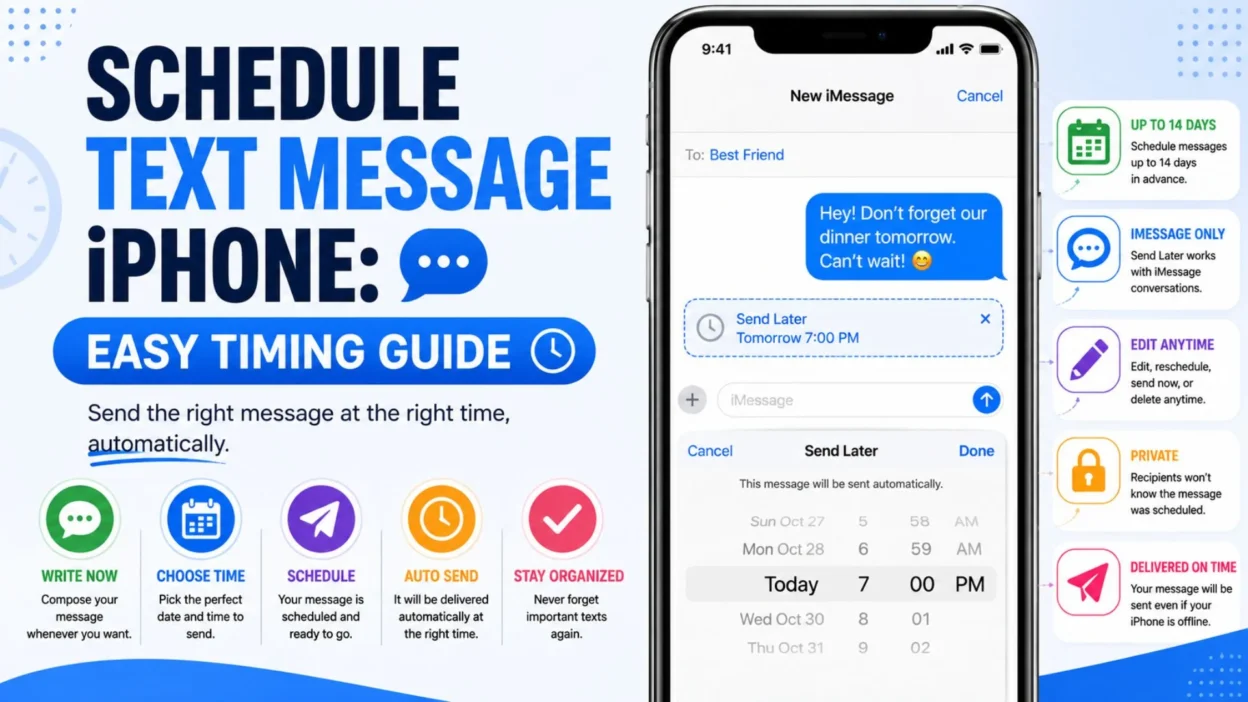
- Apple’s Messages app includes Send Later, which lets you prepare an iMessage now and choose when it should be delivered. According to Apple, you can schedule a message up to 14 days in advance.
- This can be useful for reminders, birthday greetings, plans, work-related communication, or any message you want to prepare ahead of time. You do not need to keep checking the clock or worry about forgetting to send it.
- The process is simple once you know where to find the option. In this guide, you will learn how scheduling works, where to find Send Later, and what you can do with a scheduled message before it is delivered.
Top Schedule Text Message iPhone Tips
- These quick tips explain the basic idea before you start scheduling messages in the Messages app.
- Use the Messages app. Open the conversation where you want to send your scheduled message.
- Look for Send Later. In the message field, tap the Add button and choose Send Later.
- Choose your delivery time. Tap the displayed time to open the scheduler and select when you want the message to arrive.
- Write your message. Enter the text you want to send after selecting the scheduled time.
- Tap Send. The message will remain scheduled until the selected delivery time.
- Plan ahead. Apple currently allows scheduled messages up to 14 days into the future.
- Check the scheduled message. A scheduled message appears with a dashed outline, making it easier to distinguish from messages that have already been sent.
- Remember that scheduling uses iMessage. Apple states that the Send Later feature requires an iMessage conversation.
- The recipient does not know it was scheduled. Apple says the recipient will not be notified that you scheduled the message.
- You can change your mind. A scheduled message can be rescheduled, edited, sent immediately, or deleted before its delivery time.
Short Schedule Text Message iPhone Guide
- If you just want the essentials, these are the main steps to remember.
- Open Messages.
- Choose a conversation.
- Tap the Add button.
- Select Send Later.
- Choose a date and time.
- Type your message.
- Tap Send.
- Check the scheduled message in the conversation.
- Edit or reschedule it later if necessary.
- Delete it before the scheduled time if you no longer want it sent.
How to Schedule a Text Message on iPhone
- The built-in Send Later feature makes scheduling straightforward. You do not need to create a separate reminder just to remember when to send the message.
- Open the Messages app on your iPhone.
- Open an existing conversation or start a new conversation with the person you want to message.
- Tap the Add button beside the message field.
- Tap Send Later. Apple lists this as a Messages feature for scheduling a text to be sent at a later time.
- Tap the time shown by the scheduler. This opens the scheduling controls.
- Choose the date and time when you want your message to be delivered.
- Type your message into the text field.
- Tap the Send button. Your message is now scheduled rather than delivered immediately.
- The scheduled message will appear in the conversation with a dashed outline, and the selected delivery time will be displayed above it.
When Should You Schedule a Text Message on iPhone?
- Scheduling can be useful whenever you know what you want to say but want the message delivered later.
- Birthday reminders: Write the birthday message ahead of time so you do not forget it.
- Morning reminders: Prepare a useful reminder for a later time instead of setting it up at the last minute.
- Plans with friends: Schedule a message about an upcoming plan when you know the right time to send it.
- Important reminders: If you need to remind someone about something later, scheduling can help you stay organized.
- Travel planning: Prepare a message about an upcoming meeting or arrival time in advance.
- Work communication: If you need to send a non-urgent message at a specific time, scheduling can help you prepare it earlier.
- Personal organization: Draft messages when you have time instead of trying to remember them later.
- The main benefit is simple: you can prepare now and let your iPhone handle the timing.
Schedule Text Message iPhone: What You Need to Know
- Apple’s current instructions state that Send Later requires iMessage. The recipient can use any device, and they will not know that the message was scheduled.
- Apple also says you need to be online if you want to reschedule, edit, or delete a scheduled message.
- Once the scheduled time arrives, the message is delivered even if your Apple devices are offline at that moment.
- This means scheduling can be helpful when you want to prepare something ahead of time without relying on your iPhone being connected at the exact moment the message is due.
Best Schedule Text Message iPhone Tips for Sharing
- If you want to explain the feature to a friend or share a quick reminder, these simple messages are easy to copy and send.
- “You can schedule an iMessage ahead of time with Send Later.”
- “Write your message now and let your iPhone send it at the time you choose.”
- “Forgot to send an important text? Try scheduling it ahead of time.”
- “Use Send Later when you want your message delivered at a specific time.”
- “Planning a birthday message? Schedule it before you forget.”
- “You can prepare a text today and have it delivered later.”
- “Scheduling messages can make reminders much easier to manage.”
- “If you know when you want to send a message, schedule it ahead of time.”
- “Your iPhone can handle the timing while you focus on something else.”
- “Send Later is handy when you want to prepare a message in advance.”
- “Schedule important iMessages instead of relying on your memory.”
- “Prepare the message, choose the time, and let Messages handle the rest.”
- “A scheduled text can be useful for birthdays, reminders, and plans.”
- “You can change or remove a scheduled message before it is sent.”
- “Check the conversation for your scheduled message before its delivery time.”
How to Edit a Scheduled Text Message on iPhone
- Plans change. Fortunately, you do not have to keep a scheduled message exactly as you originally created it.
- Apple says you can edit a scheduled message before it is sent. You can also reschedule it, send it immediately, or delete it. (support.apple.com)
- Open Messages and go to the conversation containing the scheduled message.
- Find the scheduled message with its dashed outline.
- Touch and hold the scheduled message to access the available message options.
- Choose Edit if you want to change the wording.
- Make your changes to the message.
- Confirm the updated message according to the options shown on your iPhone.
- You can also change the delivery time if your plans have changed.
- Remember that Apple states you need to be online to edit, reschedule, or delete a scheduled message. (support.apple.com)
How to Reschedule a Text Message on iPhone
- Maybe you scheduled a message for 9:00 AM but later realized 10:00 AM would work better. You can adjust the delivery time instead of creating everything again.
- Open the conversation containing the scheduled message.
- Find the scheduled message in the conversation.
- Open the message options to access its scheduling controls.
- Choose the option to change the scheduled time.
- Select your new date or time.
- Confirm the updated schedule.
- The message will remain scheduled for the new time until it is delivered or you change it again.
- If the original time has not arrived yet, you have an opportunity to make changes before the message goes out.
How to Send a Scheduled Text Immediately
- Sometimes you schedule a message and then decide that waiting is unnecessary. In that situation, Apple provides an option to send the scheduled message immediately. (support.apple.com)
- Open the Messages conversation.
- Locate the scheduled message.
- Open its available options.
- Choose the option to send it immediately.
- The message will then be sent rather than waiting for the original scheduled time.
- This can be helpful when plans change and you want the recipient to receive the message sooner.
How to Delete a Scheduled Text Message on iPhone
- If you no longer need a scheduled message, you can remove it before it is delivered.
- Open the Messages app.
- Go to the conversation containing the scheduled message.
- Find the message you scheduled earlier.
- Open the message options.
- Choose the delete option for the scheduled message.
- Confirm the deletion if your iPhone asks you to do so.
- Apple confirms that a scheduled message can be deleted before its scheduled delivery time. (support.apple.com)
Can You Schedule Any Text Message on iPhone?
- This is an important detail if you are trying to use the feature with different types of conversations.
- Apple’s Send Later feature is designed for iMessage conversations. Apple specifically states that you need to use iMessage to schedule a message. (support.apple.com)
- If you are messaging someone through a conversation that does not support iMessage, you may not see the same scheduling option.
- If Send Later does not appear, check the conversation type and make sure your iPhone is using a supported iMessage conversation.
- You should also make sure your iPhone is running a version of iOS that supports the feature.
What If “Send Later” Is Missing on iPhone?
- If you cannot find the scheduling option, do not assume that your iPhone is broken. A few things are worth checking first.
- Check your iOS version. The Send Later feature was introduced with newer iOS versions, so an older system may not provide it.
- Check the conversation type. Apple says Send Later requires an iMessage conversation. (support.apple.com)
- Open the Add menu. In Messages, the scheduling feature appears through the Add button beside the message field.
- Check your connection. Apple says you need to be online to edit, reschedule, or delete a scheduled message. (support.apple.com)
- Restart Messages. Closing and reopening the app can sometimes help when an option does not appear as expected.
- Update your iPhone if needed. Keeping iOS current can help you access newer Messages features and improvements.
One-Line Schedule Text Message iPhone Tips
- These quick lines are useful for social posts, notes, or sharing the feature with someone who wants a simple explanation.
- “Write now, send later.”
- “Schedule your iMessage and forget the clock.”
- “Let your iPhone handle the timing.”
- “Plan the text before the moment arrives.”
- “Send Later makes advance planning simple.”
- “Prepare today, deliver later.”
- “Your message can wait for the right moment.”
- “Schedule it before you forget.”
- “Pick the time and let Messages do the rest.”
- “A little planning makes texting easier.”
- “Turn an idea into a scheduled message.”
- “No need to remember the exact sending time.”
- “Prepare important texts ahead of time.”
- “Schedule first, relax later.”
- “The right message at the right time.”
- “Make your iPhone your texting timekeeper.”
- “Plan your message around your schedule.”
- “Send Later keeps your timing on track.”
- “One message, one chosen delivery time.”
- “Stay organized with scheduled iMessages.”
Schedule Text Message iPhone: Quick Checklist
- Before scheduling a message, keep these points in mind.
- Use an iMessage conversation.
- Open the Messages app.
- Tap the Add button beside the text field.
- Select Send Later.
- Choose the delivery date and time.
- Write your message.
- Tap Send to schedule it.
- Check the dashed-outline message in the conversation.
- Edit, reschedule, send immediately, or delete it if your plans change.
- Remember that Apple currently supports scheduling up to 14 days ahead. (support.apple.com)
Best Times to Schedule a Text Message on iPhone
- Choosing the right delivery time can make a scheduled message more useful. Think about when the recipient is most likely to appreciate receiving it.
- Birthday wishes: Schedule a birthday message for the morning so you do not forget.
- Appointment reminders: Send a reminder ahead of an important appointment or plan.
- School or activity reminders: Prepare a message about an upcoming event before the day gets busy.
- Travel updates: Schedule a message for a planned arrival or meeting time.
- Family reminders: Set up a helpful reminder when you already know when it should be sent.
- Event details: Schedule important information so it arrives closer to the event.
- Weekend plans: Prepare a message about plans without needing to remember later.
- Friendly check-ins: Schedule a thoughtful message for a convenient time.
- Work-related reminders: For non-urgent communication, scheduling can help you send a message at an appropriate time.
- Personal organization: Prepare messages in advance when you have a quiet moment.
Common Problems When You Schedule Text Message iPhone
- If Send Later is not working as expected, check the basics before assuming something is wrong with your iPhone.
- Send Later is missing: Apple says the feature requires an iMessage conversation. Check that you are messaging through iMessage.
- You cannot edit the scheduled message: Apple says your iPhone needs to be online when you edit, reschedule, or delete a scheduled message.
- The message is not scheduled: Make sure you selected Send Later, chose a future delivery time, entered your message, and tapped Send.
- You cannot find the scheduled message: Return to the same Messages conversation and look for the scheduled message with its distinct appearance.
- Your iPhone looks different: Menu names and layouts can change with iOS updates. If your screen does not match an older tutorial, check Apple’s current support documentation.
- You are using an older iOS version: Update your iPhone when appropriate if a feature is unavailable.
- You are unsure whether your conversation uses iMessage: Check the conversation and message field for the iMessage interface rather than assuming every text conversation supports Send Later.
Schedule Text Message iPhone vs. Sending Immediately
- Sending immediately is best when someone needs the information right away. Scheduling is more useful when you already know the message but want it delivered at a particular time.
- Send immediately: Best for urgent or time-sensitive conversations.
- Schedule ahead: Useful for reminders, birthdays, plans, and other non-urgent messages.
- Prepare in advance: Scheduling lets you write a message when you have time.
- Avoid forgetting: A scheduled message can help when you know you might be busy later.
- Choose the timing: You can select when the message should be delivered instead of relying on memory.
- Change plans easily: Apple says scheduled messages can be edited, rescheduled, sent immediately, or deleted before delivery.
Simple Schedule Text Message iPhone Ideas
- These ideas can help you decide what kinds of messages are worth preparing ahead of time.
- “Happy birthday! Hope your day is fantastic!”
- “Just a reminder about our plans tomorrow.”
- “Good morning! Hope you have a great day.”
- “Don’t forget about our appointment today.”
- “Hope everything goes well today!”
- “Just checking in and wishing you a great week.”
- “Here’s a reminder about the event later.”
- “Hope your trip goes smoothly!”
- “Just wanted to remind you about our plans.”
- “Have a wonderful weekend!”
- “Good luck with everything today!”
- “Remember to check the details before you head out.”
- “Hope you have a productive day!”
- “Just sending a quick reminder for later.”
- “Wishing you a great day ahead!”
FAQ About Schedule Text Message iPhone
Can I schedule a text message on an iPhone?
- Yes. Apple’s Messages app includes Send Later for scheduling iMessages. You can choose a future delivery time rather than sending the message immediately.
How far ahead can I schedule an iPhone text?
- Apple currently says you can schedule a message up to 14 days in advance.
Does scheduled messaging work with iMessage?
- Yes. Apple states that Send Later requires an iMessage conversation.
Can I edit a scheduled message?
- Yes. Before delivery, Apple allows you to edit, reschedule, send immediately, or delete a scheduled message. Your iPhone needs to be online to make those changes.
Will the recipient know that I scheduled the message?
- Apple says the recipient is not notified that the message was scheduled.
Final Thoughts
- Learning how to schedule text message iPhone communications can make everyday messaging much easier. Instead of trying to remember a specific time, you can prepare an iMessage ahead of time and choose when you want it delivered.
- The feature is especially handy for birthdays, reminders, plans, appointments, and other non-urgent messages. You can prepare your words when it is convenient and let your iPhone take care of the timing.
- If your plans change, you are not stuck with the original schedule. Apple allows you to edit, reschedule, send immediately, or delete a scheduled message before it is delivered.
- Just remember that Send Later requires iMessage, and Apple currently supports scheduling up to 14 days ahead.
- Once you know where to find Send Later, the process becomes simple: choose the conversation, select Send Later, pick a time, write your message, and send it.
- Save this guide for the next time you need to prepare an important message in advance. A few seconds of planning can help you stay organized and never miss the right moment.

Emma Richardson is a content writer passionate about creating heartfelt messages, wishes, and greetings for every occasion. She enjoys helping readers express their emotions with meaningful words that strengthen relationships and celebrate life’s special moments.