
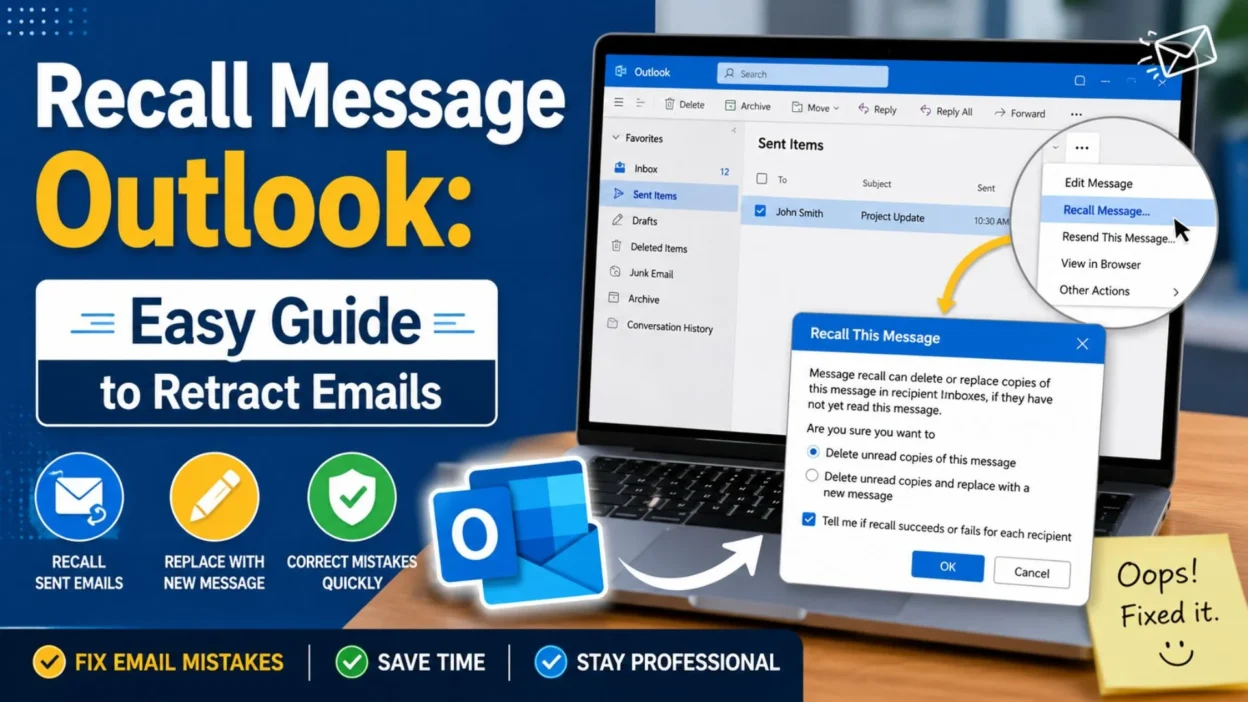
- Sending an email too quickly can happen to anyone. Maybe you spotted a typo, forgot an attachment, or chose the wrong recipient.
- If you searched for recall message Outlook, you are probably looking for a way to pull back an email after sending it.
- Outlook does offer a message recall feature, but it has important limits. It is mainly available when you and the recipient use Microsoft 365 work or school accounts within the same organization.
- Personal Outlook.com, Hotmail, Live, and MSN accounts cannot recall an email after it has been sent. However, Outlook.com offers an Undo Send option that delays sending for a few seconds.
- This guide explains the basics in simple steps. It also covers recall requirements, replacement emails, common problems, and alternatives.
What Does “Recall Message” Mean in Outlook?
- Outlook’s recall feature attempts to retrieve a sent email from recipients’ mailboxes.
- You can also choose to replace the original message with an updated version.
- However, recall is not the same as deleting an email from everyone’s inbox. Success depends on the account type and other conditions.
When Can You Recall a Message in Outlook?
- Message recall works when both the sender and recipient have Microsoft 365 work or school accounts in the same organization.
- The recipient also generally needs to have not opened the original message for the recall to work.
- Therefore, recall may not work when you send an email to someone outside your organization.
- It also does not work for personal Outlook.com, Hotmail, Live, or MSN addresses after the message has been sent.
How to Recall a Message in New Outlook
- If you use new Outlook for Windows, you can start from your Sent Items folder.
- Open Sent Items and double-click the email you want to recall.
- Select Recall Message from the message actions.
- Confirm the recall when Outlook asks you to do so.
- Outlook will then send you a Message Recall Report. The report indicates whether the recall succeeded, is pending, or failed.
- Microsoft recommends opening the sent message in its own window rather than relying only on the reading pane.
How to Recall a Message in Classic Outlook
- Classic Outlook provides a similar option through the message’s actions.
- Open Sent Items and double-click the email.
- Select the Message tab.
- Depending on your ribbon layout, choose Actions > Recall This Message or find the command under additional actions.
- You can then choose to delete unread copies or delete unread copies and replace the email with a new message.
- If you choose replacement, Outlook opens the original content for editing. You can make your correction and send the replacement.
What Happens After You Recall a Message?
- Outlook does not simply erase the email everywhere. Instead, it attempts to remove the original message from the recipient’s mailbox.
- If the recall works, the recipient may no longer see the original unread email.
- However, the result depends on the recipient’s mailbox and whether the message has already been opened.
- Outlook can also send you a recall report. This helps you see whether the recall succeeded or failed.
- Therefore, do not assume an email disappeared just because you selected the recall option.
Can You Recall an Email After It Has Been Read?
- Usually, no. Outlook’s recall feature is designed around unread messages.
- If the recipient has already opened the email, recalling it generally cannot undo what they have already seen.
- That is why acting quickly matters when you notice a mistake.
- However, you should still check the recall report instead of guessing whether the attempt worked.
Can You Recall a Message Sent to Gmail?
- Outlook’s traditional message recall is not designed to retrieve messages from Gmail accounts.
- The same limitation applies when sending messages to many external email services.
- In that situation, the better approach is usually to send a quick correction.
- For example, you could write:
- “Please disregard my previous email. I noticed an error and have sent an updated version below.”
- A short correction can often solve the problem without creating extra confusion.
Can You Recall an Outlook Email Sent Outside Your Organization?
- In most cases, Outlook’s traditional recall feature will not work when the recipient is outside your Microsoft 365 organization.
- For example, sending an email from a work account to an external personal address can prevent the recall process from working.
- Therefore, check the recipient’s address before relying on recall.
- If the message has already gone to an external recipient, sending a corrected email is usually the practical option.
Recall Message Outlook vs. Undo Send
- These two features sound similar, but they work differently.
- Message Recall attempts to retrieve an already-sent email under supported conditions.
- Undo Send delays an outgoing email for a short period. This gives you time to cancel it before it actually leaves your mailbox.
- Outlook.com supports Undo Send rather than traditional post-send recall for personal accounts. (support.microsoft.com)
- Therefore, Undo Send can be useful when you frequently catch mistakes immediately after pressing Send.
How to Use Undo Send in Outlook.com
- Open Outlook.com and select Settings.
- Go to Mail, then open Compose and reply.
- Look for the Undo send setting.
- Choose how long Outlook should delay sending your messages.
- After sending an email, Outlook displays an option that lets you cancel the message during that delay.
- This feature is helpful for catching simple mistakes before the email actually goes out.
- Keep in mind that Undo Send is different from recalling an email that has already reached the recipient.
What If the Recall Option Is Missing?
- If you cannot find Recall Message, do not panic.
- The missing option may relate to the Outlook version, account type, mailbox configuration, or organizational setup.
- First, make sure the email is actually in Sent Items.
- Then open the message rather than viewing only a preview.
- If you still cannot find the option, your account may not support traditional message recall.
- Personal Outlook.com accounts, for example, do not offer the same post-send recall feature available in supported Microsoft 365 organizational environments.
Why Does Outlook Recall Sometimes Fail?
- Several situations can prevent a recall from working.
- The recipient may have already opened the original email.
- The recipient may use an account outside your organization.
- Your organization may use a configuration that does not support the expected recall behavior.
- The recipient’s mailbox may not meet the requirements for successful recall.
- You may also be using an Outlook version or account type where the feature is unavailable.
- Therefore, a recall attempt should never be treated as a guaranteed way to erase an email.
What Should You Do If Recall Fails?
- First, stay calm. Email mistakes are common.
- Send a short correction instead of writing a long explanation.
- You can say:
- “Correction: Please use the updated information in this email. Sorry for the confusion.”
- If you forgot an attachment, simply send it in a follow-up.
- “I missed the attachment in my previous email. Please find it attached here.”
- If you sent incorrect information, clearly identify the corrected detail.
- “Quick correction to my previous message: the correct date is Friday.”
- A clear follow-up is often more effective than trying to explain every detail.
How to Avoid Needing Message Recall
- Prevention is easier than fixing an email after it leaves your inbox.
- Before clicking Send, check the recipient list first.
- Then review the subject line and main details.
- Make sure attachments are actually included.
- If the email contains dates, times, prices, or other important information, check them carefully.
- Finally, read the message once from beginning to end.
- Taking a few extra seconds can save you from needing recall message Outlook later.
Quick Outlook Email Checklist
- Recipient: Is the email going to the right person?
- Subject: Does the subject accurately describe the message?
- Content: Are the important details correct?
- Attachment: Did you attach every file you mentioned?
- Links: Do important links lead to the right place?
- Tone: Does the message sound appropriate?
- Timing: Is now the right time to send it?
- Final review: Have you read the message once before sending?
Best Practices for Recall Message Outlook
- When you need to use recall message Outlook, act quickly and check the message carefully.
- Open Sent Items and locate the exact email.
- Make sure you select the correct message before starting the recall.
- If Outlook provides a recall report, review it carefully.
- Do not assume the recall succeeded until you see the result.
- If the recall fails, send a concise correction rather than sending several confusing follow-ups.
- For important emails, consider using Outlook’s sending delay features when available.
- A short delay gives you time to catch obvious mistakes before the message leaves your mailbox.
What Is the Difference Between Recall and Delete?
- Deleting an email from your Sent Items folder does not normally remove the copy already delivered to another person’s mailbox.
- Recall is different because it attempts to remove or replace an unread message under supported conditions.
- Therefore, simply moving a sent email to the Deleted Items folder will not solve an email mistake.
- This distinction is easy to miss when you are trying to fix a message quickly.
Can You Replace a Recalled Message?
- Yes, supported versions of Outlook can let you replace an unread message with an updated version.
- You can choose the option to delete unread copies and replace the original with a new message.
- Outlook then lets you edit the content before sending the replacement.
- This option can be useful when the original email contains a typo, incorrect detail, or missing information.
- Still, replacement depends on the same recall requirements.
What If You Sent the Wrong Attachment?
- Do not overthink it.
- If recall works in your situation, you can attempt to recall the original email.
- If recall is unavailable, send the correct attachment in a follow-up.
- A simple message works well:
- “I noticed the wrong file was attached to my previous email. Please use the attachment in this message instead.”
- Clear communication is usually better than sending several explanations.
What If You Sent the Email to the Wrong Person?
- This situation needs extra care.
- If the recipient is within your organization and the message remains unread, you can try the recall feature.
- If the recipient is external, traditional recall may not be available.
- In that case, consider whether a correction or deletion request is appropriate.
- If the email contains sensitive information, contact your organization’s IT or security team promptly.
Outlook Recall Tips for Work Emails
- Before sending an important work email, check every recipient.
- Be especially careful with Reply All.
- Review attachments before clicking Send.
- Keep important facts easy to find.
- Avoid sending confidential information to an unverified address.
- Use a short sending delay if your organization allows it.
- When possible, draft important emails first and review them before sending.
- These habits can reduce the need to recall messages later.
Frequently Asked Questions
Can I recall a message in Outlook?
- You may be able to recall a message when using a supported Microsoft 365 work or school account and the recipient is within the same organization. The recipient generally must not have opened the message.
Can I recall an Outlook.com email?
- Personal Outlook.com accounts do not support traditional post-send message recall. Instead, Outlook.com provides Undo Send, which delays sending for a short period.
Can I recall an email after someone reads it?
- Traditional recall is intended for unread messages. If the recipient has already read the email, you should not expect recall to undo what they have seen.
Why can’t I find Recall Message in Outlook?
- Your Outlook version or account may not support the feature. Account type and organizational setup can also affect availability.
Does deleting a sent email recall it?
- No. Deleting an email from your own Sent Items folder does not normally remove the recipient’s copy.
What should I do if Outlook recall fails?
- Send a short correction email. Clearly explain which information is correct and, if necessary, include the missing attachment or updated details.
Final Thoughts
- Recall message Outlook can be useful when you catch an email mistake quickly, but it is not a universal undo button.
- The feature has specific requirements, and success depends on factors such as account type, organization, and whether the recipient has opened the message.
- If recall works for your account, Outlook can attempt to remove an unread message or replace it with an updated version.
- However, personal Outlook.com users should rely on Undo Send instead of traditional recall.
- When recall is unavailable, do not panic. A short, professional correction can usually clear up a typo, missing attachment, or incorrect detail.
- Most importantly, build a quick review habit before sending important emails.
- Check the recipient, attachment, subject, and key information. Those few seconds can prevent many email headaches.
- And if you still make a mistake, remember that one imperfect email does not have to become a disaster. Correct it clearly, learn from it, and move on.

Emma Richardson is a content writer passionate about creating heartfelt messages, wishes, and greetings for every occasion. She enjoys helping readers express their emotions with meaningful words that strengthen relationships and celebrate life’s special moments.