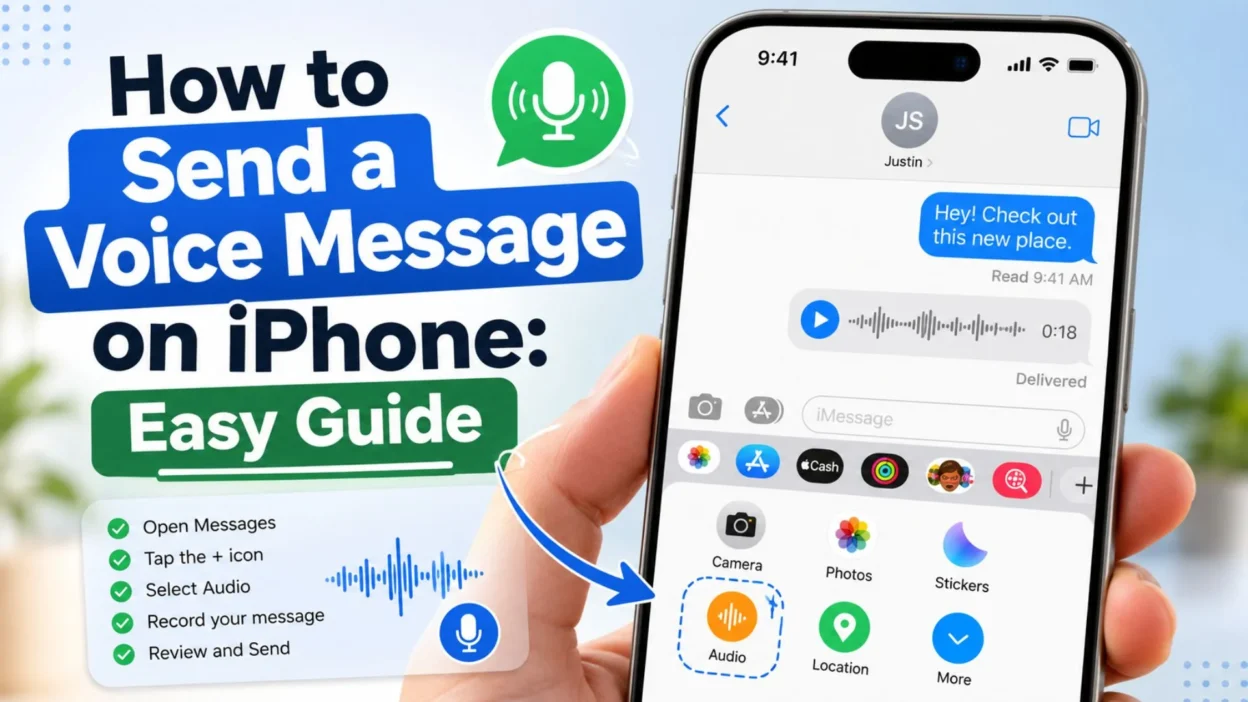
- Sending a voice message can be easier than typing a long text. You can simply speak, review your recording, and send it in a Messages conversation.
- If you are wondering how to send a voice message on iPhone, the process is quick. Apple currently lets you record an audio message directly inside the Messages app.
- This option can be useful when you are walking, multitasking, or trying to explain something that feels awkward to type.
- You can also review the recording before sending it. Plus, you can continue recording if you need a little more time.
How to Send a Voice Message on iPhone
- Open the Messages app on your iPhone.
- Open an existing conversation or start a new one.
- Tap the Add (+) button near the text field.
- Select Audio from the available options.
- Start speaking after the recording screen appears.
- When you finish, tap the Stop button.
- You can then play the recording to check it before sending.
- If everything sounds good, tap the Send button.
- Your audio message will appear directly in the Messages conversation.
How to Record a Clear Voice Message
- Find a quieter place before you start recording.
- Hold your iPhone naturally while speaking.
- Speak clearly and avoid covering the microphone.
- Keep your message focused, especially if you are explaining something important.
- Pause briefly between ideas so your recording is easier to follow.
- If you make a mistake, review the recording before sending it.
- You can also continue recording when you need to add more information.
How to Review a Voice Message Before Sending
- You do not have to send your recording immediately.
- After stopping the recording, tap Play to listen to it.
- If the message sounds clear, tap Send.
- If you need to add something, use the option to continue recording.
- If you change your mind, you can cancel the recording instead.
Why Send a Voice Message Instead of Text?
- A voice message can make a conversation feel more natural.
- It can also save time when your message would take several paragraphs to type.
- Voice can communicate tone and emotion more clearly than plain text.
- Besides, some thoughts are simply easier to say than type.
- A quick voice message can also be useful when you want to explain directions, share an idea, or tell a story.
Quick Tips for Better Audio Messages 🎙️
- Keep your first recording short and focused.
- Speak at a comfortable pace.
- Check your surroundings before recording.
- Avoid sending several unfinished recordings when one clear message will work.
- Review longer recordings before sending them.
- Most importantly, make sure you are messaging the correct person.
Can You Save an iPhone Voice Message?
- Yes. Apple says audio messages can automatically expire from the conversation on your iPhone after you send or listen to them.
- If you want to keep an audio message, tap Keep when the option appears. You can also change the Messages setting so audio messages do not expire automatically.
- To keep audio messages permanently, go to Settings → Apps → Messages → Expire, under Audio Messages, and choose Never.
What If You Want to Send Another Audio Message?
- You can send follow-up audio messages without starting the entire process from scratch.
- Apple also provides a faster method for follow-up recordings by touching and holding the audio recording button in the text field.
- This can be handy when you have several short thoughts to share.
A Simple Way to Remember the Steps
- Messages → Conversation → Add (+) → Audio → Speak → Stop → Review → Send
- Once you remember that path, sending a voice message becomes much easier.
- If the interface looks slightly different on your iPhone, check that you are using the latest available iOS version. Apple regularly changes the layout and available features.
How to Listen to a Voice Message on iPhone
- Open Messages and enter the conversation containing the audio message.
- Tap the Play button to listen.
- You can also slide across the audio message to move forward or backward.
- For longer recordings, you can change the playback speed by touching and holding the Play or Pause button.
How to Reply With Another Voice Message
- You can respond to an audio message with another recording.
- Open the same conversation and start a new audio message.
- For faster follow-up recordings, Apple lets you touch and hold the Record Audio button in the text field.
- This shortcut can save time when you are having a quick back-and-forth conversation.
How to Save a Voice Message on iPhone
- Important audio messages do not have to disappear from your iPhone.
- After sending or listening to an audio message, tap Keep when the option appears.
- Apple says audio recordings otherwise disappear from the conversation on your iPhone two minutes after sending or listening. The recipient can still play a recording after receiving it.
- If you want to keep audio messages automatically, open Settings → Apps → Messages → Expire → Never.
How to Save a Voice Message to Voice Memos
- You can also move an audio message into the Voice Memos app.
- Open the conversation containing the recording.
- Touch and hold the audio message.
- Tap Save to Voice Memos.
- This gives you another way to keep an important recording outside the Messages conversation.
How to Use Raise to Listen
- Your iPhone can also make listening and replying to audio messages more convenient.
- With Raise to Listen, you can raise your iPhone to your ear to play an incoming audio message.
- To reply, lower the iPhone and raise it to your ear again. After the tone, speak your reply and tap Send when you finish.
How to Turn Off Raise to Listen
- Some people prefer to control audio playback manually.
- If you do not want audio messages to play when you raise your iPhone, you can turn this feature off.
- Open Settings → Apps → Messages.
- Then turn off Raise to Listen.
Can iPhone Transcribe Voice Messages?
- Yes, supported iPhone software can automatically transcribe audio messages.
- The transcription appears with the audio message, making it easier to understand the recording without listening immediately.
- However, Apple notes that audio message transcription is available only in selected languages.
What to Do If You Cannot Find the Audio Option
- First, open an actual conversation in Messages.
- Then look for the Add (+) button near the text field.
- Tap it and look for Audio.
- If the layout looks different, check that your iPhone software is up to date.
- Also remember that Apple can change the Messages interface between iOS releases.
Voice Message vs. Voice Memos
- A voice message is designed for sending audio directly through a Messages conversation.
- Voice Memos is designed for making and keeping recordings on your iPhone.
- Therefore, use Messages when you want to quickly send your voice to someone.
- Use Voice Memos when you want to create a recording that you may keep or manage separately.
Tips for Sending Better Voice Messages 🎙️
- Find a quiet spot before recording.
- Keep your iPhone microphone uncovered.
- Speak clearly and naturally.
- Avoid rushing through your message.
- Pause briefly if you need to collect your thoughts.
- Listen to longer recordings before sending them.
- Keep very long explanations organized into clear points.
- If the message is important, consider saving it with Keep.
- For something you may need later, consider saving it to Voice Memos.
Common Voice Message Questions
Can I listen before sending an audio message?
- Yes. After stopping your recording, tap Play to review it before sending.
Can I add more to my recording?
- Yes. After stopping the recording, choose Continue Recording to add more to the end.
Can I cancel a voice message?
- Yes. After stopping the recording, use the Close option to cancel it instead of sending it.
How long do iPhone audio messages stay?
- By default, an audio recording can disappear from the conversation on your iPhone two minutes after you send or listen to it.
- Tap Keep if you want to save an individual recording.
Can I keep all audio messages?
- Yes. Go to Settings → Apps → Messages → Expire → Never to prevent audio messages from automatically expiring.
Quick Guide: How to Send a Voice Message on iPhone
- Open the Messages app.
- Choose the conversation where you want to send the recording.
- Tap the Add (+) button beside the text field.
- Select Audio.
- Speak clearly into your iPhone.
- Tap Stop when you finish.
- Tap Play to review the recording.
- Choose Send when you are ready.
- If you need to add more, choose Continue Recording.
- If you change your mind, cancel the recording instead. (support.apple.com)
Quick Copy-Paste Instructions
- Open Messages → Choose a chat → Tap + → Tap Audio → Speak → Stop → Review → Send.
- That is the basic process. Once you try it once, the steps become easy to remember.
Troubleshooting Voice Messages on iPhone
- Sometimes the option does not work as expected. Fortunately, a few simple checks can help.
Audio Option Is Missing
- Open a conversation in Messages.
- Tap the Add (+) button.
- Look for Audio in the list.
- If you still cannot find it, check whether your iPhone has the latest available software.
Your Recording Sounds Too Quiet
- Move closer to your iPhone while speaking.
- Make sure your hand or phone case is not blocking the microphone.
- Try recording in a quieter location.
- You can also make a short test recording before sending an important message.
The Recording Sounds Noisy
- Background noise can make speech harder to understand.
- Move away from fans, traffic, loud conversations, or other sources of noise.
- Speak at a steady volume instead of whispering.
You Accidentally Sent the Wrong Recording
- If you notice a mistake immediately, check whether the message can be undone using the available Messages options.
- Apple provides Undo Send for certain iMessage messages within a limited time window. Availability and restrictions can vary depending on the message and software version. (support.apple.com)
Voice Message Tips for Everyday Conversations
- Use voice messages when your explanation would take too long to type.
- Keep casual recordings natural.
- For important information, mention the main point early.
- If you are sharing several details, pause between each one.
- Listen to longer recordings before sending them.
- Avoid recording in places where other people’s private conversations may be captured.
- If someone is busy, consider keeping your recording brief.
When Should You Send a Voice Message?
- A voice message works well when you want to explain something quickly.
- It can also help when typing on a small screen feels inconvenient.
- Use one when tone matters and a plain text message could sound unclear.
- Voice can also make a friendly update feel more personal.
- However, text may work better when the information needs to be searched or reread quickly.
Voice Messages vs. Text Messages
- Voice messages: Great for stories, explanations, casual updates, and emotional tone.
- Text messages: Better for addresses, times, lists, links, and information someone may need to reference later.
- Voice Memos: Better for recordings you want to keep separately from a Messages conversation.
- Therefore, the best choice depends on what you want the other person to do with your message.
More FAQs About Sending Voice Messages on iPhone
How do I send a voice message on iPhone?
- Open Messages, choose a conversation, tap Add (+), select Audio, record your message, stop the recording, review it, and tap Send. (support.apple.com)
Do I need a separate app?
- No. You can record and send an audio message directly from the Messages app.
- You do not need a separate recording app for a basic voice message.
Can I listen to my recording before sending it?
- Yes. After stopping your recording, tap Play to review it.
- If it needs another sentence, you can continue recording before sending. (support.apple.com)
Can I save an important audio message?
- Yes. Tap Keep when the option appears.
- You can also save an audio message to Voice Memos when that option is available. (support.apple.com)
Why did my audio message disappear?
- Audio messages can expire automatically after you send or listen to them.
- To keep an individual recording, tap Keep.
- You can also change the expiration setting to Never under Settings → Apps → Messages → Expire. (support.apple.com)
Final Thoughts
- Learning how to send a voice message on iPhone is simple once you know where the Audio option lives.
- Open Messages, choose your conversation, tap Add (+), select Audio, and start speaking. Afterward, you can review the recording and send it when everything sounds right. (support.apple.com)
- Voice messages are especially useful when typing feels slow or when your tone matters. They can make everyday conversations feel more natural without requiring a long text.
- You also have useful options after recording. You can continue a recording, save important audio, change expiration settings, and use playback features.
- So, the next time you have a long message to type, consider speaking instead.
- Open Messages, tap Audio, say what you need to say, and send it.
- Sometimes the easiest message is the one you simply say. 🎙️

Emma Richardson is a content writer passionate about creating heartfelt messages, wishes, and greetings for every occasion. She enjoys helping readers express their emotions with meaningful words that strengthen relationships and celebrate life’s special moments.