Sending a voice message can be easier than typing a long text. It is also useful when you want to explain something quickly or add a more personal touch to a conversation.
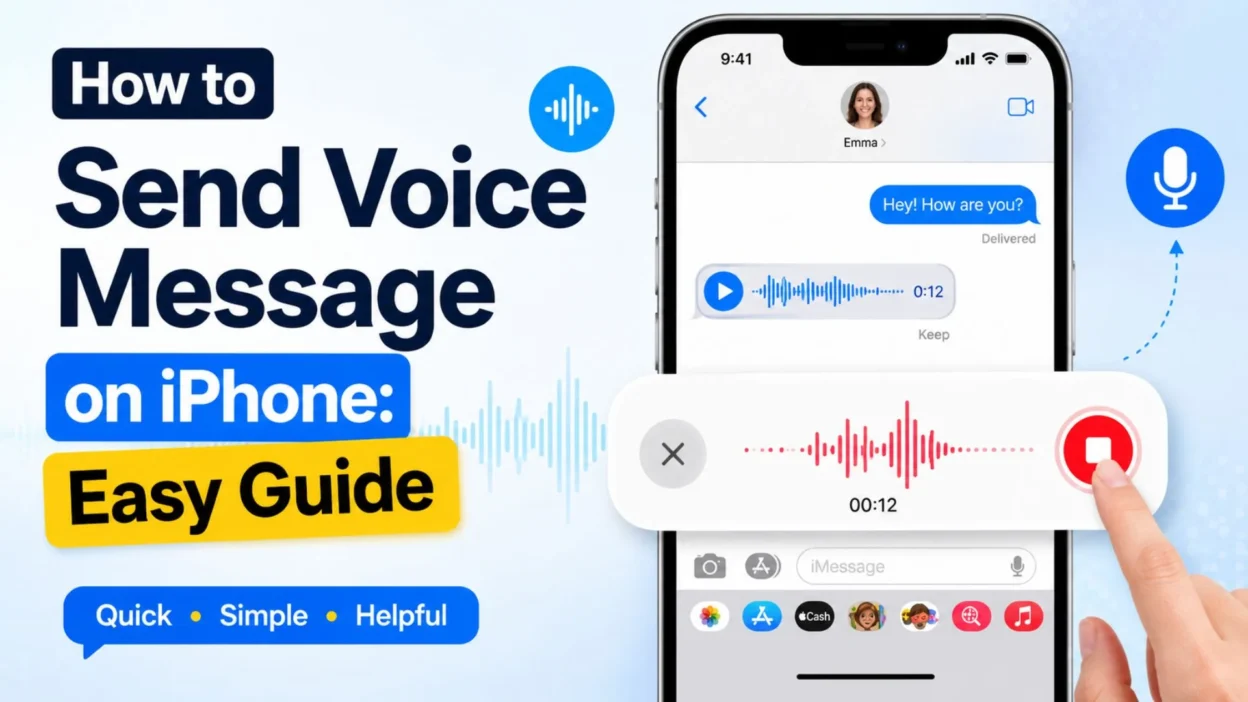
If you are wondering how to send voice message on iPhone, Apple provides a built-in audio message feature in the Messages app. The current process uses the Add (+) button, followed by Audio, so you can record your voice directly inside a conversation.
The good news is that you do not need a separate recording app for a basic audio message. You can record, listen to your recording, continue recording, or cancel it before sending.
This guide walks you through the process in simple steps. It also explains how to save audio messages and what to do if you cannot find the audio option.
How to Send Voice Message on iPhone
The easiest way is through the built-in Messages app. You can record your voice directly inside an existing conversation.
- Open the Messages app on your iPhone.
- Open the conversation where you want to send the voice message.
- Tap the Add (+) button beside the text field.
- Select Audio from the options that appear.
- Start speaking after the recording begins.
- When you finish, tap the Stop button.
- Tap Send to send the audio message.
Your recipient can then play the recording directly from the conversation.
Quick Tip for Sending an Audio Message
- If you send voice messages often, Apple also provides a faster option. Touch and hold the Record Audio button in the text field to begin recording quickly.
- This can save time when you are already inside a conversation.
How to Record a Voice Message Before Sending
Sometimes, you may want to think about what you will say before sending it. Fortunately, the Messages app lets you manage the recording before you send it.
- Open Messages.
- Choose the conversation you need.
- Tap Add (+).
- Tap Audio.
- Speak clearly into your iPhone.
- Tap Stop when you are finished.
- Listen to the recording before sending it.
- If you like it, tap Send.
- If you want to add more, choose the option to Continue Recording.
- If you change your mind, cancel the recording instead.
This is helpful when you want to check your message first. For example, you can replay it to make sure your words are clear.
How to Listen to Your Voice Message Before Sending
A quick review can prevent mistakes. Instead of sending the recording right away, you can play it first.
- Record your audio message in the Messages app.
- Stop the recording.
- Tap the Play button to listen.
- Check that your voice sounds clear.
- If necessary, continue recording.
- Otherwise, tap Send.
This option is especially useful when you are explaining several details. You can make sure the recording sounds complete before sharing it.
How to Send a Longer Voice Message
You may sometimes have more to say than you can fit into a short recording. In that case, you can continue recording before sending.
- Start your audio message from the Messages app.
- Speak at a comfortable pace.
- Tap Stop when you want to pause or end the current recording.
- Use Continue Recording if you want to add more.
- Review the finished recording.
- Tap Send when you are ready.
For longer messages, try to speak clearly and stay close enough to your iPhone microphone. A quiet location can also make the recording easier to understand.
Can You Send Voice Messages Through iMessage?
Yes. The Messages app supports audio messages in conversations. Apple notes that iMessage conversations can include audio messages, along with other types of shared content.
- Open Messages.
- Select the conversation.
- Tap Add (+).
- Choose Audio.
- Record your message.
- Review it if needed.
- Tap Send.
The exact message type can depend on your settings, network connection, and carrier. Apple explains that Messages can use iMessage, SMS/MMS, or RCS depending on the conversation and available features.
How to Send a Voice Message Quickly
When you are already chatting with someone, you may not want to open several menus. Apple provides a faster recording method.
- Open the conversation in Messages.
- Find the Record Audio control near the text field.
- Touch and hold the recording control.
- Speak your message.
- Release or finish the recording as appropriate.
- Send the audio message.
This method is useful for quick replies. However, if you want more control, the Add (+) → Audio method gives you access to the recording controls.
How to Save a Voice Message on iPhone
Audio messages may not remain in the conversation forever. Apple says audio messages are automatically deleted from the conversation on your iPhone after two minutes after you send or listen to them, unless they are kept.
To keep an audio message:
- Open the conversation containing the audio message.
- Find the audio message.
- Tap Keep.
- The message will remain available in the conversation on your iPhone.
The recipient has a similar option. If they want to keep your recording, they need to tap Keep within the available period after listening to it.
How to Keep All Audio Messages on iPhone
If you do not want audio messages to expire automatically, you can change the Messages setting.
- Open Settings.
- Tap Apps.
- Select Messages.
- Find Expire under Audio Messages.
- Choose Never.
This setting can be useful if you regularly exchange important audio messages and want to keep them available.
How to Replay a Voice Message on iPhone
Sometimes you may want to hear an audio message again. The Messages app makes replaying a recording simple.
- Open the Messages app.
- Select the conversation containing the audio message.
- Find the recording you want to hear.
- Tap the Play button.
- Adjust your iPhone volume if the sound is too quiet.
- You can listen again whenever the audio message is still available.
If you want to keep an important recording, tap Keep before it expires. This can be useful for directions, reminders, or meaningful messages you want to hear later.
How to Delete a Voice Message on iPhone
You may also want to remove an audio message from a conversation. For example, you might have sent the wrong recording or simply want to clean up an old chat.
- Open Messages.
- Select the conversation.
- Find the audio message you want to remove.
- Touch and hold the message.
- Choose the available delete option.
- Confirm the action if your iPhone asks you to do so.
Keep in mind that deleting a message from your conversation does not necessarily mean it disappears from the recipient’s device. Therefore, check carefully before removing anything important.
How to Cancel a Voice Message Before Sending
Making a mistake while recording is normal. Fortunately, you do not have to send every recording you start.
- Open the conversation in Messages.
- Tap Add (+).
- Choose Audio.
- Start recording.
- Stop when you are ready to review the message.
- If you do not want to send it, cancel or discard the recording instead of tapping Send.
This is helpful when you lose your train of thought or decide that a text would work better.
How to Send a Voice Message With AirPods
You can use connected headphones for conversations and audio tasks on your iPhone. However, the exact behavior can vary based on your AirPods model, settings, and iOS version.
For a basic voice message, the easiest approach is still the Messages app:
- Connect your AirPods to your iPhone.
- Open Messages.
- Select your conversation.
- Tap Add (+).
- Choose Audio.
- Speak normally.
- Stop the recording.
- Review it if necessary.
- Tap Send.
If the recording does not use the microphone you expect, check your Bluetooth connection and AirPods settings. Also, make sure your iPhone has permission to access the microphone.
How to Send a Voice Message to More Than One Person
You can send an audio message inside a group conversation as long as the conversation supports the relevant Messages features.
- Open Messages.
- Select the group conversation.
- Tap Add (+).
- Choose Audio.
- Record your message.
- Review the recording.
- Tap Send.
Everyone included in the conversation can receive the message according to the messaging service being used.
For an important announcement, speak slowly and keep the recording focused. A short, clear message is often easier for a group to understand.
How to Send a Voice Message Instead of Typing
Voice messages are useful when typing feels inconvenient. They can also help when your message needs more explanation.
For example, you might use one when:
- You are walking and cannot comfortably type.
- You need to explain several details.
- You want to share a quick update.
- You are replying to a long message.
- You want the recipient to hear your tone of voice.
- You are discussing something that would take too long to type.
However, consider the recipient before sending a long recording. A short audio message may be welcome, while a very long recording may be harder to listen to.
How to Make an iPhone Voice Message Clearer
Good audio does not require complicated equipment. A few simple habits can make a noticeable difference.
- Speak at a normal volume.
- Keep the microphone area clear.
- Avoid covering the iPhone microphone with your hand.
- Move away from loud background noise.
- Speak at a steady pace.
- Pause briefly between important points.
- Listen to the recording before sending it when possible.
- Use headphones when they provide a clearer microphone connection.
For example, if you are recording in a busy place, move somewhere quieter first. As a result, the recipient may hear your words more clearly.
What to Do If You Cannot Find the Audio Button
If you are wondering how to send voice message on iPhone but cannot find the Audio option, do not worry. The Messages interface can look different depending on your iOS version.
Start by opening a conversation in Messages. Then look for the Add (+) button beside the text field.
Tap it and check for Audio.
If you still cannot find it, try these steps:
- Close and reopen the Messages app.
- Check whether your iPhone is running a supported iOS version.
- Restart your iPhone.
- Make sure you are using the official Messages app.
- Check your microphone permissions.
- Try another conversation.
Apple’s current iPhone guide places audio messages under the Add (+) menu in Messages. Therefore, checking that menu is a good first step. Apple’s iPhone User Guide
What to Do If Your Voice Message Will Not Record
A voice message may fail to record if your iPhone cannot access its microphone or if the Messages app has a temporary problem.
Try these simple checks:
- Make sure the microphone is not blocked.
- Remove anything covering the microphone area.
- Close and reopen Messages.
- Restart your iPhone.
- Test the microphone in another app.
- Check microphone permissions in Settings.
- Update iOS if an update is available.
If the microphone works in other apps but not Messages, the issue may be related to the app or conversation. In that case, restarting the app can be a useful first step.
What to Do If the Voice Message Has No Sound
A recording can sometimes sound quiet even when it was successfully created.
First, check your volume. Then, replay the message in a quiet place.
You can also try these steps:
- Turn up the iPhone volume.
- Disconnect Bluetooth accessories temporarily.
- Try the recording without headphones.
- Check that the microphone openings are not blocked.
- Record a short test message.
- Play the test recording before sending another message.
If your iPhone’s microphone works normally in other apps, the problem may be limited to the current conversation or playback setup.
What to Do If the Voice Message Is Not Sending
A recorded message may remain unsent if your connection or messaging service has a problem.
Try the following:
- Check your Wi-Fi or cellular connection.
- Wait a moment and try again.
- Close and reopen Messages.
- Check whether other messages are sending.
- Restart your iPhone.
- Make sure your iOS software is up to date.
Apple explains that Messages can use different services, including iMessage, SMS/MMS, and RCS, depending on the conversation and settings. Apple’s Messages support page
Therefore, the exact behavior can differ between conversations.
How to Send a Voice Message Using Siri
Siri can help with some messaging tasks, but the exact commands and available features depend on your iOS version and settings.
If you want to send an audio recording, using the Messages app directly is usually the clearest method.
For a regular text message, Siri can be useful when you cannot type. However, if your goal is specifically to record your voice as an audio attachment, use the Audio option inside Messages.
That gives you more control over the recording before you send it.
Voice Message vs Voice Dictation on iPhone
These two features are easy to confuse.
A voice message records your voice as an audio clip. The recipient listens to your recording.
Voice dictation, on the other hand, turns your spoken words into written text. The recipient receives a text message instead of an audio recording.
Choose a voice message when:
- Your tone matters.
- You want to explain something naturally.
- You do not want to type.
- The message is easier to speak than write.
Choose dictation when:
- The recipient needs written information.
- They may not be able to listen to audio.
- You want the message to be searchable as text.
- The conversation is better suited to written replies.
Knowing the difference can save time. If you want your recipient to hear your actual voice, use the audio-message feature rather than dictation.
When Should You Use an iPhone Voice Message?
Voice messages can be convenient, but they are not ideal for every situation.
They work well for quick explanations, personal updates, friendly conversations, and situations where typing would take too long.
For example, you might send one to explain how to get somewhere or to share a story with a friend.
However, written messages may work better for important information such as dates, addresses, passwords, or instructions. Text is often easier to check later.
Therefore, think about what the recipient needs before choosing audio.
How to Send Voice Message on iPhone: Final Tips
By now, the process should feel much easier. You can record an audio message directly inside the Messages app without opening a separate recording tool.
The basic path is simple:
- Open Messages.
- Choose a conversation.
- Tap Add (+).
- Select Audio.
- Record your voice.
- Stop and review the recording.
- Tap Send when you are ready.
Apple’s current iPhone guide confirms that audio messages can be recorded from the Messages app and that recordings can be reviewed before sending.
For the best results, keep your recording clear and focused. Also, remember that audio messages may expire unless you keep them or change the relevant Messages setting.
Best Tips for Sending Voice Messages
A few small habits can make the experience smoother. These tips are especially useful if you send audio messages often.
- Speak clearly: Use a normal speaking pace so your recipient can follow every word.
- Find a quiet place: Background noise can make recordings harder to understand.
- Keep it focused: Avoid making a simple update much longer than necessary.
- Review important recordings: Listen before sending when the message contains important details.
- Keep useful audio: Tap Keep when you want to save a recording in the conversation.
- Check your microphone: Make sure your hand or phone case is not blocking it.
- Consider the recipient: A written message may be better when someone cannot listen to audio.
- Use headphones when helpful: A connected microphone can sometimes provide a more convenient recording setup.
When a Text Message Is Better
Voice messages are convenient, but they are not always the best choice.
A written message may be easier when you need to share information that someone might want to read later. For example, addresses, appointment times, names, and short instructions are often easier to check in text form.
A text can also be better when the recipient is somewhere they cannot play audio.
On the other hand, voice messages can feel more natural for personal conversations. Your tone can add context that written words sometimes miss.
Therefore, choose the format that suits the situation rather than using audio every time.
Voice Message vs. Voice Memo
These features may sound similar, but they serve different purposes.
A voice message is recorded inside a Messages conversation and sent to another person.
A voice memo is generally a personal recording created with Apple’s recording tools. You can record something for yourself and manage it separately from a Messages conversation.
Use a voice message when you want to communicate directly with someone.
Use a voice recording tool when you want to create or keep a recording for later use.
The right choice depends on what you want to do with the recording.
Can You Send a Voice Message to an Android Phone?
The answer can depend on the messaging method available between the devices.
Apple’s Messages app supports different messaging technologies, including iMessage, RCS, and SMS/MMS. The available features can vary based on the conversation, carrier, and settings.
If you are messaging someone who does not use an Apple device, you may see different options from an iMessage conversation.
So, if an audio feature does not work as expected, check the type of conversation first. Also, make sure your iPhone has a working internet or cellular connection.
Can You Save an Audio Message?
Yes. Apple provides a Keep option for audio messages.
Audio messages can be set to expire automatically. According to Apple’s iPhone guide, they are normally deleted from the conversation after two minutes after you send or listen to them unless they are kept.
To keep one:
- Open the conversation.
- Find the audio message.
- Tap Keep.
You can also adjust the audio-message expiration setting in Messages if you want to keep audio messages automatically.
This is useful when a recording contains something you may need later.
Can You Send a Voice Message Without Typing?
Yes. That is one of the main benefits of an audio message.
Instead of typing a long explanation, you can record your voice directly in Messages.
This can be useful when:
- You are explaining a complicated idea.
- You want to share a quick story.
- You are replying while your hands are busy.
- You want the recipient to hear your tone.
- You have a lot to say and typing feels slow.
However, always consider the recipient. A short recording may be convenient, while a long one may require more time to hear.
Common Mistakes to Avoid
Sending a voice message is simple, but a few mistakes can make the experience less convenient.
- Speaking too quietly: The recipient may struggle to hear you.
- Recording in a noisy place: Background sounds can overpower your voice.
- Making the message too long: Keep your main point clear.
- Forgetting to review it: Important messages deserve a quick listen before sending.
- Not keeping important audio: A recording may expire if you do not save it.
- Using audio for information that needs to be copied: Text can be more useful for addresses, names, and numbers.
- Ignoring your connection: A poor connection can affect message delivery.
These small details can make your conversations easier for everyone.
Frequently Asked Questions
How do I send a voice message on iPhone?
Open Messages, choose a conversation, tap Add (+), and select Audio. Record your message, stop the recording, and tap Send when you are ready.
Where is the voice message button on iPhone?
In current versions of iOS, you can find audio messages through the Add (+) button in a Messages conversation. Select Audio to start recording.
Can I listen to a voice message before sending it?
Yes. After recording, you can play the audio to review it before sending. You can also continue recording or cancel it if needed.
How long do iPhone voice messages last?
Audio messages can automatically expire after two minutes after you send or listen to them unless you keep them. You can also change the Messages setting to keep audio messages longer.
Can I save a voice message on my iPhone?
Yes. Find the audio message in the conversation and tap Keep. You can also change the audio-message expiration setting in Messages.
Why can’t I find Audio in Messages?
The interface can vary with your iOS version and conversation type. Start by tapping Add (+) in the Messages text field. If the option is still missing, check your iOS version and restart Messages.
Is a voice message the same as dictation?
No. A voice message sends an audio recording that the recipient can hear. Dictation converts your spoken words into written text before you send them.
Final Thoughts
Learning how to send voice message on iPhone is easier than it may first seem. Once you know where the Audio option is, you can record and share your voice in just a few moments.
The main steps are simple: open Messages, choose a conversation, tap Add (+), select Audio, record your message, and send it.
However, knowing a few extra features makes the process even better. You can review recordings, continue recording, keep important audio messages, and troubleshoot common microphone or delivery problems.
Most importantly, choose the format that works best for the person receiving your message. Sometimes a quick voice recording feels natural. At other times, a written text is easier to read and save.
So, the next time you need to explain something without typing, try an audio message. With these steps, you can communicate clearly and confidently from your iPhone.

Emma Richardson is a content writer passionate about creating heartfelt messages, wishes, and greetings for every occasion. She enjoys helping readers express their emotions with meaningful words that strengthen relationships and celebrate life’s special moments.