Ever thought of a message at the perfect time, but knew you’d forget to send it later? Maybe you want to wish someone happy birthday at midnight, send a reminder tomorrow, or prepare an important message ahead of time.
Luckily, you can now schedule messages directly in the iPhone Messages app. You don’t need a separate scheduling service for Apple’s built-in option.
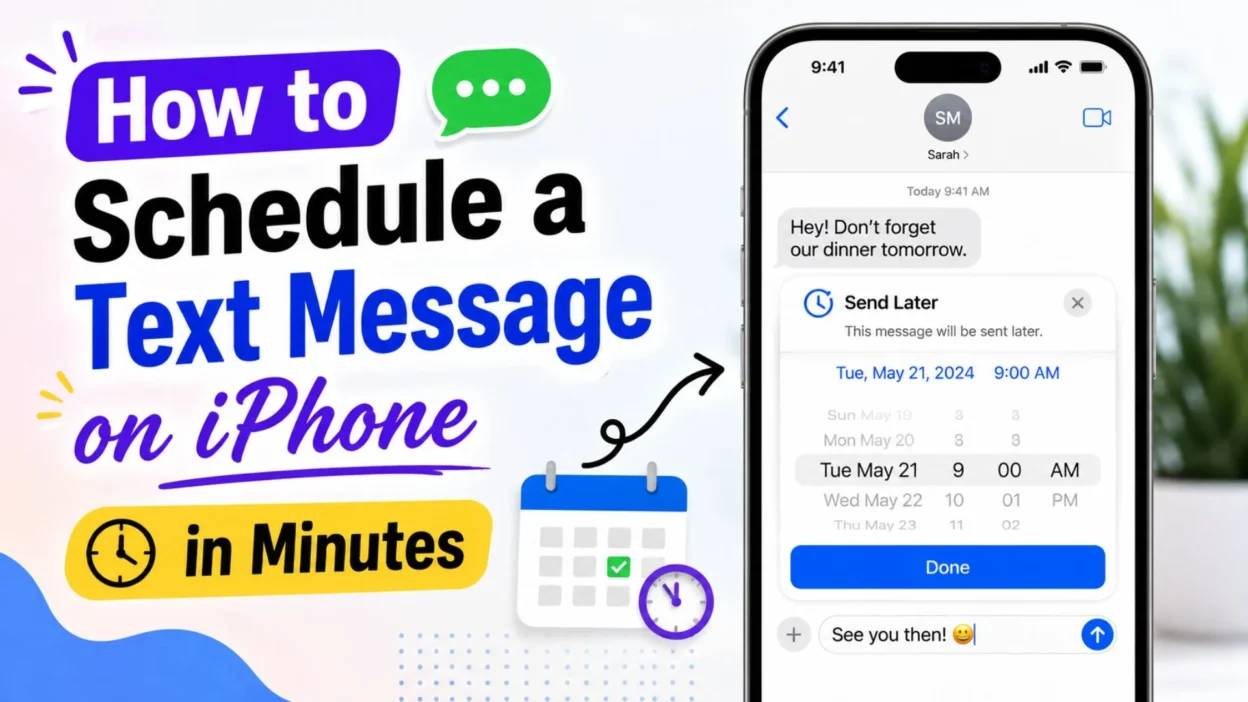
If you’re wondering how to schedule a text message on iPhone, the process is surprisingly simple. Apple calls the feature Send Later, and it lets you choose when an iMessage should be delivered. You can schedule a message up to 14 days ahead.
This guide walks through the basics in clear steps, plus a few useful situations where scheduled texts can save you time.
How to Schedule a Text Message on iPhone
Apple’s built-in Send Later feature lives inside the Messages app. It works with iMessage, so the conversation needs to support iMessage.
- Open the Messages app on your iPhone.
- Open the conversation where you want to schedule the text.
- Alternatively, start a new conversation with the person.
- Tap the + button beside the text field.
- Select Send Later from the available options.
- Tap the displayed time to open the scheduling controls.
- Choose the date and time when you want the message delivered.
- Type your message in the text field.
- Tap the Send button.
- Your message will remain scheduled until its chosen delivery time.
The scheduled message appears differently from a regular sent message. Apple shows it with a dashed outline until delivery.
That makes it easier to spot a message that is waiting to be sent.
What You Need Before Scheduling a Message
The feature is straightforward, but there is one important detail to know.
Apple says Send Later requires iMessage. The recipient can use any device, but your scheduled message itself needs to be sent through iMessage.
- Make sure iMessage is enabled on your iPhone.
- Open Settings if you need to check your Messages settings.
- Go to Apps and then Messages on current iOS versions.
- Confirm that iMessage is turned on.
- Look for a blue iMessage conversation when choosing the recipient.
- Update your iPhone if the Messages interface looks different.
- Remember that some Messages features can vary by carrier, country, or region.
If you normally see blue message bubbles, you’re likely familiar with iMessage already.
How Far Ahead Can You Schedule an iPhone Text?
You can schedule an iMessage up to 14 days into the future using Send Later.
- You can schedule a message for a future date.
- You can choose a specific delivery time.
- You can prepare the message before the day you need it.
- You can reschedule it before delivery.
- You can edit it before it sends.
- You can also delete it before the scheduled time.
This limit makes the feature useful for short-term reminders and special occasions.
For example, you could prepare a birthday message several days early. Then, you won’t have to remember to send it when the big day arrives.
Best Reasons to Schedule a Text Message
Scheduled messages can be useful in everyday situations.
Instead of relying on your memory, you can prepare a message while you’re thinking about it. Then, your iPhone handles the timing.
- Birthday wishes: Prepare a message before the celebration.
- Event reminders: Schedule a reminder for an upcoming plan.
- Morning messages: Write something at night and send it later.
- School reminders: Prepare a helpful reminder for a group conversation.
- Family plans: Schedule details for a convenient time.
- Work-related reminders: Prepare a message during your planning time.
- Travel plans: Send an update when it becomes relevant.
- Holiday greetings: Prepare your message ahead of the occasion.
- Important dates: Avoid forgetting a message you wanted to send.
- Personal reminders: Set up a message for a future conversation.
The best part is simple: you can prepare your words when you have time.
Short Messages Worth Scheduling
Sometimes the hardest part isn’t scheduling the message. It’s deciding what to write.
These short examples work well for everyday situations.
- “Good morning! Hope your day starts on a great note.”
- “Just a reminder about our plans tomorrow.”
- “Happy birthday! Hope your day is fantastic.”
- “Don’t forget about our appointment today.”
- “Hope everything goes smoothly today!”
- “Wishing you a wonderful day ahead.”
- “Just checking in. Hope you’re doing well.”
- “Good luck today! You’ve got this.”
- “Hope your trip goes smoothly. Have fun!”
- “Remember to bring everything you need tomorrow.”
Keep the message natural. A scheduled text should still sound like something you would normally send.
Scheduled Texts for Birthdays
Birthdays are one of the easiest reasons to use Send Later.
You can write the message ahead of time instead of worrying about remembering the exact moment.
- “Happy birthday! Hope your day is filled with great memories and plenty of reasons to smile.”
- “Wishing you a fantastic birthday and an amazing year ahead!”
- “Happy birthday! Enjoy every minute of your special day.”
- “Hope your birthday brings you good times, great company, and lots of laughs.”
- “Another year, another reason to celebrate. Happy birthday!”
- “Wishing you happiness today and plenty of exciting moments this year.”
- “Happy birthday! Hope this next chapter brings you many wonderful surprises.”
Preparing the message early can be especially useful when you know you’ll be busy on the actual day.
Scheduled Texts for Reminders
A scheduled message can also act as a simple reminder.
You might prepare it while planning your week, then schedule it for the moment when the information will be useful.
- “Quick reminder: our plans are tomorrow.”
- “Don’t forget to bring your documents today.”
- “Just a reminder about our meeting later.”
- “Remember, we’re meeting at the usual place.”
- “Friendly reminder about tomorrow’s event.”
- “Don’t forget your appointment today.”
- “Just checking that you’re still good for tomorrow.”
How to Edit a Scheduled Text on iPhone
Plans can change. Luckily, a scheduled message does not have to stay exactly as you first wrote it.
Before the delivery time arrives, you can adjust the message or change when it should send.
- Open the Messages app.
- Open the conversation containing the scheduled message.
- Find the message with the scheduled delivery indicator.
- Tap Edit or use the available message options.
- Change the text if needed.
- Adjust the scheduled date or time when the option appears.
- Save your changes.
- Check the conversation to make sure the updated schedule looks right.
This is handy when plans move by an hour or your original wording suddenly sounds less brilliant.
For example, you might schedule, “See you tomorrow at 5!” and later discover that the plan changed to 6. A quick edit saves you from sending the wrong information.
How to Reschedule a Text Message on iPhone
Sometimes you still want to send the message. You simply need a different delivery time.
In that situation, rescheduling is more useful than deleting the message and starting again.
- Open the conversation with the scheduled message.
- Locate the message waiting for delivery.
- Tap the scheduled message or its available options.
- Choose the option to change its delivery time.
- Select the new date.
- Select the new time.
- Confirm the updated schedule.
- Review the message before leaving the conversation.
Always double-check the time after making a change.
A small scheduling mistake can turn a friendly “Good morning!” into a very confusing “Good morning!” at 11:47 p.m.
How to Delete a Scheduled Text on iPhone
Changed your mind?
You can remove a scheduled message before it reaches the recipient.
- Open Messages.
- Go to the conversation containing the scheduled message.
- Find the message waiting to be delivered.
- Use the message options to delete it.
- Confirm the deletion if your iPhone asks.
- Check that the scheduled message no longer appears.
Deleting a scheduled message can be useful when plans get canceled or the message is no longer relevant.
For example, you may schedule a reminder for an event. Then, the event gets canceled. There is no reason to let your future self accidentally send yesterday’s plans tomorrow.
Can You Edit the Message Before It Sends?
Yes, scheduled messages can be managed before delivery.
That gives you a useful chance to catch mistakes before they reach someone else.
- Check the recipient before sending.
- Read the message again.
- Correct spelling mistakes.
- Update outdated information.
- Change the delivery time if your plans changed.
- Remove the message if you no longer need it.
This is particularly helpful for longer messages.
A scheduled message gives you something many rushed texts do not: a second chance.
What Happens When the Scheduled Time Arrives?
Once the scheduled delivery time arrives, the message is sent according to the Messages system.
You do not need to open the conversation at that exact moment.
That makes scheduling useful when you already know what you want to say but know you might be busy later.
- Write the message in advance.
- Choose the future delivery time.
- Leave the scheduled message in the conversation.
- Let your iPhone handle the timing.
- The message can then reach the recipient around the time you selected.
Of course, the exact experience can depend on your iPhone software, connection, and messaging setup.
Can You Schedule a Text Without Being Awake?
That is one of the biggest advantages of scheduling.
You can prepare a message earlier and choose a later delivery time. Therefore, you do not have to remember to send it manually when the chosen time arrives.
This can be useful for:
- Early-morning reminders
- Birthday greetings
- School-related messages
- Family updates
- Event reminders
- Travel notifications
- Holiday messages
- Personal check-ins
Imagine remembering someone’s birthday at 10 p.m. the night before.
Instead of setting another reminder and hoping you remember again, you can prepare your message and schedule it for the appropriate time.
How to Schedule a Birthday Text on iPhone
Birthday messages are a perfect example of when scheduling can help.
You can write your message while you remember the birthday, then choose a delivery time for the actual day.
- Open Messages.
- Choose the person you want to congratulate.
- Open the message options.
- Select Send Later if available.
- Choose the birthday date and preferred time.
- Write your birthday message.
- Schedule the message.
- Check the conversation afterward.
Here are some copy-ready birthday ideas:
- “Happy birthday! Hope today brings you plenty of smiles and great memories.”
- “Wishing you an amazing birthday and an even better year ahead!”
- “Happy birthday! Enjoy your day and celebrate every little moment.”
- “Hope your birthday is full of good people, good food, and great memories.”
- “Happy birthday! Here’s to another year of adventures and happy surprises.”
- “Wishing you a wonderful birthday. Hope the year ahead treats you kindly.”
You can make the message more personal by mentioning a shared memory or an inside joke.
How to Schedule a Good Morning Text
A scheduled morning message can be useful when you want to send something early without waking yourself up just to type it.
Keep the message natural and short.
- “Good morning! Hope you have a peaceful and productive day.”
- “Morning! Wishing you a really good day today.”
- “Good morning! Hope something wonderful happens today.”
- “Rise and shine! Hope your day gets off to a great start.”
- “Good morning! Sending a little encouragement your way today.”
- “Hope you slept well. Have a great day!”
- “Good morning! Take things one step at a time today.”
A scheduled message should sound like you.
There is no need to make a simple morning text sound like a motivational poster hanging in a dentist’s office.
How to Schedule a Reminder Text
If you often forget to send reminders, scheduling can help you prepare them ahead of time.
For example, you might know on Monday that someone needs a reminder on Thursday.
Instead of hoping you remember Thursday morning, prepare the message while the thought is fresh.
- “Hey! Just a reminder about tomorrow’s plans.”
- “Quick reminder that we’re meeting later today.”
- “Don’t forget the appointment this afternoon.”
- “Just a heads-up about our plans tomorrow.”
- “Reminder: please bring the things we discussed.”
- “Friendly reminder about the event later!”
- “Just checking that tomorrow still works for you.”
For important appointments, deadlines, or tasks, consider using your iPhone’s Calendar or Reminders app too.
A scheduled text is best for communicating with another person. It is not a replacement for every kind of personal reminder.
How to Schedule a Message for an Event
Planning a group activity can involve lots of little details.
A scheduled message can help you send information at a useful time instead of remembering it at the last second.
You might schedule:
- “Reminder: dinner starts at 7 tonight.”
- “See everyone tomorrow! Don’t forget your tickets.”
- “Quick update: we’re meeting at the front entrance.”
- “The event starts soon. See you there!”
- “Just a reminder to bring your ID.”
- “Looking forward to seeing everyone tomorrow!”
If the details change, update the scheduled message before it sends.
That little check can prevent a lot of “Wait, I thought we were meeting there?” texts.
How to Schedule Holiday Messages
Holiday greetings are another great use for scheduled messages.
You can prepare your wishes ahead of time and avoid forgetting the occasion when the day becomes busy.
Try these simple messages:
- “Happy New Year! Wishing you a year filled with peace, happiness, and exciting moments.”
- “Happy Thanksgiving! Hope your day is full of good food and wonderful company.”
- “Merry Christmas! Wishing you a peaceful and joyful holiday.”
- “Happy Easter! Hope your day is filled with happiness and beautiful moments.”
- “Happy Fourth of July! Hope you have a fun and memorable day.”
- “Happy Mother’s Day! Wishing you a beautiful day filled with love.”
- “Happy Father’s Day! Hope you enjoy a relaxing and wonderful day.”
Scheduling can be especially helpful when you have family or friends in different time zones.
How to Schedule Messages for Different Time Zones
Time zones can make messaging surprisingly tricky.
A time that feels normal to you may be extremely early or late for someone somewhere else.
Before scheduling a message for someone in another time zone:
- Check where the recipient is located.
- Consider their normal waking hours.
- Confirm the date in their local time.
- Think about daylight-saving changes when relevant.
- Double-check the scheduled time before leaving the conversation.
This matters most for birthdays, celebrations, and international contacts.
You do not want your thoughtful midnight birthday greeting arriving during someone’s very peaceful 3 a.m. sleep.
Scheduled Text vs. Regular Text
The main difference is timing.
A regular message sends when you tap the send button. A scheduled message waits until the time you choose.
Here is the basic difference:
- Regular text: Send it immediately.
- Scheduled text: Choose a future delivery time.
- Regular text: Best for active conversations.
- Scheduled text: Best when timing matters.
- Regular text: Requires you to remember the moment.
- Scheduled text: Lets you prepare ahead of time.
Neither option is better in every situation.
If someone is waiting for an answer, send the message now. If you are preparing a birthday greeting for tomorrow, scheduling makes more sense.
Why Scheduling Texts Can Be Helpful
The biggest benefit is convenience.
You can capture the thought while it is fresh instead of trusting yourself to remember it later.
That can reduce small everyday mental tasks.
- You can plan messages in advance.
- You can avoid forgetting important dates.
- You can send reminders at useful times.
- You can prepare messages when you have free time.
- You can avoid interrupting your evening to send something.
- You can organize communication around your schedule.
- You can review a message before delivery.
In other words, scheduled messaging lets you separate when you write from when someone receives it.
That small difference can make your phone feel much more useful.
Common Mistakes When Scheduling Texts
Scheduling is simple, but a few mistakes can cause confusion.
Choosing the Wrong Time
Always check whether you selected morning or evening.
A friendly reminder at 8 a.m. is helpful. The same reminder at 8 p.m. may be much less useful.
Forgetting the Date
When scheduling around midnight, birthdays, or holidays, check the date carefully.
The calendar matters just as much as the clock.
Sending Outdated Information
Plans can change.
Before a scheduled message goes out, review it if the information is important.
Scheduling the Wrong Person
Check the conversation before you schedule.
A message intended for one person should never accidentally go to someone else.
Forgetting the Message Is Scheduled
Once you schedule something, you may stop thinking about it.
If the situation changes, remember to revisit your scheduled messages.
Scheduled Texts for Everyday Life
You do not need a special reason to use Send Later.
It can simply help organize small conversations.
- “I’ll send you the address tomorrow morning.”
- “Remember to check the weather before leaving.”
- “Hope your presentation goes well today!”
- “Don’t forget your lunch.”
- “Have a safe trip!”
- “Good luck with everything today.”
- “Let me know when you get there.”
- “Hope your appointment goes smoothly.”
- “Enjoy the weekend!”
- “Just wanted to remind you that I’m thinking of you.”
The best scheduled texts are often simple.
They solve a small problem without creating another one.
When You Should Not Schedule a Text
Scheduling is convenient, but it is not appropriate for every conversation.
If someone is waiting for an answer, respond when you can.
Likewise, urgent situations should not depend on a scheduled message. A scheduled text is designed for convenience, not emergencies.
You may also want to avoid scheduling something when the message depends on information that could change.
For example:
- Last-minute meeting changes
- Urgent updates
- Time-sensitive emergencies
- Conversations requiring an immediate reply
- Information that could become outdated
In those cases, send the message when you know the details are correct.
Quick Checklist Before Scheduling
A quick review can prevent mistakes.
- Is the recipient correct?
- Is the message accurate?
- Is the date correct?
- Is the time correct?
- Is the morning or evening setting correct?
- Does the message still make sense if plans change?
- Have you checked the conversation afterward?
If everything looks right, you are ready.
Copy-Paste Ready Scheduled Texts
Need something quick?
Save these for moments when you want a simple message without writing one from scratch.
- “Just wanted to make sure you remember our plans today.”
- “Hope your day is going really well!”
- “Good morning! Wishing you a calm and happy day.”
- “Happy birthday! Hope you have an incredible day!”
- “Good luck today. I’m cheering you on!”
- “Have a safe trip and enjoy every minute!”
- “Just a quick reminder about tomorrow.”
- “Hope everything goes smoothly today!”
- “Wishing you a wonderful weekend!”
- “Don’t forget to take a little time for yourself today.”
- “Hope you have a great day ahead!”
- “Just checking in and hoping you’re doing well.”
- “Enjoy your evening! Talk soon.”
- “Have fun today and make some great memories.”
- “Wishing you a peaceful and productive day.”
Best Tips for Scheduling Texts on iPhone
Once you know how to schedule a text message on iPhone, the feature becomes even more useful when you build a few simple habits around it.
These tips can help you avoid mistakes and make scheduled messages feel more natural.
- Write important messages when the details are fresh.
- Double-check the recipient before scheduling.
- Review the date and time carefully.
- Keep scheduled reminders short and clear.
- Personalize birthday and holiday messages.
- Review future messages when plans change.
- Use Calendar or Reminders for tasks you need to remember yourself.
- Avoid scheduling urgent messages.
- Check whether the conversation supports iMessage.
- Keep your iPhone updated so the Messages interface matches current features.
Most importantly, do not schedule a message simply because you can.
Use the feature when it genuinely makes communication easier.
How to Schedule a Text Message on iPhone for Work
Scheduled messages can also help with everyday work communication.
For example, you might prepare a reminder while planning your day. Then, you can schedule it for a reasonable time instead of interrupting your workflow later.
Try messages such as:
- “Good morning! Just a quick reminder about our meeting today.”
- “Hi! Sharing a reminder about the deadline later this week.”
- “Just checking that our scheduled time still works for you.”
- “Quick reminder about the documents we discussed.”
- “Hope your morning is going well. Just wanted to confirm our plans.”
- “Friendly reminder that we’re meeting this afternoon.”
- “Just following up on the information we discussed earlier.”
Keep workplace messages professional and direct.
Also, remember that scheduled texts should not replace your organization’s official communication tools when those tools are required.
How to Schedule a Text for School
Students and families can also find scheduled messages useful for ordinary reminders.
For example, you could prepare a reminder about an event or something that needs to be brought along.
- “Don’t forget your project tomorrow.”
- “Reminder: the event starts after school today.”
- “Remember to bring your permission form.”
- “Good luck with your presentation today!”
- “Don’t forget your books before leaving.”
- “Hope your test goes well today!”
- “Just a reminder about tomorrow’s plans.”
For important deadlines, however, use a calendar or reminder system too.
A scheduled text is helpful communication. It should not be your only system for remembering something important.
How to Schedule a Text for Travel
Travel often involves details that are easy to forget.
You can prepare messages before your trip and schedule updates for useful times.
For example:
- “Good morning! Heading out today. I’ll let you know when I arrive.”
- “Just a reminder that I’m leaving this afternoon.”
- “I should arrive around the planned time.”
- “I’m on my way. I’ll update you when I get there.”
- “Hope you have a great trip!”
- “Safe travels! Enjoy the adventure.”
- “Just checking in to let you know everything is going smoothly.”
If travel plans change, remember to review any scheduled messages.
That matters because a message containing an old arrival time can quickly become confusing.
Can You Schedule Multiple Text Messages?
You may have several messages that need to go out at different times.
For example, you might prepare birthday wishes, reminders, and event updates during the same planning session.
The important thing is to review each scheduled message carefully.
- Check every recipient.
- Check every delivery time.
- Check each date.
- Review the wording.
- Remove messages that are no longer needed.
- Update messages when plans change.
If you schedule several messages, organization becomes especially important.
A quick review can save you from sending a message meant for Friday on Thursday.
Can You Schedule a Text to Yourself?
You can use messaging as a way to send information to yourself, but it is usually better to use the iPhone’s dedicated productivity tools for personal reminders.
For example, Reminders is designed for tasks and alerts. Calendar is better suited to appointments and events.
Use Messages when another person needs to receive the information.
Use the appropriate productivity app when the reminder is primarily for you.
That distinction keeps your digital organization much cleaner.
What If “Send Later” Is Missing?
If you do not see Send Later, do not assume your iPhone is broken.
The feature has specific requirements, and the Messages interface can vary depending on your software version and settings.
Try these checks:
- Confirm that you are using a current iOS version.
- Open an iMessage conversation.
- Tap the + button beside the message field.
- Look for Send Later among the available options.
- Check whether iMessage is enabled.
- Make sure the conversation is using iMessage.
- Restart Messages if the interface appears unusual.
- Check Apple’s current support documentation if the option still does not appear.
Apple notes that Send Later is an iMessage feature. Therefore, it may not appear for conversations that do not use iMessage.
Does the iPhone Need to Be On?
For scheduled messages, it is sensible to keep your iPhone functioning normally and connected.
However, the important point is that you do not have to manually open Messages at the scheduled time.
The feature exists specifically so you can prepare the message beforehand.
If you are relying on a scheduled message for something important, it is still smart to make sure your device is operating normally and has a connection.
Can You Schedule a Text More Than 14 Days Ahead?
Apple currently states that Send Later allows messages to be scheduled up to 14 days in advance.
That means it is excellent for short-term planning.
For dates farther in the future, consider putting a reminder in Calendar or Reminders. Then, when the date approaches, you can prepare and schedule the actual message.
This approach works especially well for birthdays and annual events.
Is Scheduled Messaging Available for Every Text?
No.
The built-in Send Later feature is designed for iMessage, rather than every type of text message. Apple specifically identifies it as an iMessage feature.
That distinction matters because iPhone users can communicate through different messaging systems.
If you do not see Send Later in a particular conversation, check whether you are using an iMessage conversation and whether your iPhone software supports the feature.
Scheduled Message vs. Reminder: Which Should You Use?
The two tools solve different problems.
Use a scheduled message when:
- Another person needs to receive the message.
- You already know what you want to say.
- Timing matters.
- You want the message delivered automatically.
Use a reminder when:
- You need to remember something yourself.
- The task still needs action later.
- You are not ready to write the message.
- You need recurring reminders.
For example, if you need to remember your friend’s birthday, a reminder makes sense.
If you already wrote the birthday message and simply want it delivered on the morning of the birthday, scheduling makes more sense.
Best Times to Use Send Later
There are plenty of moments when this feature can save a little mental effort.
Consider it when:
- You remember something late at night.
- You want a birthday greeting to arrive at a specific time.
- You need to send a reminder tomorrow.
- You are preparing holiday messages.
- You want to send a morning update.
- You are planning an event.
- You need to communicate across time zones.
- You want to prepare several messages in advance.
- You are traveling and want to plan updates.
- You have a message ready but do not want to send it immediately.
The idea is simple: write now, deliver later.
on iPhone
If you only need the short version, here it is:
- Open Messages.
- Choose an iMessage conversation.
- Tap +.
- Select Send Later.
- Choose the date and time.
- Write your message.
- Tap Send.
- Review the scheduled message if needed.
- Edit, reschedule, or delete it before delivery when necessary.
That is the basic process.
The feature is designed to make timing easie
(FAQS) about Scheduling Texts on iPhone
How do I schedule a text message on iPhone?
Open Messages, choose an iMessage conversation, tap the + button, select Send Later, choose the delivery time, write your message, and tap send. Apple currently supports scheduling up to 14 days ahead.
Can I schedule an iPhone text for tomorrow?
Yes. If the conversation supports iMessage, you can choose a future date and time within Apple’s supported scheduling window.
Can I schedule a text message on iPhone without an app?
Yes. Apple provides the built-in Send Later feature in Messages for supported iMessage conversations. You do not need a separate scheduling app for this feature.
Can I edit a scheduled iMessage?
Apple allows scheduled messages to be managed before they are sent. You can make changes when necessary rather than leaving an outdated message waiting for delivery.
Can I schedule a text more than two weeks ahead?
Not with the current built-in Send Later limit. Apple says messages can be scheduled up to 14 days ahead. For farther dates, use Calendar or Reminders to help you remember when to prepare the message.
Why can’t I find Send Later on my iPhone?
First, check that you are using an iMessage conversation and a supported iOS version. Apple identifies Send Later as an iMessage feature, so it may not appear in every type of conversation.
Final Thoughts
Knowing how to schedule a text message on iPhone can make everyday communication a little easier.
Instead of keeping a future message in your head, you can prepare it while you remember. Then, you can choose a suitable delivery time and move on with your day.
It works especially well for birthday wishes, reminders, morning messages, event updates, holidays, and other situations where timing matters.
However, keep one thing in mind: scheduled messaging works best for planned communication. For urgent situations, send the message immediately. For personal tasks, Calendar or Reminders may be a better fit.
Most importantly, review your scheduled messages when plans change. A thoughtful message is only helpful when the timing and information are still right.
So, the next time you think, “I need to remember to text them later,” you already know what to do.
Write it now. Schedule it wisely. Let your iPhone handle the timing.

Emma Richardson is a content writer passionate about creating heartfelt messages, wishes, and greetings for every occasion. She enjoys helping readers express their emotions with meaningful words that strengthen relationships and celebrate life’s special moments.