- Seeing a security warning on your iPhone can be unsettling, especially when a message mentions the NSA, surveillance, or a possible device threat. It is natural to wonder whether the warning is official or whether you need to change a setting immediately.
- If you searched for NSA warning message settings, you may be looking for a specific iPhone option that controls these alerts. However, there is no standard iPhone setting specifically designed to manage “NSA warning messages.” What you see is more likely to be a normal Apple security notification, a privacy alert, a carrier or emergency notification, or a suspicious message using the NSA name to appear convincing.
- The good news is that you can take sensible steps without panicking. Checking your iPhone’s software, privacy permissions, Messages settings, and account security can help you understand what is happening.
- This guide explains the NSA warning message settings search in simple terms, shows which iPhone settings matter most, and highlights warning signs that can help you distinguish a legitimate notification from a possible scam.
What Does “NSA Warning Message Settings” Mean?
- The phrase NSA warning message settings can sound like Apple has a dedicated control for warnings sent directly by the National Security Agency. That interpretation is misleading.
- iPhones have built-in security and privacy features that can display alerts about apps, websites, accounts, software, and other security-related activity. These notifications are normally associated with Apple or the relevant service rather than being presented as a direct NSA notification.
- If a text message, pop-up, or webpage suddenly claims that the NSA has detected a problem with your iPhone, treat the claim carefully.
- An alarming message does not automatically mean your phone has been compromised. Scammers can use official-sounding names and urgent language to make people react before checking the source.
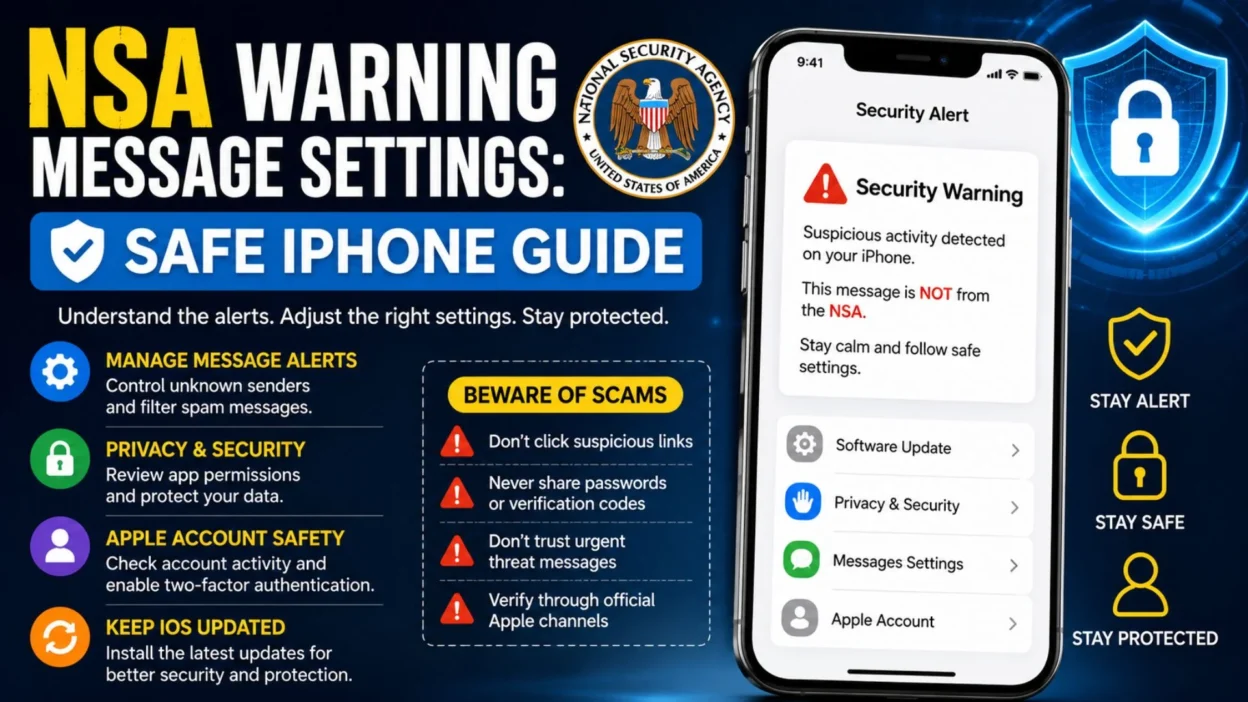
Top NSA Warning Message Settings to Check on iPhone
- There is no single switch for “NSA warnings,” so focus on the iPhone settings that actually control security, privacy, and unwanted messages.
- Software Update: Keep iOS updated so your device can receive available security fixes and improvements.
- Privacy & Security: Review which apps have access to information such as your location, camera, microphone, contacts, and other sensitive data.
- Messages: Check available message-filtering options if you are receiving unexpected texts.
- Apple Account security: Review account activity and security information if you suspect that someone else may have accessed your account.
- Safari: Pay attention to website security warnings and avoid interacting with suspicious pages.
- Face ID & Passcode: Use a strong device passcode and available authentication features to help protect access to your phone.
- These settings are much more relevant to iPhone security than looking for a hidden “NSA warning” switch.
Short NSA Warning Message Settings Tips
- Check the sender before trusting a security warning.
- Do not assume a message is official because it uses the word “NSA.”
- Avoid tapping suspicious links in unexpected messages.
- Keep iOS updated.
- Review your Privacy & Security settings regularly.
- Check Messages settings when unwanted texts appear.
- Look for unfamiliar apps on your iPhone.
- Review account security if something seems unusual.
- Do not provide passwords through unexpected messages.
- Never share verification codes with someone who contacts you unexpectedly.
- Be cautious when a message demands immediate action.
- Treat threats about account suspension with skepticism.
- Use Apple’s official support channels when you need to verify a genuine Apple-related warning.
- Take a screenshot of a suspicious message if you need to document it.
- Delete suspicious messages after you have preserved the information you need.
Best NSA Warning Message Settings for iPhone Security
- Instead of searching for one special NSA setting, it is better to review several built-in iPhone protections. These controls can help you manage privacy and reduce exposure to suspicious activity.
Software Update Settings
- Keeping your iPhone updated is one of the simplest security habits you can maintain.
- Open the iPhone’s Settings app and look for the software update section. If an update is available, review it and follow Apple’s normal update process.
- Security updates can address vulnerabilities discovered after an earlier version of iOS was released. That makes regular updates an important part of protecting your device.
- Do not install an update because a random message tells you to use a strange website. Use the normal iPhone update process instead.
Privacy & Security Settings
- The Privacy & Security area gives you control over which apps can access sensitive information.
- Review permissions for location, camera, microphone, contacts, photos, and other information.
- If an app has access that does not make sense for what the app does, review whether that permission is still necessary.
- Regular permission checks can help you understand which applications are interacting with sensitive parts of your device.
Messages Settings
- If your concern comes from unexpected texts, review the available Messages features on your iPhone.
- Options related to filtering unknown senders can help reduce unwanted messages and separate unfamiliar conversations from messages you recognize.
- Remember that filtering a message does not automatically prove that the sender is dangerous. It simply gives you another way to manage messages from people you do not recognize.
- If a message claims to be from a government agency and asks you to click a link, provide personal information, or take urgent action, verify it independently before doing anything.
Safari Security Settings
- A suspicious warning may appear while browsing rather than inside Messages.
- Safari can display warnings when there are problems with a website’s security certificate or when a webpage presents other security concerns.
- A webpage claiming that “the NSA detected a virus” should not automatically be treated as an official government warning.
- Close suspicious pages instead of following instructions that ask you to download unknown software or provide private information.
One-Line NSA Warning Message Settings Reminders
- No special iPhone setting controls direct “NSA warnings.”
- Keep iOS updated for better security.
- Review Privacy & Security permissions regularly.
- Check Messages settings for unwanted texts.
- Verify unexpected security claims independently.
- Never trust a warning simply because it sounds official.
- Avoid suspicious links in unsolicited messages.
- Protect your Apple Account with strong security practices.
- Review unfamiliar account activity when something seems wrong.
- Use trusted Apple channels for Apple-related questions.
- Do not provide passwords through unexpected alerts.
- Do not share verification codes with strangers.
- Be cautious of messages designed to create panic.
- A scary message does not automatically mean your iPhone is hacked.
- Check the source before taking action.
Why an NSA Warning Message May Be a Scam
- Security-themed scams often rely on fear. A message may claim that your phone has been monitored, infected, compromised, or flagged by a government agency.
- The goal is often to make you act quickly instead of thinking carefully.
- Common warning signs include unexpected contact, urgent language, threats, requests for personal information, suspicious links, and claims that you must immediately pay or install something. These are important reasons to stop and verify the source before responding.
- A legitimate security notice should make sense in the context where you received it. If a random text message suddenly claims to represent a major government agency, that deserves extra scrutiny.
- When in doubt, do not use the phone number, link, or contact details included in the suspicious message. Look for the appropriate official channel independently.
What to Do When You See an NSA Warning Message
- Stay calm: An unexpected warning can sound serious, but the wording alone does not prove that your device is compromised.
- Do not click immediately: Avoid links, downloads, and buttons inside suspicious messages.
- Check the source: Consider whether the message came from a service you actually use.
- Look for pressure tactics: Urgent deadlines, threats, and demands for immediate action are warning signs.
- Protect your information: Do not provide passwords, payment details, or verification codes in response to an unexpected message.
- Take a screenshot: Keeping a record can help if you later need to report or investigate the message.
- Check your iPhone settings: Review software updates, Privacy & Security, Messages, and account security.
- Verify independently: If the message claims to be from Apple, use Apple’s established support channels rather than the contact information supplied in the suspicious message.
- Report or remove the message: Once you have preserved the necessary information, use the appropriate reporting or deletion options available on your device.
How to Check NSA Warning Message Settings on iPhone
- If you are trying to control suspicious security-related texts, the most useful settings are found in Messages, Privacy & Security, and your Apple Account security options.
- In current iOS versions, Apple provides features for screening unknown senders and filtering spam. These controls can help separate unfamiliar messages from conversations you recognize.
- There is still no ordinary iPhone switch labeled “NSA Warning Message.” Instead, focus on the actual security controls available on your device.
Screen Unknown Senders
- On iOS 26, you can open Messages, tap Filters, choose Manage Filtering, and find Unknown Senders.
- You can also reach the setting through Settings > Apps > Messages > Unknown Senders.
- When enabled, messages from unfamiliar senders can be placed in the Unknown Senders area rather than appearing with your regular conversations.
- This feature is useful when suspicious texts are the reason you searched for NSA warning message settings.
Filter Spam Messages
- iOS 26 also includes message spam filtering.
- You can open Messages, tap Filters, select Manage Filtering, and review the spam-filtering controls.
- Messages identified as spam can appear in the Spam folder instead of your normal conversation list.
- If a legitimate message is incorrectly filtered, you can review the Spam folder and mark it as not spam when the appropriate option is available.
Manage Messages Notifications
- If you are receiving too many alerts from unfamiliar senders, review your Messages notification settings.
- Apple currently provides controls for notifications from unknown senders, including categories such as time-sensitive messages, personal messages, transactions, and promotions in supported regions.
- This can help reduce distractions without assuming that every unfamiliar message is dangerous.
Best NSA Warning Message Settings for Suspicious Texts
- A suspicious message should be handled carefully, especially when it uses government or security terminology.
- The safest response is to avoid reacting to the message itself until you understand where it came from.
- Check the sender: Look at the number or address instead of trusting the name displayed in the conversation.
- Avoid unexpected links: A security warning should not automatically convince you to open a link.
- Do not share verification codes: Never send an authentication code to someone who unexpectedly asks for it.
- Avoid unknown downloads: Do not install an app, profile, or other software simply because a message claims your device is at risk.
- Check official sources independently: If a message claims to represent Apple or another organization, use that organization’s established website or support channel rather than the contact details inside the suspicious message.
- Block suspicious senders: iPhone provides tools for blocking unwanted numbers and contacts.
- Report spam when appropriate: Apple provides reporting options for certain unwanted messages, depending on the message type, carrier, and region.
Apple Threat Notifications vs. Random NSA Messages
- This distinction is especially important if a message claims that a government agency has detected spyware on your iPhone.
- Apple does have genuine threat notifications for users whom Apple believes may have been individually targeted by highly sophisticated mercenary spyware. These notifications are different from ordinary spam or scary text messages.
- Apple says genuine threat notifications can appear on the iPhone, in Settings, through email, and on the user’s Apple Account page, depending on the device and software version.
- Apple also says genuine threat notifications do not ask users to click links, open files, install apps or profiles, or provide an Apple Account password or verification code through email or phone calls.
- If you receive what appears to be an Apple threat notification, Apple recommends verifying it by signing in to account.apple.com rather than trusting a link supplied by the message.
- This is why the phrase NSA warning message settings should not be interpreted as proof that the NSA has contacted you directly.
Short NSA Warning Message Settings Checklist
- Check whether the message came from a known contact.
- Review the message for suspicious links.
- Avoid opening unexpected attachments.
- Do not share your Apple Account password.
- Never provide a verification code to an unexpected caller or texter.
- Check Messages filters for unknown senders.
- Review the Spam folder.
- Block suspicious contacts when appropriate.
- Report spam when the option is available.
- Keep your iPhone updated.
- Review Privacy & Security settings.
- Verify genuine Apple threat notifications through your Apple Account.
- Do not install an unknown profile because of a frightening message.
- Do not assume a government name makes a message legitimate.
- Take suspicious claims seriously without immediately believing them.
When Should You Use Lockdown Mode?
- Lockdown Mode is a real iPhone security feature, but it is not a normal setting that everyone needs to enable because of a suspicious text.
- Apple describes Lockdown Mode as an extreme protection feature intended for people who may face highly sophisticated cyberattacks. It restricts certain device functions to reduce potential attack opportunities.
- Apple specifically notes that most people are never targeted by attacks of this type.
- If you have received a genuine Apple threat notification, Apple may recommend additional protective steps, including Lockdown Mode.
- If you simply received a random text claiming that the NSA found a problem with your phone, that message alone is not a reason to assume you need Lockdown Mode.
- The feature is found under Settings > Privacy & Security > Lockdown Mode on supported iPhones.
What to Do If You Already Clicked a Suspicious Message
- If you accidentally interacted with a suspicious text, do not panic.
- Close the webpage or message and avoid following additional instructions from the sender.
- If you entered an account password into a suspicious website, change that password through the legitimate service’s official website or app.
- If you entered payment information, contact the relevant financial institution through its normal official contact method.
- Review your Apple Account security if you believe account information may have been exposed.
- Keep your iPhone updated and review unfamiliar apps or settings.
- If the message claimed to be an Apple threat notification, verify the claim directly through your Apple Account rather than returning to the original message.
- The important thing is to respond calmly and use trusted channels instead of continuing the conversation with a suspicious sender.
One-Line NSA Warning Message Settings Reminders
- There is no standard iPhone setting called “NSA Warning Message.”
- Screen Unknown Senders can help organize unfamiliar texts.
- Spam filtering can separate suspected junk messages.
- Genuine Apple threat notifications are different from ordinary scary texts.
- Apple threat notifications can be verified through your Apple Account.
- Never provide your Apple Account password to an unexpected message.
- Never share a verification code with a stranger.
- Avoid suspicious links and attachments.
- Keep iOS updated.
- Review Privacy & Security settings regularly.
- Lockdown Mode is designed for unusually high-risk situations.
- A frightening message does not automatically prove your iPhone is compromised.
- Verify first instead of reacting immediately.
- Use official support channels for genuine security concerns.
- Protect your account before investigating suspicious messages further.
Best NSA Warning Message Settings for Sharing
- If you want to explain a suspicious security message to someone else, keep the wording simple and avoid repeating unverified claims.
- These short messages can help you share safe reminders about unexpected iPhone warnings.
- “A scary security text does not automatically mean your iPhone has been hacked.”
- “If a message claims to be from the NSA, verify it before taking action.”
- “Never share your Apple Account password because of an unexpected warning.”
- “Do not click suspicious links simply because a message sounds urgent.”
- “Keep your iPhone updated and review your privacy settings regularly.”
- “Check Messages filtering when unfamiliar texts keep appearing.”
- “A government name in a text message does not prove the message is official.”
- “Verify security warnings through trusted sources, not through links in suspicious texts.”
- “If a message pressures you to act immediately, pause and investigate first.”
- “Protect your information before trying to solve the warning.”
- “When in doubt, use official support channels to verify the claim.”
- “Unknown messages deserve caution, not panic.”
- “Review your iPhone security settings regularly instead of waiting for a warning.”
- “If something feels suspicious, stop before clicking.”
Best NSA Warning Message Settings for Captions
- These caption ideas are useful for short posts about iPhone security, privacy, and suspicious messages.
- “Security first, panic never. 🔐”
- “Pause. Verify. Then act.”
- “Not every warning deserves a click.”
- “Protect your phone and your information.”
- “A scary message is not proof.”
- “Think before you tap.”
- “Verify the source, not just the story.”
- “Keep your iPhone secure and your information private.”
- “Unknown sender? Proceed carefully.”
- “Smart security starts with a second look.”
- “When a message sounds urgent, slow down.”
- “Privacy is worth protecting.”
- “Your password belongs to you.”
- “Never let a scary notification rush your decision.”
- “Stay alert without jumping to conclusions.”
Copy-Paste Ready Messages
- “I received a security-related message, but I’m going to verify the source before doing anything.”
- “I’m checking my iPhone settings and official support information instead of trusting the warning immediately.”
- “The message may be suspicious, so I’m avoiding its links and attachments.”
- “I’m not sharing any passwords or verification codes in response to this message.”
- “I’m checking whether the warning is a genuine Apple notification or simply an unsolicited text.”
- “I’ll verify the claim through an official source rather than contacting the number in the message.”
- “I’m keeping my iPhone updated and reviewing my privacy settings.”
- “I received an unfamiliar security warning, so I’m taking a careful approach.”
- “I’m checking Messages filtering because the sender is not someone I recognize.”
- “I’m not assuming the message is legitimate just because it mentions a government agency.”
- “I’ll report or delete the suspicious message after preserving the information I need.”
- “I’m reviewing my account security because the message raised concerns.”
- “I’m using trusted support channels if I need help verifying the warning.”
- “I’m staying calm and checking the facts before making changes to my iPhone.”
- “I’m treating the message cautiously without assuming the worst.”
FAQ About NSA Warning Message Settings
Is there an iPhone setting called NSA Warning Message Settings?
- No. There is no standard iPhone setting specifically named “NSA Warning Message Settings.” The phrase is generally used when people are searching for information about security-related warnings, suspicious texts, or iPhone privacy controls.
Can the NSA send a warning directly to my iPhone?
- Do not assume that an unexpected text claiming to be from the NSA is genuine. A message using a government agency’s name can be misleading or fraudulent. Verify unusual claims through trustworthy official channels.
What iPhone settings should I check for suspicious messages?
- Review Messages filtering options, Privacy & Security, software updates, and your Apple Account security. These settings are more relevant than searching for a special NSA warning switch.
What is an Apple threat notification?
- Apple threat notifications are security alerts intended for users whom Apple believes may have been individually targeted by highly sophisticated spyware attacks. They are different from ordinary suspicious text messages. Apple provides instructions for verifying genuine notifications through your Apple Account. Apple’s official threat notification guidance
Should I turn on Lockdown Mode after receiving a suspicious message?
- Not automatically. Apple describes Lockdown Mode as an extreme security protection for people who may face highly sophisticated cyberattacks. A random alarming text by itself does not prove that you need it. Apple’s Lockdown Mode guide
Final Thoughts
- Searching for NSA warning message settings can be confusing because the phrase sounds like there should be a dedicated iPhone switch for government security alerts. In reality, there is no ordinary iPhone setting with that exact name.
- The better approach is to focus on the security tools that actually exist. Keep iOS updated, review Privacy & Security permissions, use Messages filtering for unfamiliar texts, and protect your Apple Account.
- Most importantly, do not let an alarming message rush you into clicking a link, downloading something, or sharing private information. A warning that looks official can still be misleading.
- If you receive a genuine Apple threat notification, verify it through Apple’s established channels rather than trusting links or contact details supplied in an unexpected message. For unusual situations, official guidance is far safer than advice from a random text.
- Save these reminders if you regularly receive suspicious messages. A few careful habits can make it much easier to handle unexpected warnings without unnecessary stress.
- When a security message tries to create panic, slow down, verify the source, and protect your information first.

Emma Richardson is a content writer passionate about creating heartfelt messages, wishes, and greetings for every occasion. She enjoys helping readers express their emotions with meaningful words that strengthen relationships and celebrate life’s special moments.