- Sending an email too quickly can happen to anyone. Maybe you spotted a typo, attached the wrong file, forgot an important detail, or suddenly realized that the message went to the wrong person. That is when knowing how to recall a message in Outlook can save you from an awkward follow-up.
- Outlook includes a message recall feature, but it does not work in every situation. Microsoft says recall is generally available when both you and the recipient use Microsoft 365 work or school accounts within the same organization. The recipient also needs to have not opened the message.
- If you use a personal Outlook.com, Hotmail.com, Live.com, or MSN.com account, you cannot recall an email after it has been sent. Instead, Outlook offers an Undo Send option that delays sending for a short period.
- This guide explains the recall process in simple language, covers the main Outlook versions, and shows what to do when recall is unavailable.
What Does It Mean to Recall a Message in Outlook?
- Recalling a message means asking Outlook to remove a sent email from a recipient’s mailbox before they have opened it.
- In supported Microsoft 365 environments, you can also choose to replace the original email with an updated version. For example, you might use this option if you forgot an attachment or need to correct important information.
- Recall is not the same as deleting a message from your own Sent Items folder. Deleting your copy does not automatically remove the recipient’s copy.
- The feature also is not a guaranteed “undo” button. Its success depends on the account setup, organization, recipient, and whether the message has already been opened.
Top Ways to Recall a Message in Outlook
- The exact steps can vary depending on whether you use new Outlook, classic Outlook, or Outlook on the web.
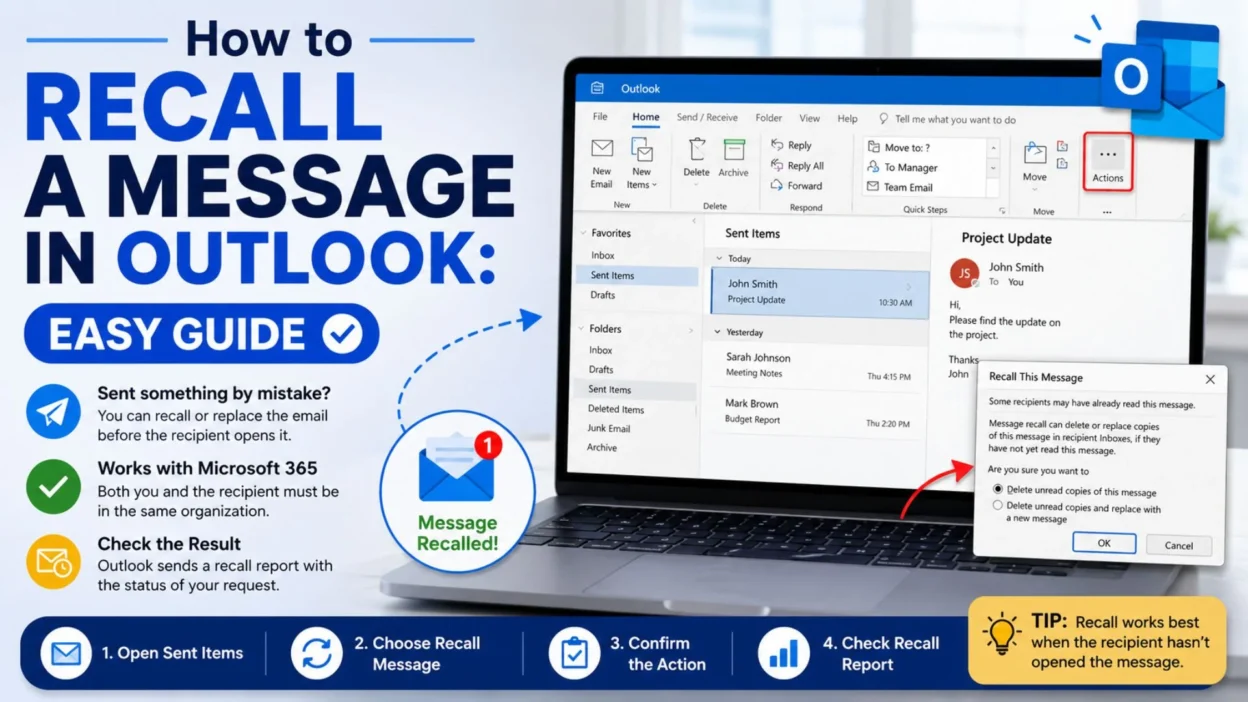
- New Outlook: Open Sent Items, open the sent email, choose Recall Message, and confirm the request. Outlook then sends a recall report showing whether the request succeeded, is pending, or failed.
- Classic Outlook: Open the message from Sent Items, then use the Recall This Message command. You can choose to delete unread copies or delete unread copies and replace them.
- Outlook on the web: For supported Microsoft 365 work or school accounts, open the message in Sent Items and select Recall Message. A recall report follows the request.
- Outlook.com personal accounts: You cannot recall an email after sending. Instead, configure Undo Send to create a short cancellation window before Outlook sends the message.
Short How to Recall a Message in Outlook Tips
- Open Sent Items first.
- Open the actual message rather than relying only on the reading pane when using classic Outlook.
- Look for the Recall Message command.
- Confirm that your account supports recall.
- Remember that recall generally requires both accounts to be in the same Microsoft 365 organization.
- Recall works best when the recipient has not opened the message.
- Use the replacement option when you need to correct the original email.
- Check the recall report after submitting the request.
- Do not assume deleting your Sent Items copy recalls the email.
- Personal Outlook.com accounts cannot recall messages after sending.
- Use Undo Send on supported personal Outlook.com accounts.
- Act quickly when you realize an email needs to be recalled.
- Double-check recipients and attachments before sending future messages.
How to Recall a Message in New Outlook
- If you use new Outlook for Windows with a supported Microsoft 365 work or school account, the process is straightforward.
- Open Sent Items: Find the email you want to recall.
- Open the message: Double-click the email so it opens separately.
- Select Recall Message: Use the recall option available in the message toolbar.
- Confirm the action: Follow the confirmation prompt.
- Check the recall report: Outlook sends a report showing whether the recall succeeded, is still pending, or failed.
- If the recall succeeds, the unread copy can be removed from the recipient’s mailbox. You may also be able to replace it with a corrected message.
How to Recall a Message in Classic Outlook
- Classic Outlook has a slightly different menu structure.
- Open Sent Items: Find the email you want to retract.
- Open the message: Double-click it so the message opens in its own window.
- Open the recall command: Depending on your ribbon layout, select Message > Actions > Recall This Message or use the additional commands menu.
- Choose an option: You can select Delete unread copies of this message or Delete unread copies and replace with a new message.
- Confirm: Select OK to submit the recall request.
- Watch for the report: Outlook normally sends a Message Recall Report so you can check the result.
- If you choose the replacement option, Outlook opens the original message for editing. You can correct it and send the replacement.
One-Line How to Recall a Message in Outlook Reminders
- Open Sent Items and locate the email quickly.
- Use Recall Message when your account supports it.
- Recall is mainly designed for supported Microsoft 365 work or school accounts.
- Same-organization accounts are generally required.
- The recipient usually must not have opened the message.
- Open the sent email before choosing recall in classic Outlook.
- Choose replacement when you need to correct an email.
- Check your recall report afterward.
- Personal Outlook.com accounts cannot recall sent messages.
- Use Undo Send when recall is unavailable.
- Deleting your own sent copy does not recall the recipient’s copy.
- Act quickly when you notice an error.
- Check attachments before sending future emails.
- Confirm recipients before pressing Send.
- Treat recall as an opportunity, not a guarantee.
When Should You Recall an Outlook Message?
- A recall can be useful when an email contains a genuine mistake and the situation meets Outlook’s requirements.
- Wrong recipient: You accidentally sent a work email to the wrong person.
- Missing attachment: You referred to an attachment but forgot to include it.
- Incorrect information: A date, figure, name, or other detail needs correction.
- Incomplete message: You sent the email before finishing the information.
- Sensitive mistake: You realize that information was sent to an unintended recipient and your organization supports recall.
- Duplicate email: You accidentally sent the same message more than once.
- Even in these situations, do not assume the recall will work. Microsoft notes that recall depends on account and recipient conditions, including whether the recipient has opened the message.
What Happens After You Request a Recall?
- Outlook does not simply erase the email everywhere the moment you select Recall.
- Instead, the system attempts to retrieve the message from eligible recipient mailboxes.
- In new Outlook and Outlook on the web, Microsoft says a Message Recall Report indicates whether the request succeeded, is pending, or failed.
- This report is useful because it prevents you from assuming that a recall request automatically succeeded.
- If you need to correct the message, the replacement option can let you send an updated version where supported.
Short How to Recall a Message in Outlook Tips
- Open the email from Sent Items.
- Use Recall Message when the option is available.
- Act quickly after noticing a mistake.
- Check whether your account supports message recall.
- Confirm that the recipient is within the same organization when required.
- Remember that an opened message generally cannot be recalled.
- Check the recall report after submitting the request.
- Use replacement when you need to correct the original email.
- Do not delete your Sent Items copy and assume the recipient’s copy disappeared.
- Use Undo Send instead when you have a personal Outlook.com account.
How to Recall a Message in Outlook on the Web
- Outlook on the web for supported Microsoft 365 work or school accounts provides a Recall Message option.
- Open Sent Items and double-click the message you want to recall.
- Select Recall Message from the message controls.
- Confirm the recall request.
- Outlook then sends a Message Recall Report showing whether the request succeeded, is pending, or failed.
- Microsoft notes that Outlook on the web can support recall for business users with qualifying work or school accounts.
How to Recall a Message in Outlook for Mac
- Outlook for Mac also supports message recall in supported Microsoft 365 environments.
- Microsoft says the feature is available in Outlook for Microsoft 365 for Mac, Outlook 2024 for Mac, and Outlook 2021 for Mac, provided the sender and recipient use Microsoft 365 work or school accounts within the same organization.
- Open Sent and double-click the sent email.
- Select Recall Message from the ribbon.
- Confirm the recall.
- You should receive a Message Recall Report showing the result.
- Messages sent to or from personal accounts such as Gmail, Hotmail, or Live.com cannot be recalled through this feature.
Outlook.com: Use Undo Send Instead
- If you have a personal Outlook.com, Hotmail.com, Live.com, or MSN.com address, the normal message recall feature is not available.
- Instead, Outlook.com provides Undo Send, which delays sending for a short period so you can cancel the message before it actually leaves your account.
- Microsoft currently describes a delay of 5 or 10 seconds for Outlook.com‘s Undo Send setting.
- Open Outlook.com settings and go to Mail > Compose and reply.
- Find Undo send.
- Choose the available delay.
- Save the setting.
- After sending an email, the Undo option appears for the configured period.
- This is different from recall because it gives you a short opportunity to cancel the send before delivery rather than trying to retrieve an already delivered message.
Best How to Recall a Message in Outlook Practices
- Check the recipient: Make sure the email went to the person you intended.
- Check the attachment: If you forgot a file, prepare the corrected message before attempting a replacement.
- Act quickly: The sooner you notice a mistake, the sooner you can submit a recall request.
- Use the correct Outlook version: Menu names and recall controls vary between new Outlook, classic Outlook, Outlook on the web, and Outlook for Mac.
- Watch the recall report: Do not assume success just because you submitted the request.
- Prepare a correction: If recall fails, a clear follow-up email can explain the mistake.
- Avoid overexplaining: A short correction is often more professional than a long apology.
- Check sensitive information: If the original email contained something it should not have, follow your organization’s security or privacy procedures.
What If Outlook Says “Recall Failed”?
- A failed recall does not necessarily mean that you did something wrong.
- Outlook recall has specific requirements, and the feature cannot guarantee removal from every recipient mailbox.
- Microsoft explains that recall generally requires both accounts to be Microsoft 365 work or school accounts in the same organization, with the recipient not having opened the message.
- If the recall fails, avoid sending repeated recall requests.
- Instead, consider sending a concise correction.
- For example, you could write:
- “Please disregard my previous email. I noticed an error in the information and will send the corrected version shortly.”
- Or:
- “Correction: Please use the updated attachment in this email instead of the file from my previous message.”
- If the original email contained sensitive business information, follow your organization’s established reporting process rather than relying only on Outlook recall.
One-Line How to Recall a Message in Outlook Reminders
- Recall is not the same as deleting your Sent Items copy.
- Recall works only in supported account environments.
- The recipient generally must not have opened the email.
- Personal Outlook.com accounts cannot recall delivered emails.
- Outlook.com users can use Undo Send.
- New Outlook provides a Recall Message option for supported accounts.
- Classic Outlook has a Recall This Message command.
- Outlook on the web supports recall for eligible work and school accounts.
- Outlook for Mac supports recall in qualifying Microsoft 365 environments.
- A recall report helps confirm the outcome.
- A failed recall requires a different response.
- A short correction can be better than repeated recall attempts.
- Always check the recipient before sending important email.
- Double-check attachments before pressing Send.
- Take a moment to review important emails before sending them.
Best Messages for Captions
- These short captions work well for posts about email mistakes, Outlook tips, and everyday workplace lessons.
- “Sent too soon? Outlook might have a second chance.”
- “One click can change the whole email.”
- “Check twice, send once. 📧”
- “The email mistake nobody wants to make.”
- “Outlook recall: useful, but not magic.”
- “Forgot the attachment? Know your options.”
- “Sent the wrong email? Stay calm and check recall.”
- “A quick review can save a long correction.”
- “Email first, panic never.”
- “Sometimes the best email skill is knowing when to pause.”
- “Recall when you can, correct when you must.”
- “Not every sent email can come back.”
- “The smarter inbox starts before you press Send.”
- “One careful check can prevent an awkward follow-up.”
Copy-Paste Ready Messages
- “Please disregard my previous email. I noticed an error and will send a corrected version.”
- “Correction: Please use the updated information in this message.”
- “Please ignore the attachment from my previous email and use the file attached here instead.”
- “I noticed an error in my previous message. Please refer to this updated version.”
- “Please disregard my earlier email while I correct the information.”
- “The previous message contained an error. Here is the corrected information.”
- “Sorry for the confusion. Please use this message as the updated version.”
- “Please ignore my previous email. I have corrected the details below.”
- “I sent that message prematurely. Please use the updated email instead.”
- “Please disregard the earlier attachment and refer to the corrected file.”
- “I noticed a mistake in the previous email and wanted to clarify the information.”
- “Thanks for your understanding. Please use this corrected version going forward.”
Best How to Recall a Message in Outlook for Different Situations
- Knowing how to recall a message in Outlook is useful, but the best response depends on what went wrong and whether recall is actually available.
- If the email simply contains a typo, a short correction may be enough. If it includes a missing attachment, sending the correct file quickly may be more practical than relying entirely on recall.
- Wrong recipient: Try the recall feature immediately if your account and recipient meet Outlook’s requirements.
- Missing attachment: Use recall and replacement when supported, then send the corrected version.
- Small typo: A brief correction email may be easier than recalling the original.
- Incorrect date or time: Send a clear update so the recipient knows which information is correct.
- Duplicate email: You can ignore the duplicate if it causes no confusion, or send a short clarification.
- Sensitive information: Follow your organization’s security or privacy procedure rather than relying only on recall.
- Email already opened: Recall may not remove it, so prepare a correction instead.
- Personal Outlook.com account: Use Undo Send because delivered messages cannot be recalled.
- Message sent outside your organization: Do not assume recall will work.
What Are the Limitations of Outlook Recall?
- Outlook’s recall feature is helpful, but it is not a universal way to erase an email after sending.
- Microsoft says recall generally requires both the sender and recipient to use Microsoft 365 work or school accounts within the same organization. The recipient also needs to have not opened the message. (support.microsoft.com)
- This means a recall attempt may not work when the recipient uses a personal email service or an account outside your organization.
- It can also fail if the recipient has already opened the email.
- Other mailbox configurations and Outlook environments can affect the result, so always check the recall report instead of assuming success.
- If you regularly send important business emails, prevention is often more reliable than trying to recall messages afterward.
How to Prevent Outlook Email Mistakes
- The easiest recall is the one you never need.
- Before sending an important message, take a few seconds to review the recipient, subject, message, and attachments.
- Check recipients: Make sure the To, Cc, and Bcc fields contain the correct people.
- Review attachments: Confirm that every file mentioned in the email is actually attached.
- Check links: Open or verify important links before sending them.
- Review dates: Make sure meeting dates, deadlines, and times are correct.
- Read the subject: A clear subject can prevent confusion.
- Pause before sending: Give yourself a moment to catch obvious errors.
- Use Undo Send: Personal Outlook.com users can configure a short delay before messages are sent. (support.microsoft.com)
- Keep sensitive information secure: Use approved organizational tools and procedures for confidential information.
Quick Outlook Recall Checklist
- Open Sent Items.
- Find the message.
- Open the sent email.
- Look for Recall Message or Recall This Message.
- Confirm whether your account supports recall.
- Check the recipient’s account situation.
- Submit the recall request.
- Watch for the Message Recall Report.
- Confirm whether the request succeeded.
- Send a correction if recall fails.
- Use Undo Send for supported personal Outlook.com accounts.
- Avoid assuming that deleting the sent email removes the recipient’s copy.
FAQ About How to Recall a Message in Outlook
Can I recall an email in Outlook after sending it?
- Sometimes. Microsoft supports message recall in certain Microsoft 365 work or school environments. The sender and recipient generally need to be in the same organization, and the recipient must not have opened the message. (support.microsoft.com)
Can I recall an Outlook.com email?
- No. Personal Outlook.com, Hotmail.com, Live.com, and MSN.com accounts cannot recall a message after it has been sent. Microsoft recommends using Undo Send instead. (support.microsoft.com)
Can I recall an email after the recipient opens it?
- Generally, no. The recall feature is intended for messages that the recipient has not opened. If the email has already been read, send a correction or clarification instead. (support.microsoft.com)
Does deleting an email from Sent Items recall it?
- No. Deleting your copy from Sent Items does not automatically remove the recipient’s copy. You need to use Outlook’s supported recall feature when available.
How do I know if my Outlook recall worked?
- Outlook provides a Message Recall Report for supported recall requests. The report can indicate whether the recall succeeded, is pending, or failed. (support.microsoft.com)
Final Thoughts
- Learning how to recall a message in Outlook can be a real lifesaver when you catch an email mistake moments after sending it. However, recall is not a guaranteed way to erase a message from every mailbox.
- For supported Microsoft 365 work or school accounts, recall can help when the recipient has not opened the email and the required organization conditions are met. Personal Outlook.com users have a different option: Undo Send gives them a short window to cancel a message before it is delivered. (support.microsoft.com)
- If recall fails, do not panic. A clear correction can often solve the problem more professionally than repeatedly trying to retract the original message.
- The best habit is to check recipients, attachments, links, and important details before clicking Send. That small pause can prevent many email problems.
- Save this guide if you use Outlook regularly. The next time an email goes out too soon, you will know exactly what to check.
- Recall when possible, correct when necessary, and always pause before you press Send.

Emma Richardson is a content writer passionate about creating heartfelt messages, wishes, and greetings for every occasion. She enjoys helping readers express their emotions with meaningful words that strengthen relationships and celebrate life’s special moments.