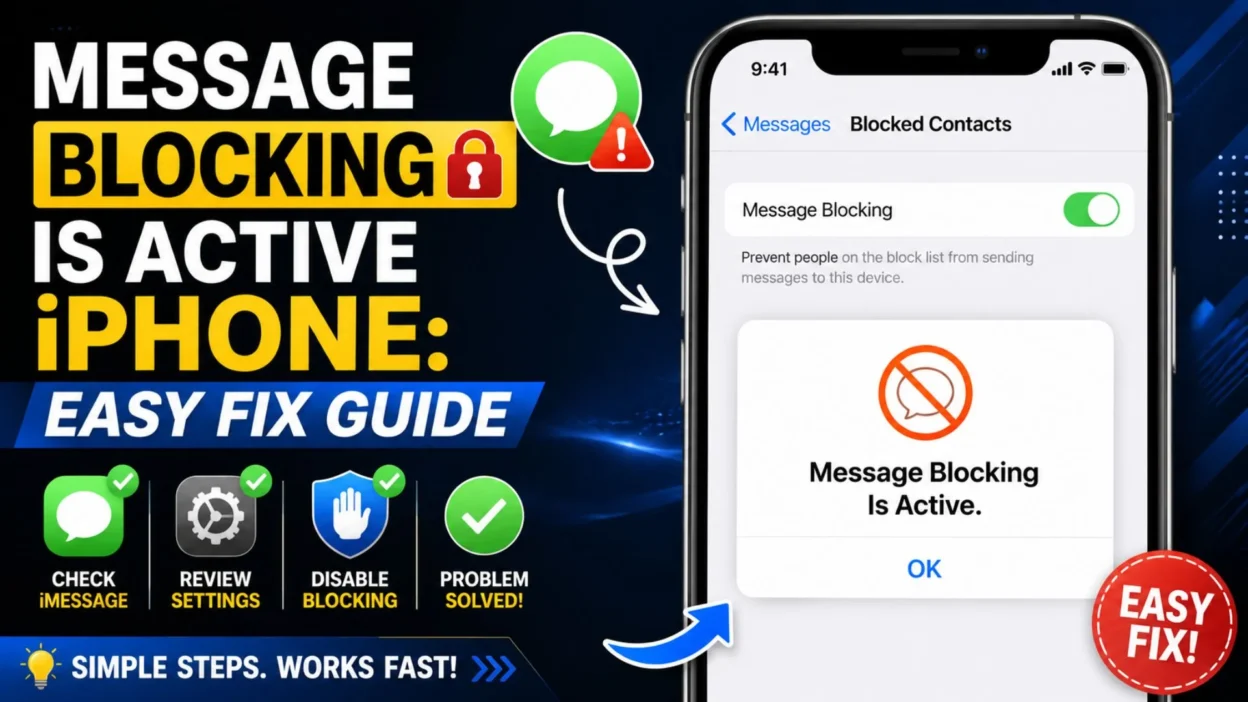
You tap the Send button, expecting your text to go through, but instead you see “message blocking is active” on your iPhone. It can be frustrating, especially when you have no idea what caused the problem.
This warning does not always mean that your iPhone is broken or that the other person has blocked you. Messaging problems can come from several places, including your cellular service, carrier settings, iMessage, the recipient’s phone number, or your account.
The good news is that many of these issues are simple to check. In this guide, you will learn what message blocking is active on iPhone means, why it can appear, and what you can do to troubleshoot it. You will also learn when the problem may require help from your mobile carrier.
What Does “Message Blocking Is Active” Mean on iPhone?
When your iPhone displays “message blocking is active,” it generally means the message cannot be sent through the messaging service currently being used.
The exact reason can vary. Your iPhone may be trying to send an SMS or MMS, while a carrier restriction or service problem prevents the message from going through.
If you are using iMessage, the cause may be different. That is why it helps to determine whether the failed message is an iMessage or a regular text message.
Most importantly, this warning does not automatically mean that someone blocked you.
Why Is Message Blocking Active on My iPhone?
There are several possible reasons for the warning. Checking them one at a time can help you identify where the problem is.
Your Carrier May Have a Messaging Restriction
Regular SMS and MMS messages depend on your cellular carrier. If your carrier has placed a restriction on messaging, your iPhone may be unable to send certain texts.
This can happen because of account settings, plan limitations, service issues, or other carrier-level restrictions.
If messages fail with multiple contacts, your carrier may be the most useful place to check.
The Recipient’s Number Could Be Incorrect
A small mistake in a phone number can prevent a message from being delivered.
Check the contact carefully. Look for missing digits, an incorrect country code, or an old number saved in your contacts.
If you recently changed the contact information, create a new message and enter the number manually. Then try sending it again.
You May Have Poor Cellular Service
SMS messages generally require an active cellular connection.
If your iPhone is showing very weak reception or No Service, sending a regular text may not work.
Try moving to an area with better reception. Once your cellular connection returns, send the message again.
iMessage May Be Disabled
If you are communicating with another Apple device, your iPhone may normally use iMessage.
If iMessage is turned off, the conversation may behave differently depending on your settings and available cellular service.
Check your iPhone’s Messages settings and make sure iMessage is enabled when you want to use it.
Your Account May Have a Service Problem
Sometimes the issue is not your iPhone at all.
Your mobile account could have a temporary service problem or restriction affecting text messaging. This is especially worth considering if calls, cellular data, or messages are also behaving unusually.
In that situation, checking your carrier account or contacting your carrier can help identify the problem.
How to Fix Message Blocking Is Active on iPhone
You do not need to try complicated solutions immediately. Start with the basic checks below.
Check Your Cellular Connection
Look at the signal indicator on your iPhone.
If you have little or no cellular service, wait for the connection to return or move somewhere with stronger reception.
Then open Messages and try sending the text again.
Check iMessage Settings
If you are trying to message another Apple user, check whether iMessage is enabled.
Go to your iPhone’s Settings and open Messages. Look for the iMessage option and make sure it is turned on if you want to use iMessage.
If it is already enabled, you can try turning it off and back on. This may refresh the messaging connection.
Check the Recipient’s Phone Number
Open the contact and carefully review the phone number.
If you are unsure whether the saved number is correct, start a new conversation and enter the number manually.
This simple check can eliminate contact information as a possible cause.
Restart Your iPhone
A restart can clear temporary software or connection problems.
Turn your iPhone off, wait a short time, and turn it back on. After the device reconnects to the cellular network, try sending the message again.
This is a useful troubleshooting step because it does not erase your messages or personal information.
Check for iOS Updates
Apple regularly releases iOS updates that can include bug fixes and improvements.
Open Settings > General > Software Update and check whether a new version is available.
If an update is offered, follow the instructions shown on your iPhone.
Does “Message Blocking Is Active” Mean Someone Blocked You?
No. The warning alone does not prove that someone blocked your number.
There are many other reasons why a message may fail. Carrier restrictions, cellular problems, incorrect contact information, and messaging settings can all contribute to sending issues.
If the problem happens with only one contact, you may naturally wonder whether that person has blocked you. However, you cannot reliably confirm that from this warning alone.
If messages fail with several people, the issue is more likely to involve your phone, carrier, account, or messaging service.
What Should You Check First?
Start with the simplest possibilities before changing advanced settings.
- Check whether your iPhone has cellular service.
- Confirm that the recipient’s phone number is correct.
- Check whether iMessage is enabled when appropriate.
- Restart your iPhone.
- Try sending a message to another contact.
- Check whether cellular data and calls are working normally.
- Look for available iOS updates.
- Contact your carrier if the problem continues.
Testing another contact can be particularly useful. If you can send messages to other people but not one specific number, the problem may be related to that conversation or recipient.
If you cannot send messages to anyone, focus more on your cellular service, account, and carrier settings.
When Should You Contact Your Carrier?
If basic troubleshooting does not solve the problem, your mobile carrier may need to investigate the account.
Contact them if:
- SMS messages fail for multiple contacts.
- Your cellular service is also having problems.
- Your account may have a messaging restriction.
- You recently changed your mobile plan or SIM.
- The problem continues after restarting your iPhone.
- You cannot determine why SMS or MMS messages are being blocked.
Your carrier can check account-level restrictions and messaging service status that you cannot see from your iPhone.
Message Blocking Is Active iPhone: More Fixes to Try
If the basic checks did not solve the problem, the next step is to look at your messaging settings and network connection. These checks can help narrow down whether the issue comes from your iPhone or your carrier.
Check Send as SMS
If you normally use iMessage, your iPhone may have an option that allows messages to be sent as SMS when iMessage is unavailable.
Open Settings > Apps > Messages and look for Send as Text Message. Depending on your iOS version, the exact menu layout may differ.
If the option is available, make sure it is enabled when you want your iPhone to use SMS as a fallback.
Keep in mind that SMS availability still depends on your cellular carrier and plan.
Check MMS Messaging
If you are trying to send a picture, video, or group text, the message may use MMS rather than standard SMS.
Open your Messages settings and check whether MMS Messaging is available and enabled.
This setting may not appear on every iPhone or with every carrier. If you do not see it, your carrier may control the feature automatically.
Try a New Message Conversation
Sometimes the problem appears within one specific conversation.
Instead of replying to the existing thread, start a new message. Enter the recipient’s phone number manually and send a simple text.
If the new conversation works, the original thread may have been affected by a temporary messaging issue.
Check Your Blocked Contacts
Your own blocked-contact settings can also be worth checking if you cannot communicate with a particular person.
Open your iPhone settings and review the Blocked Contacts section. Make sure you have not accidentally blocked the person you are trying to contact.
Remember that blocking a contact on your iPhone is different from seeing the “message blocking is active” warning.
Check Your Phone Line
If your iPhone has more than one cellular line, make sure you are using the correct line for messages.
This can matter when an iPhone uses Dual SIM or multiple cellular plans.
Check your cellular settings and confirm that the intended phone line is active for messaging.
If you recently changed SIM cards, switched carriers, or added another line, this check becomes especially useful.
Try Sending a Message to Another Contact
One of the easiest ways to troubleshoot the problem is to test another recipient.
Send a short text to someone you know. You do not need to send anything personal; a simple message is enough to test whether outgoing messaging works.
If the second message sends successfully, your iPhone’s messaging service may be working normally.
In that case, focus on the original recipient’s number, contact information, or conversation.
If the second message also fails, the issue may be broader and could involve your carrier or account.
Check Whether Calls and Cellular Data Work
Messaging problems can sometimes appear alongside other cellular service problems.
Try making a regular phone call. You can also check whether cellular data works when Wi-Fi is turned off.
If calls, cellular data, and SMS are all failing, the problem is less likely to be limited to the Messages app.
Instead, check your cellular connection or contact your carrier.
Turn Airplane Mode On and Off
Airplane Mode can temporarily disconnect your iPhone from cellular networks.
You can turn it on for a short time and then turn it off again. After your iPhone reconnects to the network, check whether the cellular signal returns normally.
Then try sending the message again.
This is a simple connection refresh and does not remove your messages or contacts.
Reset Network Settings as a Last Resort
If your network connection continues to behave strangely, resetting network settings may help.
However, this step is more significant than simply restarting your phone.
A network settings reset can remove saved network-related information, such as Wi-Fi passwords and certain connection settings. Therefore, it should not be your first solution.
Before using it, make sure you understand what will be reset and have important Wi-Fi information available.
If the issue affects several communication services, you can consider this step after trying simpler troubleshooting methods.
What If Messages Work on Wi-Fi but Not Cellular Data?
This situation can provide a useful clue.
iMessage can work through an internet connection, while traditional SMS depends on cellular service. Therefore, an iMessage may work over Wi-Fi even when your cellular messaging service has a problem.
If iMessages work but regular texts fail, focus on your cellular service and carrier.
On the other hand, if both iMessage and SMS are failing, there may be a broader connection or account problem.
The type of message that fails can help you identify where to look next.
What If Only One Person Cannot Receive Your Messages?
If messages send normally to other contacts but fail with one person, check the recipient information first.
Make sure you are using the correct phone number. If the person recently changed numbers or carriers, their contact information may be outdated.
You can also try starting a new conversation instead of using an old message thread.
However, do not assume that the person blocked you simply because one conversation is failing. The message blocking is active iPhone warning does not provide enough information to confirm that.
What If the Problem Started Suddenly?
A sudden messaging problem can have several explanations.
Your carrier may be experiencing a temporary outage. Your account settings may have changed. Your iPhone may have lost cellular registration, or a software issue may be affecting communication.
Think about what changed before the problem appeared.
For example, did you recently:
- Change your SIM or eSIM?
- Switch mobile carriers?
- Update your iPhone?
- Change your cellular plan?
- Travel to another country?
- Add a second phone line?
- Change messaging settings?
Identifying a recent change can make troubleshooting much easier.
Message Blocking Is Active iPhone After a Carrier Change
A carrier change can sometimes affect how your phone handles SMS, MMS, and iMessage.
If you recently moved your number to a new carrier, give the carrier’s activation process time to complete. Also check that the correct cellular line is active.
If calls and data work but SMS does not, contact your new carrier and explain exactly what happens when you try to send a message.
Tell them that your iPhone displays a “message blocking is active” warning. They may be able to check whether SMS service is enabled on your account.
Message Blocking Is Active After Changing SIM or eSIM
Changing a SIM or eSIM can also change how your cellular line is configured.
First, make sure the intended line appears active in your iPhone’s cellular settings.
Then check whether calls and cellular data work normally.
If the problem started immediately after switching SIMs or activating an eSIM, contacting your carrier is often the most direct way to confirm that the line has been configured correctly.
Is It an iPhone Problem or a Carrier Problem?
It can be either.
A useful way to narrow it down is to test different services.
If only one conversation fails, investigate the contact and conversation first.
If all SMS messages fail but iMessage works, investigate your carrier’s SMS service.
If calls, mobile data, and SMS all fail, check your cellular connection and account.
This approach is better than changing several settings randomly because each test gives you another clue.
Quick Troubleshooting Checklist
Before contacting support, run through this quick checklist:
- Confirm that your iPhone has cellular service.
- Check the recipient’s phone number.
- Try sending a new message.
- Test another contact.
- Check your iMessage settings.
- Check SMS or MMS settings when available.
- Restart your iPhone.
- Toggle Airplane Mode off and on.
- Check for an iOS update.
- Confirm that your correct cellular line is active.
- Consider whether a recent SIM, eSIM, or carrier change caused the issue.
- Contact your carrier if messages continue to fail.
These steps can help you identify whether the issue is specific to one recipient or affects your entire messaging service.
What Not to Do When Message Blocking Appears
You usually do not need to erase your iPhone or make major changes immediately.
Avoid jumping straight to complicated troubleshooting when simple checks can provide the answer.
You also should not assume that the recipient blocked you based only on the warning. The message does not give enough information to make that conclusion.
Instead, test your cellular connection, try another contact, and check your messaging settings first.
If several people cannot receive your texts, your carrier is a more likely place to investigate.
Best Ways to Fix Message Blocking Is Active on iPhone
If you have already checked your signal, restarted your iPhone, and confirmed the recipient’s number, it is time to focus on the bigger picture.
The right solution depends on whether the problem affects one person, several contacts, or every outgoing message.
If You Cannot Text Anyone
When every text message fails, start by checking your cellular service.
Make sure your iPhone has a signal and that your cellular line is active. Then try making a phone call or using cellular data without Wi-Fi.
If those services also fail, the problem may be related to your carrier or cellular account.
If calls and data work normally but SMS still fails, contact your carrier and ask them to check your SMS service.
If You Cannot Text Only One Person
A problem with one contact does not necessarily mean your iPhone has a messaging problem.
Check the person’s phone number carefully. Then try starting a completely new conversation.
If possible, confirm that the person still uses the same number.
You can also check your own blocked contacts list to make sure you did not accidentally block the person.
If iMessage Works but SMS Does Not
This situation points more toward traditional text messaging than iMessage.
iMessage uses an internet connection, while SMS relies on your cellular carrier.
If iMessages work normally but regular texts fail, check your cellular service and carrier account.
Your carrier may need to confirm that SMS is enabled for your line.
If SMS Works but iMessage Does Not
The opposite situation suggests that you should check your iMessage settings and internet connection.
Make sure your iPhone has Wi-Fi or cellular data access.
Then check whether iMessage is enabled in your Messages settings.
If the issue continues, restarting your iPhone and checking for an iOS update may help.
Does Blocking a Contact Cause This Message?
Blocking and message-blocking errors are not the same thing.
You can manually block a contact on your iPhone, but the “message blocking is active” warning can also result from carrier or messaging-service restrictions.
Therefore, seeing the warning should not be treated as proof that another person blocked you.
If you are concerned about one particular contact, check the number and test whether other messages work normally.
How to Prevent Messaging Problems in the Future
You cannot prevent every carrier or network problem, but a few habits can make troubleshooting easier.
- Keep your iPhone updated.
- Make sure your cellular plan remains active.
- Keep important contact numbers current.
- Check your cellular connection when messages suddenly stop working.
- Avoid changing several messaging settings at the same time.
- Remember which phone line is being used if you have multiple lines.
- Contact your carrier when SMS problems affect multiple contacts.
Keeping your iPhone and cellular account in good working order can reduce confusion when a message suddenly fails.
When to Contact Apple or Your Carrier
Knowing where to ask for help can save time.
Contact Your Carrier When:
- SMS or MMS messages fail repeatedly.
- Multiple contacts cannot receive your texts.
- Your cellular service is not working properly.
- The problem began after changing your SIM or eSIM.
- You recently switched mobile plans or carriers.
- Your account may have messaging restrictions.
Your carrier controls the cellular messaging service, so they can check account-level issues that are not visible in your iPhone settings.
Contact Apple When:
- Your cellular service works normally.
- Your carrier confirms there is no account restriction.
- iMessage continues to malfunction.
- Messages behave strangely after an iOS update.
- Other iPhone features are also showing unexpected software problems.
Apple Support can help investigate device and software-related issues.
Frequently Asked Questions
What does “message blocking is active” mean on iPhone?
It means your iPhone cannot send the message through the messaging service being used. The cause may involve your carrier, account, cellular connection, messaging settings, or the recipient’s number.
Does message blocking mean someone blocked me?
No. The warning does not automatically mean another person blocked you. Several other problems can produce a similar message.
Why can I text some people but not one person?
The recipient’s number, contact information, or conversation may be causing the problem. Check the number and try starting a new conversation before assuming you have been blocked.
Why does iMessage work but text messaging does not?
iMessage uses an internet connection, while traditional SMS depends on your cellular carrier. If iMessage works but SMS does not, your carrier or cellular messaging service may need attention.
Should I contact my carrier if message blocking continues?
Yes. If you cannot send SMS messages after checking your settings, restarting your iPhone, and confirming your cellular connection, your carrier can check for account or service restrictions.
Final Thoughts
Seeing “message blocking is active” on iPhone can be annoying, but it does not automatically mean that your phone is damaged or that someone has blocked you. The cause can be much simpler, such as poor cellular service, an incorrect phone number, an account restriction, or an issue with SMS or iMessage.
Start with the basics. Check your signal, verify the recipient’s number, test another contact, review your messaging settings, and restart your iPhone. If the problem affects several contacts, your carrier may be able to identify an account or network issue.
Most importantly, avoid making assumptions based on the warning alone. A few simple tests can tell you whether the problem is specific to one conversation or affects your entire messaging service.
Once you identify the cause, you can take the appropriate next step and get your messages moving again.

Emma Richardson is a content writer passionate about creating heartfelt messages, wishes, and greetings for every occasion. She enjoys helping readers express their emotions with meaningful words that strengthen relationships and celebrate life’s special moments.