Sending an email too quickly can be an uncomfortable moment. Maybe you noticed a typo after clicking Send, attached the wrong file, or realized that the message went to the wrong person. Whatever happened, you may immediately search for an outlook recall message and wonder whether you can take the email back.
The good news is that Microsoft Outlook includes a message recall feature in certain situations. However, recalling an email is not the same as simply deleting it from your Sent folder. Several conditions can affect whether the recall actually works.
In this guide, you will learn what an Outlook recall message means, when you can use the feature, and what to expect after sending a recall request. You will also find simple message examples for situations where you need to explain a mistake or follow up professionally.
What Is an Outlook Recall Message?
- An Outlook recall message is a request to remove or replace an email that you have already sent.
- The feature can be useful when you send an email with incorrect information, an unwanted attachment, or a mistake that needs fixing.
- Outlook does not guarantee that every sent email can be recalled successfully.
- The result depends on factors such as the recipient’s email environment and whether the original message has already been opened.
- A recall is most useful when you notice the mistake shortly after sending the email.
Top Outlook Recall Messages
These messages can help you explain an email mistake clearly and politely while keeping the situation professional.
- “Please disregard my previous email. I noticed an error and will send the corrected version shortly.”
- “Kindly ignore my previous message. I sent it before completing a final review.”
- “Please disregard the email I just sent. A corrected version will follow soon.”
- “I apologize for the confusion. Please ignore my previous email while I make the necessary correction.”
- “Please disregard my last message. I noticed an error in the information and will resend it.”
- “Kindly ignore my previous email. I accidentally included outdated information.”
- “Please disregard the earlier message. I have identified an error and will provide an updated version.”
- “My apologies for the mistake. Please ignore my previous email and wait for the corrected message.”
- “Please disregard the attachment in my previous email. I will send the correct file shortly.”
- “Kindly ignore my previous message. I noticed an issue that needs to be corrected.”
- “Please disregard my last email while I prepare the accurate information.”
- “Sorry for the confusion. Please ignore my previous email; I will follow up with the correct details.”
- “Please disregard my earlier message. It was sent prematurely.”
- “I apologize for the error. Please ignore my previous email until you receive the updated version.”
- “Please disregard the previous message. I need to make a small correction before continuing.”
- “Kindly ignore my last email. I will send a revised version with the correct information.”
- “Please disregard the email I just sent. I noticed a mistake after sending it.”
- “My apologies. Please ignore my previous message while I correct the information.”
- “Please disregard my earlier email. I will resend it after making the necessary updates.”
- “Kindly ignore my previous message. The information needs a quick correction.”
- “Please disregard my last email. I accidentally sent an unfinished version.”
- “Sorry about that. Please ignore my previous message and use the updated email instead.”
- “Please disregard the previous email. I will send the correct details in a follow-up.”
- “I apologize for the inconvenience. Please ignore my earlier message.”
- “Please disregard my previous email. I noticed an issue immediately after sending it.”
Short Outlook Recall Messages
Short messages are useful when you need to correct an email quickly without adding unnecessary details.
- “Please disregard my previous email. Thank you.”
- “Kindly ignore my last message.”
- “Please disregard the email I just sent.”
- “Sorry, please ignore my previous message.”
- “Please disregard my earlier email.”
- “Kindly ignore my previous email while I make a correction.”
- “Please ignore my last message. A corrected version is coming.”
- “Apologies for the mistake. Please disregard my previous email.”
- “Please disregard the earlier message. Thank you for understanding.”
- “Kindly ignore my last email; I will resend it shortly.”
- “Please ignore my previous message. I noticed an error.”
- “Sorry for the confusion. Please disregard my earlier email.”
- “Please disregard my last message until further notice.”
- “Kindly ignore the previous email. I will provide an update soon.”
- “Please disregard my earlier message. A revised email will follow.”
How Does Outlook Email Recall Work?
- Outlook’s recall feature is designed to retrieve or replace certain sent messages.
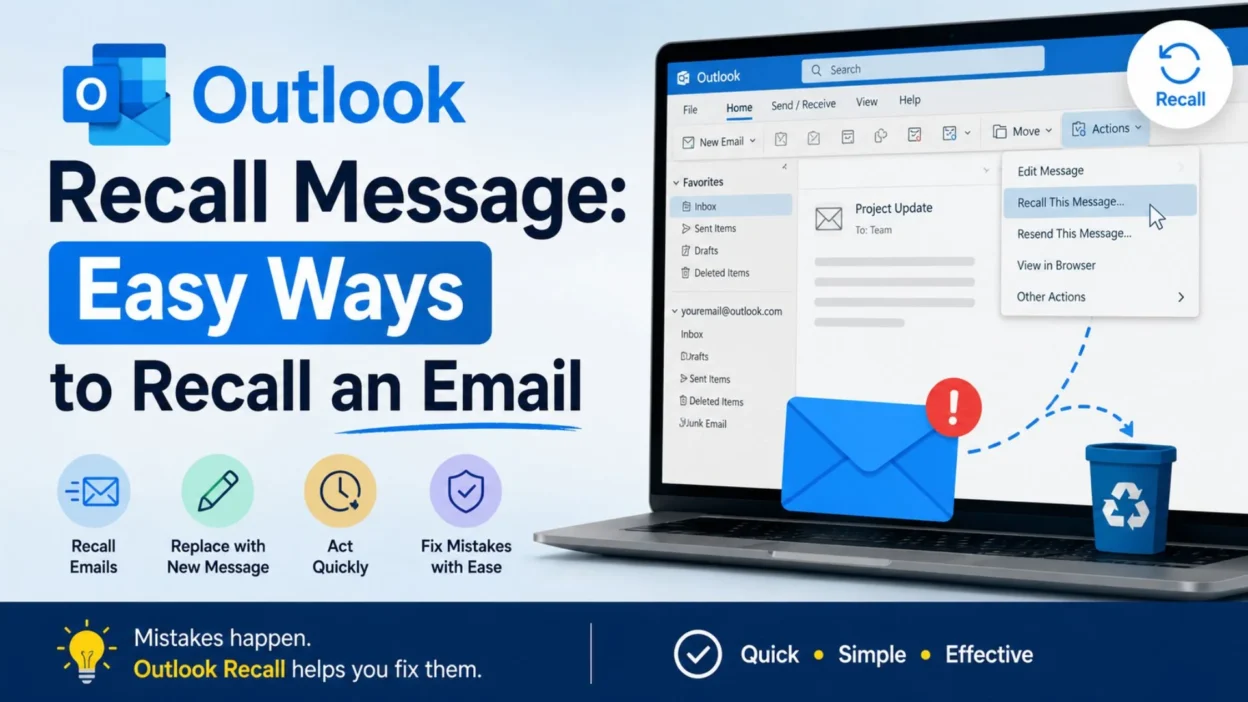
- When available, you generally access the recall option from the Sent Items folder.
- You select the message you want to recall and choose the relevant recall option.
- Depending on the Outlook version and account setup, you may be able to delete unread copies or replace the original email with a corrected version.
- A recall request is not a guaranteed “undo” button for every email.
- If the recall does not meet the required conditions, the original message may remain with the recipient.
- Because of this, it is often wise to send a short correction email if the information is important.
When Should You Use an Outlook Recall Message?
- Use it when you accidentally sent confidential work information to the wrong internal recipient and your organization supports message recall.
- Use it when an email contains a significant factual error.
- Use it when you attached the wrong document.
- Use it when you accidentally sent an unfinished draft.
- Use it when important information has changed immediately after sending.
- Use it when you accidentally sent a message before adding necessary details.
- Consider a simple correction email when recalling the message is unlikely to work.
- If the mistake is minor, a quick clarification may be more practical than worrying about the original message.
Short Outlook Recall Message Templates
Sometimes you do not need a long explanation. A simple, polite message can quickly tell the recipient that your previous email should not be used.
- “Please disregard my previous email. I’ll send the corrected version shortly.”
- “Kindly ignore my last message. I noticed an error and will correct it.”
- “Please disregard the previous email. I’ll follow up with updated information.”
- “Sorry for the confusion. Please ignore my previous message.”
- “Please disregard my earlier email. I accidentally sent an incomplete version.”
- “Kindly ignore my previous message. A revised email will follow.”
- “Please disregard my last email. I need to make a quick correction.”
- “Apologies for the mistake. Please ignore my previous message.”
- “Please disregard the email I just sent. I noticed an issue after sending it.”
- “Kindly ignore my earlier email until you receive the updated version.”
Best Outlook Recall Messages for Work
A workplace email should sound calm, respectful, and professional. These options can help you correct a mistake without making the situation feel bigger than it is.
- “Please disregard my previous email. I noticed an error in the information and will send an updated version.”
- “My apologies for the confusion. Please ignore my earlier message while I make the necessary corrections.”
- “Please disregard my previous email. I accidentally attached the wrong document and will resend the correct file.”
- “Kindly ignore my last message. I sent an earlier draft by mistake.”
- “Please disregard the information in my previous email. I will provide the corrected details shortly.”
- “Apologies for the oversight. Please ignore my previous message and refer to the updated email.”
- “Please disregard my earlier email. I noticed that some details require correction.”
- “Kindly ignore the previous message. I will send a revised version with the accurate information.”
- “Please disregard my last email. I sent it before completing my final review.”
- “I apologize for the error. Please ignore my previous message and use the corrected information instead.”
- “Please disregard the previous attachment. I will send the correct document in a separate email.”
- “Kindly ignore my earlier email. I need to update a few important details before resending it.”
- “Please disregard my previous message. The information has been updated, and I’ll send the correct version shortly.”
- “Sorry for the confusion. Please ignore my last email and wait for the revised version.”
- “Please disregard my earlier message. I accidentally included outdated information.”
Outlook Recall Message for a Wrong Attachment
Sending the wrong attachment is one of the most common reasons people look for an outlook recall message. A brief correction can make the situation much easier to handle.
- “Please disregard the attachment in my previous email. I accidentally attached the wrong file.”
- “Kindly ignore the previous attachment. I will send the correct document shortly.”
- “Apologies for the mix-up. Please disregard the file attached to my previous message.”
- “Please ignore my previous email. The attachment was incorrect, and I’ll resend the correct version.”
- “Sorry about the attachment error. Please disregard the previous file and use the updated one.”
- “Please disregard the earlier attachment. I accidentally sent an outdated version.”
- “Kindly ignore the document in my previous email. I’ll send the correct file shortly.”
- “My apologies. The wrong attachment was included in my previous message. Please disregard it.”
Outlook Recall Message for a Typo or Error
Not every mistake requires a complicated explanation. If your email contains a typo or incorrect detail, a short clarification may be enough.
- “Please disregard my previous email. I noticed a typo in the information provided.”
- “Apologies for the error. Please refer to the corrected information below.”
- “Please ignore my previous message. One of the details was incorrect.”
- “Kindly disregard my earlier email. I noticed an error and will provide the correct information.”
- “Sorry for the mistake. Please use the corrected details in my latest message.”
- “Please disregard the previous version. I’ve corrected the information.”
- “Apologies for the confusion. The correct information is included in my updated message.”
- “Please ignore my earlier email. I spotted an error after sending it.”
Best Messages When an Outlook Recall Fails
An Outlook recall may not always produce the result you expect. If the original email remains available, a direct correction can be the clearest solution.
- “Please disregard my previous email. I’m following up with the corrected information here.”
- “My earlier message contained an error. Please use the information in this updated email instead.”
- “Please ignore my previous email and refer to this message for the correct details.”
- “I noticed an issue with my earlier email. Please disregard it and use this updated version.”
- “Apologies for the confusion. Please consider my previous message replaced by this updated information.”
- “Please disregard my earlier email. I’ve corrected the details and included the accurate information below.”
- “Sorry for the mistake. Please use this email as the updated version of my previous message.”
- “Kindly disregard the earlier email. This message contains the corrected information.”
One-Line Outlook Recall Messages
These quick lines are useful when you want to keep your follow-up short and professional.
- “Please disregard my previous email.”
- “Kindly ignore my last message.”
- “Please disregard the earlier version.”
- “Sorry, please ignore my previous email.”
- “Please use this updated version instead.”
- “Kindly disregard the previous attachment.”
- “Please ignore my earlier message; a correction follows.”
- “Apologies—please disregard my previous email.”
- “Please disregard my last message while I correct the details.”
- “Kindly ignore the previous email and refer to this one.”
- “Please disregard the earlier information.”
- “Sorry for the confusion; please use the updated details.”
- “Please ignore my previous message. Thank you.”
- “Kindly disregard my earlier email.”
- “Please use the corrected information in this message.”
How to Recall a Message in Outlook
If you are trying to recall an email rather than simply write a correction, the process generally starts from your sent messages.
- Open Outlook and go to Sent Items.
- Find and open the email you want to recall.
- Look for the message recall option in the Outlook toolbar or message menu.
- Choose the available recall option.
- If offered, select whether you want to delete unread copies or replace the message with a corrected version.
- Follow the prompts shown by Outlook.
- Remember that recall availability and results can depend on your Outlook account, recipient setup, and other conditions.
- If the recall does not work, send a clear correction message instead.
When an Outlook Recall Is Not the Best Choice
Sometimes the easiest solution is not to focus on recalling the email at all. A quick, professional follow-up can be clearer.
- If the mistake is only a small typo, a correction may be enough.
- If the recipient has already read the email, a recall may not solve the problem.
- If the email went outside an environment where recall is supported, the feature may not work as expected.
- If the information is important, clearly state which details should be used instead.
- If you sent the wrong attachment, send the correct attachment with a short explanation.
- If you sent an unfinished draft, acknowledge the mistake and provide the final version.
- Avoid sending several confusing follow-up emails. One clear correction is usually better.
Copy-Paste Ready Outlook Recall Messages
Save these messages for those moments when you need a quick response after sending an email by mistake.
- “Please disregard my previous email. I noticed an error and will send the corrected information shortly.”
- “Kindly ignore my last message. I accidentally sent an earlier version.”
- “Apologies for the confusion. Please disregard my previous email and refer to the updated version.”
- “Please ignore my earlier message. I noticed a mistake and have corrected the information.”
- “Sorry about the mix-up. Please disregard the previous email and use this updated information instead.”
- “Please disregard the attachment from my previous email. I’ll send the correct file shortly.”
- “Kindly ignore the previous message. I sent it before completing my final review.”
- “My apologies for the error. Please disregard my earlier email and refer to this updated message.”
- “Please ignore my previous email. The correct information is included below.”
- “Kindly disregard my last message. I’ll provide the revised details shortly.”
Best Outlook Recall Messages for Captions
If you are creating a quick status, caption, or reminder about an email mistake, keep the wording short and natural.
- “Sent too soon? Time for an Outlook recall.”
- “One email, one typo, instant regret. 😅”
- “When you wish you had an Undo button for email.”
- “Oops! That message needed one more review.”
- “Sent before I was ready—time to fix it.”
- “Wrong attachment? Stay calm and correct it.”
- “Email mistake made. Correction on the way.”
- “That awkward moment when Send happens too soon.”
- “A quick recall can sometimes save the day.”
- “Double-check before Send, but know your options when mistakes happen.”
Outlook Recall Message: Quick Tips
A recall request is not something you should treat as a guaranteed way to erase an email everywhere.
- Act quickly after noticing the mistake.
- Check whether Outlook provides the recall option for your account.
- Make sure you select the correct sent message.
- Use a replacement message when the original information needs to be corrected.
- Send a direct clarification if the recall does not resolve the situation.
- Keep your correction professional and straightforward.
- Avoid sending multiple follow-ups that could create more confusion.
- For important emails, clearly identify which information is correct.
Frequently Asked Questions
Can I recall an email in Outlook?
- Outlook provides a recall feature for certain messages and account configurations. However, recall is not guaranteed for every email.
Does Outlook recall work on every email?
- No. Whether an outlook recall message succeeds can depend on the recipient’s setup, account type, and other conditions.
What should I do if an Outlook recall fails?
- Send a short correction email explaining that the previous message should be disregarded. Then provide the accurate information.
Can I replace an email instead of recalling it?
- In situations where Outlook provides the appropriate recall option, you may be able to replace an unread message with a corrected version.
Should I send a correction after recalling an email?
- If the information is important or you are unsure whether the recall succeeded, a clear correction can help prevent misunderstandings.
Final Thoughts
Sending an email before you are ready can happen to anyone. A typo, incorrect attachment, outdated detail, or unfinished draft can turn a normal email into an unexpected problem. Fortunately, knowing how an outlook recall message works gives you another option when you need to correct a sent message.
Still, the best approach is not to depend entirely on recall. Check your email quickly, use the recall feature when it is available and appropriate, and send a simple correction when necessary. A calm and professional follow-up can often solve the situation more effectively than worrying about the original mistake.
Keep a few copy-paste messages saved for future use. That way, if you accidentally send something too soon, you already know what to say.
One small email mistake does not have to become a big problem—act quickly, communicate clearly, and move forward.

Emma Richardson is a content writer passionate about creating heartfelt messages, wishes, and greetings for every occasion. She enjoys helping readers express their emotions with meaningful words that strengthen relationships and celebrate life’s special moments.