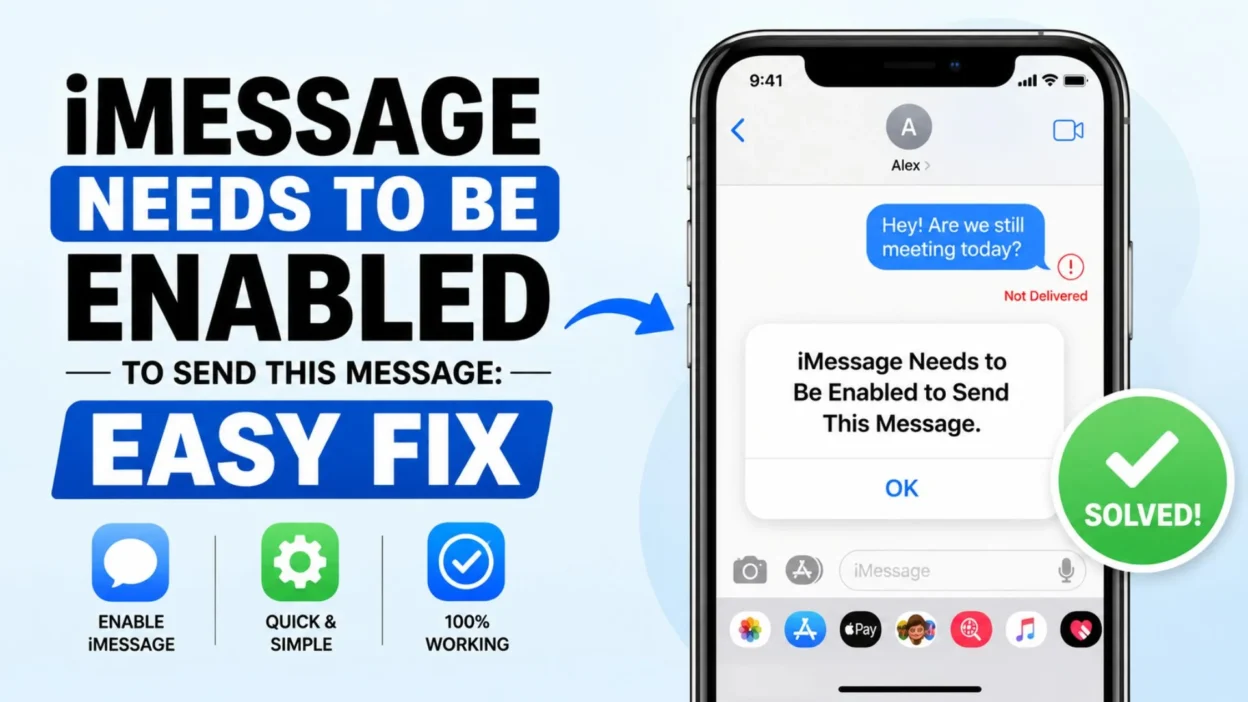
Seeing “iMessage needs to be enabled to send this message” when you are simply trying to text someone can be confusing, especially when iMessage seemed to work before. The good news is that this message usually points to a settings, activation, or messaging connection issue.
You may see the warning when sending a message through the Messages app on an iPhone. In some cases, iMessage may be turned off. In others, your phone number may not be properly activated for iMessage, or your internet connection may be causing trouble.
Fortunately, you can check several simple settings before assuming something is seriously wrong. A few quick steps can often identify the problem.
In this guide, you will learn what the error means, why it appears, and what you can check when iMessage refuses to send your message. The steps are written in simple language, so you can work through them without technical knowledge.
What Does “iMessage Needs to Be Enabled to Send This Message” Mean?
This warning generally means your iPhone is trying to send the message through iMessage, but iMessage is not currently available or properly activated.
iMessage uses an internet connection to send messages between compatible Apple devices. When it cannot use the service correctly, the Messages app may show an alert instead of sending your text.
Several situations can cause this message to appear:
- iMessage is switched off.
- Your internet connection is unavailable.
- Your phone number is not activated for iMessage.
- Your Apple Account settings need attention.
- iMessage activation is still processing.
- Your iPhone needs a restart.
- Apple’s iMessage service may be experiencing an outage.
- Your Messages settings may need to be refreshed.
The exact cause can vary from one iPhone to another. Therefore, checking the basic settings first is usually the easiest approach.
Why Does iMessage Need to Be Enabled?
iMessage is Apple’s messaging service for communication between supported Apple devices. It works differently from traditional SMS or MMS messaging.
When iMessage is available, messages can use your internet connection instead of your mobile carrier’s traditional text-message service.
If iMessage is disabled, your iPhone may not be able to send a message that was intended to use the service.
This can happen after changing devices, switching SIM cards, updating iOS, changing Apple Account settings, or adjusting Messages preferences.
Sometimes, the problem appears without any obvious change. That can make the warning feel especially frustrating.
Before trying advanced solutions, check whether iMessage is enabled and whether your iPhone has a working internet connection.
Top Fixes for the iMessage Error
The easiest way to troubleshoot this issue is to start with simple checks. Move through the following fixes one at a time.
- Check iMessage: Open your iPhone’s Messages settings and make sure iMessage is turned on.
- Check your internet: Connect to reliable Wi-Fi or make sure cellular data is available.
- Restart your iPhone: A quick restart can resolve temporary messaging problems.
- Check your phone number: Make sure your number is selected for sending and receiving iMessages.
- Check your Apple Account: Confirm that the account connected to Messages is correct.
- Update iOS: Install an available software update if your iPhone is running an outdated version.
- Try another conversation: Send a message to another compatible contact to see whether the issue affects one conversation or all conversations.
- Check Apple’s service status: A temporary service problem can affect iMessage activation or delivery.
- Turn iMessage off and on: Refreshing the feature can sometimes resolve a temporary activation issue.
- Check Date & Time: Incorrect time settings can interfere with some Apple services.
These checks cover many common causes. If the problem continues, the next step is to look more closely at activation and your Messages settings.
Check Whether iMessage Is Enabled
The first thing to check is whether iMessage is actually turned on.
Open the Settings app on your iPhone and look for the Messages settings. Find the iMessage option and check its current status.
If it is turned off, enable it and give your iPhone a moment to connect to Apple’s messaging service.
After enabling iMessage, return to the Messages app and try sending the message again.
If iMessage was already enabled, do not worry. The error can still appear when activation has not completed correctly or another setting is interfering with the service.
In that situation, continue with the next troubleshooting steps instead of repeatedly tapping the send button.
Check Your Internet Connection
iMessage needs an internet connection. Your iPhone can use Wi-Fi or cellular data depending on your settings and connection.
If your internet connection is weak or unavailable, iMessage may not work as expected.
Try opening a webpage or another internet-based app. If nothing loads, reconnect to Wi-Fi or check your cellular data connection.
You can also try switching between Wi-Fi and cellular data. This can help determine whether the problem is related to one particular connection.
Once your internet connection works normally, return to Messages and try sending the message again.
Restart Your iPhone
A restart is one of the simplest troubleshooting steps, but it can still be useful.
Temporary software glitches can sometimes affect individual services. Restarting your iPhone gives the system a fresh start and may restore normal messaging behavior.
After restarting:
- Open the Messages app.
- Select the conversation.
- Type a short test message.
- Tap send.
- Check whether the warning appears again.
If the message sends normally, the issue may have been temporary.
If you still see “iMessage needs to be enabled to send this message,” continue checking your activation and account settings.
Check Your iMessage Send and Receive Settings
Your iPhone can use different addresses for iMessage, including your phone number and Apple Account email address.
If the wrong option is selected, messages may not behave as expected.
Open the Messages settings and look for the section related to sending and receiving messages. Check which phone number or email address is selected.
Make sure the information you want to use is available and properly selected.
If your phone number appears but shows an activation problem, give the phone a little time after enabling iMessage. Activation can sometimes take a while.
Avoid repeatedly changing settings if everything appears correct. Instead, move on to the next troubleshooting step.
Check for an iOS Update
Software updates can include fixes for system features and messaging problems.
If your iPhone is running an older version of iOS, check whether an update is available.
Before installing an update, make sure your device has enough battery or connect it to a charger. A reliable Wi-Fi connection may also be useful for downloading the update.
After updating, restart the iPhone if necessary and test Messages again.
Keeping iOS updated can also help your device remain compatible with newer Apple services and features.
Check Whether the Problem Affects One Contact
Sometimes the issue may appear only in one conversation.
Try sending a message to another person who uses an Apple device. If the second message works, the problem may be specific to the original conversation or contact information.
Check whether the contact has recently changed their phone number, switched devices, or stopped using an Apple device.
You can also start a new conversation using the person’s current phone number instead of relying on an older message thread.
This simple test can help narrow down where the problem is happening.
Turn iMessage Off and On Again
If iMessage is already enabled but the error continues, refreshing the feature may help.
Open your iPhone’s Messages settings and turn iMessage off. Wait a short moment, then turn it back on.
Your iPhone may display an activation message while the service reconnects. Keep the device connected to the internet during this process.
Once activation finishes, open Messages and try sending the message again.
This step can be useful when iMessage was enabled but became temporarily disconnected from Apple’s messaging service.
Make Sure Your Phone Number Is Active
Your phone number plays an important role in iMessage activation.
If you recently changed your SIM card, moved to a new phone, or changed your mobile provider, your number may need to activate again.
Check the Send & Receive settings in Messages. Look for your phone number and confirm that it is available for iMessage.
If your number is missing or still waiting for activation, avoid repeatedly changing settings. Give the service some time to complete activation.
If activation remains stuck, check your cellular connection and make sure your SIM or eSIM is working correctly.
Check Your Apple Account
Your Apple Account can also affect how iMessage works.
Open the Messages settings and review the account information connected to iMessage. Make sure you recognize the account and that you are signed in correctly.
If you recently changed your account password, switched accounts, or signed out of Apple services, Messages may need to reconnect.
After checking your account, return to the Messages app and test the conversation again.
Do not sign out of important Apple services unless you understand what the change will affect. Start with the basic account check first.
Try Sending the Message as a Text
In some situations, your iPhone may offer the option to send a message as a regular text message instead of iMessage.
This can be useful when the recipient does not have iMessage available or when your internet connection is temporarily unavailable.
However, regular SMS and MMS messaging depend on your mobile carrier and plan. Your carrier may charge for some types of messages.
If you frequently see the iMessage warning, check your Messages settings for options related to sending messages as SMS when iMessage is unavailable.
The exact settings can vary depending on your iPhone model, iOS version, and carrier.
Check Your Cellular Connection
Even when you normally use Wi-Fi, your cellular connection still matters for certain messaging functions.
Look at the signal indicator on your iPhone. If the signal is very weak or missing, messaging services may not work normally.
Try moving to an area with better reception. You can also check whether you can make a normal phone call or use cellular data.
If other cellular services are also failing, the problem may involve your carrier rather than iMessage itself.
Check Date and Time Settings
Incorrect date and time settings can sometimes cause problems with online services.
Your iPhone normally handles these settings automatically. Check the Date & Time section and make sure automatic time settings are enabled when available.
If your phone shows an incorrect date, time, or time zone, correct the setting and then test Messages again.
This is a simple check, but it can help rule out a less obvious software issue.
Check Apple’s System Status
Sometimes the problem is not caused by your iPhone at all.
Apple services can occasionally experience temporary interruptions. When an Apple messaging service is unavailable, users may have trouble activating or sending iMessages.
If everything looks correct on your iPhone but messages still fail, check Apple’s official System Status page.
Look for any reported issue involving iMessage or related services.
If Apple is experiencing an outage, you may simply need to wait until the service is restored.
Try a New Message Conversation
An old conversation can sometimes behave differently from a new one.
Instead of replying to the existing thread, open Messages and create a new conversation with the person’s current phone number or Apple Account address.
Then send a short test message.
If the new conversation works, the original thread may have an issue. You can continue using the new conversation while troubleshooting the older one.
This test also helps determine whether the problem affects your entire Messages app or only one conversation.
Check the Recipient’s Device
The recipient’s device can also affect how a message is handled.
If the person recently switched from an iPhone to another type of phone, their number may no longer be registered with iMessage.
In that situation, your iPhone may still try to treat the conversation as an iMessage conversation.
Try starting a fresh conversation with the recipient’s current number. If necessary, ask them whether they recently changed phones or messaging services.
This is especially useful when messages work normally with other contacts.
If iMessage Is Stuck on Activation
Sometimes iMessage may show an activation message for an extended period.
First, make sure your iPhone has a working internet connection. Then check that your phone number is active and that you can use your cellular service normally.
Restart the device and check the Messages settings again.
If activation still does not complete, avoid repeatedly switching the feature on and off. Constantly changing the setting will not necessarily speed up activation.
Instead, check Apple’s current guidance or contact your carrier if your phone number or cellular service appears to be the problem.
Reset Network Settings as a Last Resort
If basic troubleshooting does not work, resetting network settings may be another option.
This is more advanced than the earlier fixes. A network reset removes saved network information, such as Wi-Fi settings and some connection preferences.
Because of that, do not use this option as your first solution.
Before resetting network settings, make sure you know the passwords you will need to reconnect to your Wi-Fi networks.
After the reset, reconnect your iPhone to the internet and test iMessage again.
Why Does iMessage Work for Some People but Not Others?
If messages work with one person but fail with another, the problem may be related to the recipient or a specific conversation.
For example, one contact may still use an Apple device while another person recently switched to a different phone.
The contact information can also be outdated. An old phone number or email address may cause Messages to use the wrong delivery method.
Try starting a new conversation with the recipient’s current contact information.
If messages work normally with several other people, your iPhone’s iMessage service is probably functioning. That can help narrow the issue to the individual conversation.
What If the Message Is Green Instead of Blue?
Green and blue message bubbles can indicate different messaging methods on an iPhone.
Blue bubbles generally indicate iMessage. Green bubbles can indicate SMS, MMS, or other supported carrier messaging methods, depending on the situation and iOS version.
A green message does not automatically mean something is wrong.
However, if you expected an iMessage and suddenly see green messages, check whether iMessage is enabled and whether your internet connection is working.
Also consider whether the recipient recently changed devices or messaging settings.
When Should You Contact Apple or Your Carrier?
If you have tried the basic troubleshooting steps and iMessage still will not activate or send messages, getting official support may be the best next step.
Contact Apple when the problem appears to involve iMessage, your Apple Account, or iPhone software.
Contact your mobile carrier when your phone number, SIM, eSIM, cellular connection, or SMS service appears to be causing the issue.
Before contacting support, note what you have already tried. Tell them whether the problem affects every contact or only one person.
This information can help support staff identify the cause more quickly.
Best Ways to Fix the iMessage Error
When your iPhone says “iMessage needs to be enabled to send this message,” the problem can feel more complicated than it really is. In many cases, a quick settings check can get messaging working again.
Start with iMessage itself. Then check your internet connection, phone number, Apple Account, and iOS version. If those settings look correct, test another conversation.
The key is to change one thing at a time. This makes it easier to identify what fixed the problem.
What to Do If Nothing Works
Sometimes the usual fixes do not solve the issue immediately. If that happens, do not keep changing random settings.
First, restart your iPhone again and make sure it has a reliable internet connection. Then check whether iMessage is active and whether your phone number appears correctly in the Send & Receive settings.
Next, test messages with more than one contact. This can tell you whether the problem affects your entire iPhone or only one conversation.
If several contacts have the same problem, check Apple’s System Status page. A temporary service issue could affect iMessage.
If everything appears normal but the error continues, contact Apple Support. Your mobile carrier may also help if the issue involves your phone number, SIM, eSIM, or cellular messaging.
Why the Error Can Appear Suddenly
It can be confusing when iMessage works normally one day and then suddenly displays an activation warning.
Several changes can trigger this behavior. You may have installed an iOS update, changed your SIM, moved to a new iPhone, changed your Apple Account, or experienced a temporary network problem.
Sometimes, there is no obvious change at all. A temporary connection problem can make iMessage unavailable for a short period.
That is why basic troubleshooting is useful. You do not always need a major fix.
iMessage After Changing iPhones
If you recently moved to a new iPhone, check your messaging settings carefully.
Make sure you are signed in with the Apple Account you want to use. Then check whether your phone number is available for iMessage.
Your old device may also have been connected to your number or Apple Account. If you still have access to the old iPhone, review its messaging settings as part of the transition.
After setting up the new device, send a test message to another Apple user.
If the message works, your new iPhone is probably ready for iMessage.
iMessage After Changing Your SIM or eSIM
Changing a SIM or eSIM can affect phone-number activation.
If you recently changed your mobile provider or transferred your number, give the activation process some time. Make sure the new cellular connection works normally.
Check your Messages settings after the number becomes active.
If your phone number does not appear correctly for iMessage, your carrier may need to help with the cellular side of the problem.
This is especially important if regular calls or text messages are also not working.
Can You Use iMessage Without Cellular Service?
Yes, iMessage can work over Wi-Fi when the necessary Apple services and settings are available.
However, your iPhone still needs to be properly configured. Your iMessage account and selected addresses must be active.
If your phone has no cellular signal but is connected to reliable Wi-Fi, try sending an iMessage to another Apple device.
If it works over Wi-Fi, your cellular connection may be the part that needs attention.
Can You Send a Message Without iMessage?
Depending on your device, carrier, settings, and recipient, your iPhone may be able to send messages using another messaging method.
SMS and MMS rely on your mobile carrier rather than iMessage.
If iMessage is unavailable, your iPhone may offer an option to send the message as a text message. The availability of this option depends on your settings and carrier support.
Remember that carrier messaging can have different costs or limits. Check your mobile plan if you are unsure.
How to Prevent the Error in the Future
You cannot prevent every messaging problem, but a few habits can reduce unnecessary issues.
Keep your iPhone updated when practical. Maintain a reliable internet connection and check your Messages settings after changing devices or phone numbers.
If you switch SIM cards or move to a new iPhone, review iMessage activation before assuming everything transferred automatically.
It is also useful to know whether your important contacts use Apple devices or other phones. That can help explain why some conversations appear differently.
Most importantly, do not panic when the warning appears. It usually means your iPhone needs attention in one area of its messaging setup.
Frequently Asked Questions
Why does my iPhone say “iMessage needs to be enabled to send this message”?
The warning usually means iMessage is disabled, not activated correctly, or temporarily unavailable. Check iMessage settings, your internet connection, and your phone number first.
How do I enable iMessage?
Open your iPhone’s Settings and go to the Messages settings. Find iMessage and turn it on. Then wait for activation to complete before testing a message.
Why is iMessage enabled but still not working?
Several things can cause this. Your internet connection may be unreliable, your phone number may not be activated, or Apple’s messaging service may have a temporary issue.
Why can I message some people but not others?
The issue may involve a specific contact or conversation. The person may have changed devices, updated their phone number, or stopped using iMessage.
Will restarting my iPhone fix iMessage?
A restart can resolve temporary software or connection problems. It is a simple step worth trying before using more advanced troubleshooting options.
Final Thoughts
Seeing “iMessage needs to be enabled to send this message” can be frustrating, especially when you need to send something quickly. Fortunately, the problem is often connected to a setting, connection, activation process, or temporary service issue.
Start with the basics. Check iMessage, confirm your internet connection, review your phone number, and restart your iPhone. Then test another conversation to see whether the issue affects one contact or multiple people.
If you recently changed your iPhone, SIM, eSIM, or Apple Account, pay extra attention to activation settings. Those changes can affect how your phone handles iMessage.
For persistent problems, official Apple support or your mobile carrier can provide further help. Avoid changing advanced settings unless you understand what they do.
With a few careful checks, you can usually narrow down the cause and get your Messages app working normally again. Save this guide so you have an easy reference the next time the iMessage warning appears.

Emma Richardson is a content writer passionate about creating heartfelt messages, wishes, and greetings for every occasion. She enjoys helping readers express their emotions with meaningful words that strengthen relationships and celebrate life’s special moments.