
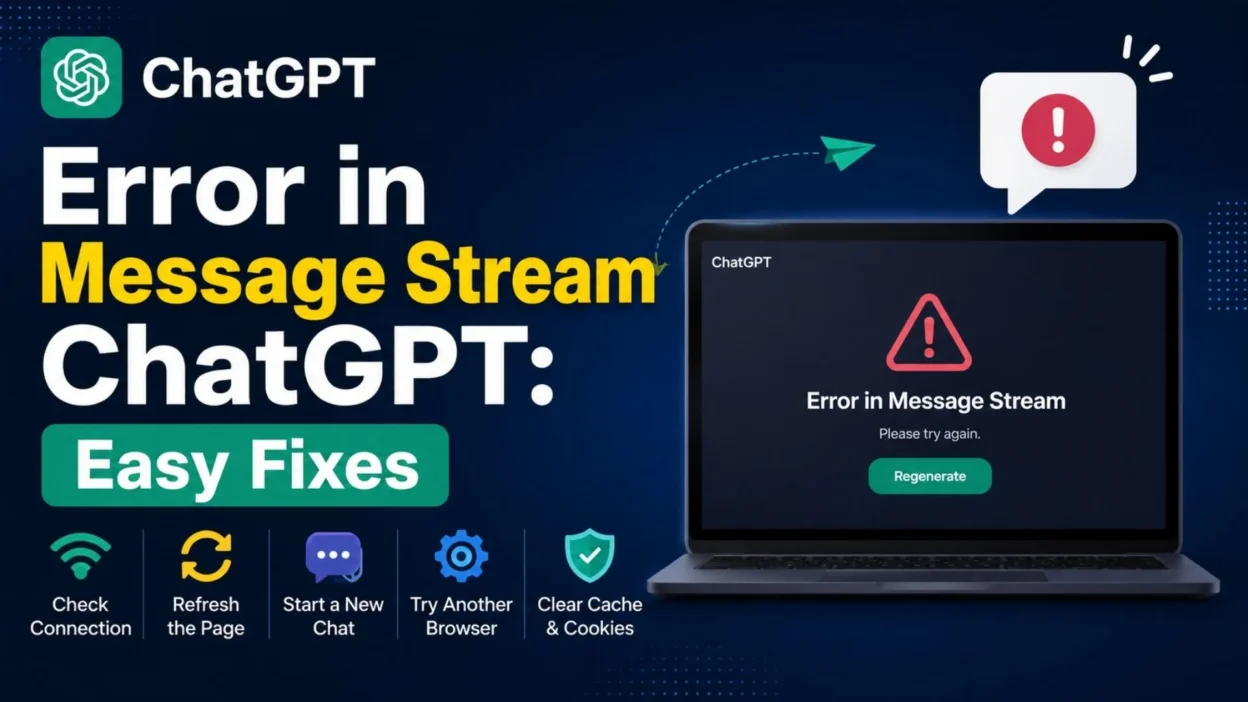
Have you ever asked ChatGPT something, waited for the answer, and suddenly seen “Error in Message Stream” instead? It can be confusing, especially when your prompt was submitted normally and everything seemed to work a moment earlier.
The error in message stream ChatGPT message generally means that something interrupted the process of generating or delivering the response. The cause may involve your internet connection, browser, temporary service problems, a long conversation, or an issue with the current session.
Fortunately, this error does not always mean that your account or prompt has a serious problem. Often, a few simple troubleshooting steps can get things working again.
In this guide, you will learn what the error means, why it happens, and what you can do when ChatGPT stops responding. You will also find practical tips for preventing the problem from happening repeatedly.
What Does “Error in Message Stream” Mean in ChatGPT?
- “Error in Message Stream” usually means ChatGPT could not successfully complete or deliver the response stream.
- When ChatGPT generates an answer, the response may appear gradually instead of arriving all at once.
- If something interrupts that process, the system may display an error.
- The interruption can happen for several reasons.
- For example, your internet connection may briefly drop.
- A browser session may also become unstable.
- Temporary service issues can affect response generation.
- A very long conversation may create additional complexity for the current session.
- Sometimes, the issue disappears after refreshing the page or starting a new conversation.
- Therefore, seeing this message does not automatically mean you did anything wrong.
An “Error in Message Stream” message usually indicates an interrupted response process, not necessarily a problem with your account.
Why Does ChatGPT Show an Error in Message Stream?
- There is no single cause behind every message-stream error.
- Instead, several different factors can trigger it.
- Understanding those possibilities makes troubleshooting much easier.
Internet Connection Problems
- A stable connection is important when using ChatGPT.
- If your internet connection briefly disconnects, the response may stop streaming.
- Even a short interruption can sometimes cause an error.
- Wi-Fi congestion may also affect the connection.
- A weak mobile connection can create similar problems.
- Therefore, checking your internet connection should be one of the first troubleshooting steps.
Temporary ChatGPT Service Issues
- Sometimes the problem is not on your side.
- ChatGPT services can occasionally experience temporary disruptions or increased demand.
- During such periods, responses may fail or take longer than usual.
- If everything was working normally and the error suddenly appears, a temporary service issue is possible.
- In that situation, waiting briefly and trying again may solve the problem.
Very Long Conversations
- Extremely long chats can sometimes become harder to work with.
- A conversation containing many previous messages, large blocks of text, or complex instructions may place additional demands on the current session.
- If the error repeatedly appears in one particular conversation, try starting a fresh chat.
- You can then provide the important context again.
- This simple change may help when the original conversation has become unusually large.
Browser Problems
- Your browser can also contribute to message-stream errors.
- Old cached data, temporary browser glitches, or problematic extensions may interfere with a web application.
- Refreshing the page is often a useful first step.
- If that does not work, try opening ChatGPT in a private or incognito window.
- You can also try another supported browser.
- If the problem disappears in a different browser, the original browser may need troubleshooting.
Browser Extensions
- Some browser extensions modify websites or network requests.
- Privacy tools, script blockers, content filters, and other extensions can occasionally interfere with web applications.
- If ChatGPT works normally in an incognito window, an extension may be contributing to the issue.
- You can then check your installed extensions and temporarily disable relevant ones.
- Make changes carefully and only to extensions you recognize.
How to Fix Error in Message Stream ChatGPT
- If you see this error, do not panic.
- Start with the simplest solutions before trying more advanced troubleshooting.
- The following steps can help you identify the problem.
Refresh the ChatGPT Page
- First, refresh the page.
- This can reconnect the current session and reload the application.
- After refreshing, try sending the prompt again.
- If the response works normally, the error may have been temporary.
- However, avoid repeatedly refreshing if you are working on something important without saving your prompt first.
Send the Prompt Again
- Sometimes a single response fails even though the service is working.
- Copy your prompt before retrying when possible.
- Then send it again.
- If the second attempt works, there may have been a temporary connection or processing issue.
- If the same error appears repeatedly, move to the next troubleshooting step.
Start a New Chat
- A new conversation can help determine whether the problem is specific to the current chat.
- Open a fresh conversation and enter a short test prompt.
- If the new chat works, the original conversation may be contributing to the problem.
- This can be especially useful when the original chat contains a very large amount of text.
- You can then continue your work in the new conversation.
Shorten Your Prompt
- Large prompts can sometimes make troubleshooting more difficult.
- If your original request contains a huge block of text, try a smaller test.
- For example, ask a simple question first.
- If that works, gradually add the necessary information.
- This helps identify whether the problem is related to the size or complexity of your request.
Check Your Internet Connection
- Open another website to see whether your internet connection is working normally.
- If other websites are also slow, the problem may be your connection.
- Restarting your router may help with some local network issues.
- If you are using mobile data, check whether your signal is stable.
- Once your connection improves, return to ChatGPT and try again.
Try a Different Network
- If possible, test ChatGPT on another reliable network.
- For example, you might switch between Wi-Fi and mobile data.
- This can help determine whether your current network is causing the problem.
- If ChatGPT works normally on another connection, investigate the original network.
Try Another Browser
- Open ChatGPT using another browser.
- Then send a simple prompt.
- If the error disappears, the original browser may have a temporary issue.
- Clearing relevant site data or checking browser extensions may help.
- Keeping your browser updated can also reduce compatibility problems.
Use a Private or Incognito Window
- A private browsing window provides a useful troubleshooting test.
- It typically starts with a cleaner browser session.
- Open ChatGPT there and try a short prompt.
- If it works normally, cached data, cookies, or extensions may be involved.
- You can then troubleshoot your regular browser session.
Does Refreshing ChatGPT Delete Your Conversation?
- A normal page refresh does not generally mean that your account conversations are automatically deleted.
- However, it is still smart to save important text before troubleshooting.
- If you have written a long prompt, keep a copy before refreshing.
- This is especially useful when working on an article, assignment, or detailed project.
- That way, you can retry without rewriting everything.
What If ChatGPT Keeps Showing the Error?
- If the error continues after basic troubleshooting, take a more systematic approach.
- First, determine whether the problem affects one conversation or every conversation.
- Then test a short prompt in a new chat.
- Next, try another browser or network.
- If the problem continues everywhere, a temporary service-side issue may be possible.
- Waiting a little while and trying again can be useful.
- You can also check OpenAI’s official service-status information for current incidents.
Error in Message Stream ChatGPT on Chrome
- Chrome users can try several straightforward troubleshooting steps.
- First, refresh the ChatGPT page.
- Next, test ChatGPT in an incognito window.
- If it works there, browser extensions or stored site information may be involved.
- You can also update Chrome to the latest available version.
- If the problem remains, try another browser.
- Comparing browsers is useful because it helps separate a browser-specific problem from a broader service issue.
Error in Message Stream ChatGPT on Mobile
- The same type of error can also appear when using ChatGPT on a mobile device.
- Start by checking your internet connection.
- Then close and reopen the ChatGPT app or browser session.
- Make sure the app is updated if you are using the mobile application.
- You can also try switching between Wi-Fi and mobile data.
- If a particular conversation causes the problem, try opening a new chat.
- A fresh session can sometimes work when an older conversation is having trouble.
Can a VPN Cause Message Stream Errors?
- A VPN can sometimes affect how an application connects to online services.
- Network routing may differ when a VPN is active.
- If ChatGPT starts showing connection-related errors after enabling a VPN, compare the experience with your normal connection.
- However, do not assume the VPN is always responsible.
- Other factors can produce the same error.
- The best approach is to test one variable at a time.
Can Too Much Text Cause the Error?
- Large amounts of text can make a conversation more demanding.
- This does not mean that every long prompt will produce an error.
- However, if a very large conversation repeatedly fails, starting a fresh chat can be a practical solution.
- Instead of copying everything, transfer only the information needed for the next task.
- You can also divide a large request into smaller sections.
- This makes troubleshooting easier and can keep your workflow organized.
How to Prevent Error in Message Stream Problems
- You cannot prevent every temporary service or network problem.
- Still, a few habits can make your ChatGPT sessions more reliable.
Keep Important Prompts Saved
- If you spend time creating a detailed prompt, save a copy before submitting it.
- This prevents frustration if the response fails.
- A notes app or document can be useful for storing reusable prompts.
Break Large Tasks Into Sections
- Instead of placing everything into one extremely large request, consider dividing complex projects into manageable sections.
- This can also make it easier to review the output.
- For example, you might separate research, outline creation, drafting, and editing.
Keep Your Browser Updated
- Browser updates often include security, compatibility, and performance improvements.
- Keeping your browser current can help avoid unexpected website behavior.
Maintain a Stable Connection
- Whenever possible, use a reliable internet connection for longer ChatGPT sessions.
- If your connection frequently drops, consider testing another network.
Start Fresh When a Chat Becomes Huge
- A new conversation can be useful when an old thread becomes difficult to manage.
- Keep only the context you actually need.
- This can make your workflow cleaner as well.
What Should You Do First?
- If you want the quickest troubleshooting path, start with these steps:
- Refresh the ChatGPT page.
- Send the prompt again.
- Check your internet connection.
- Try a new conversation.
- Test a shorter prompt.
- Open ChatGPT in a private window.
- Try another browser.
- Test another network if available.
- Check the official service status if the problem continues.
- Wait and retry if there is a temporary service issue.
When Should You Check the Service Status?
- If ChatGPT fails across multiple browsers, devices, and networks, the issue may not be local.
- In that situation, checking the official service status can provide useful information.
- A service incident may affect response generation or other ChatGPT features.
- If an incident is reported, you may not need to change your device settings.
- Instead, wait for the service to recover and try again later.
- This can save time compared with repeatedly changing browser settings.
What Information Is Useful When Reporting a Problem?
- If basic troubleshooting does not help, useful details can make technical support more effective.
- Note what you were doing when the error appeared.
- Record whether it happened in one chat or multiple chats.
- Mention whether a short prompt works.
- Note which browser or device you were using.
- You can also record whether switching networks changes the behavior.
- If an error message contains additional information, keep a copy of it.
- Avoid sharing passwords, authentication codes, payment information, or other private details.
Common Mistakes to Avoid
- Repeatedly refreshing without saving a long prompt can cause unnecessary frustration.
- Changing many settings at once can also make troubleshooting harder.
- Instead, test one change at a time.
- Start with simple solutions.
- Also, do not assume the error means your account is permanently broken.
- Temporary technical issues can happen with online services.
- Likewise, do not assume that a failed response means your prompt was wrong.
- Test a simple request before changing the prompt itself.
Error in Message Stream vs. Other ChatGPT Errors
- ChatGPT can display different types of errors.
- A message-stream error usually relates to the response process being interrupted.
- Other errors may involve authentication, network access, usage limits, or specific features.
- Therefore, the exact wording of an error matters.
- If your screen displays a different message, follow troubleshooting steps that match that specific issue.
- When the wording says “Error in Message Stream,” focus first on connection, browser, conversation, and temporary service problems.
A Simple Troubleshooting Checklist
- Refresh: Reload the ChatGPT page.
- Retry: Send the prompt again.
- Test: Ask a short question.
- Restart: Open a new conversation.
- Connection: Check your internet.
- Browser: Try another browser.
- Private mode: Test an incognito window.
- Network: Try another reliable connection.
- Status: Check official service-status information.
- Wait: Retry later if the service appears to be experiencing problems.
Frequently Asked Questions
What does “Error in Message Stream” mean in ChatGPT?
- It generally means ChatGPT could not successfully complete or deliver a response stream.
- A temporary connection issue, browser problem, long conversation, or service-side issue may be responsible.
Why does ChatGPT say Error in Message Stream?
- Several factors can cause the message.
- Common possibilities include unstable internet, browser issues, temporary service problems, or a conversation that has become very large.
How do I fix Error in Message Stream in ChatGPT?
- Start by refreshing the page and trying again.
- If that fails, check your connection, start a new chat, try a shorter prompt, or test another browser.
Does Error in Message Stream mean ChatGPT is down?
- Not necessarily.
- The error can result from a local browser or connection problem.
- However, if the issue affects many users, a temporary service problem may be involved.
Will starting a new chat fix the error?
- It can help, especially when the error happens repeatedly in one long conversation.
- A new chat provides a fresh session for testing.
Why does ChatGPT work in one browser but not another?
- Browser settings, extensions, cached information, or other local factors may affect how a website behaves.
- Testing another browser can help identify whether the issue is browser-specific.
Conclusion
- Seeing an error in message stream ChatGPT can be frustrating, especially when you are waiting for an important response.
- Fortunately, the message does not automatically mean that something is seriously wrong with your account.
- In many cases, the cause may be temporary.
- Start with simple steps such as refreshing the page, checking your internet connection, and sending the prompt again.
- If that does not work, try a new conversation, a shorter prompt, another browser, or a different network.
- When the problem appears across multiple devices and connections, checking the official service-status information can help determine whether a broader issue is occurring.
- Most importantly, keep copies of important prompts before troubleshooting.
- That small habit can save you time if a response fails unexpectedly.
- Once you understand what the message means, it becomes much easier to troubleshoot calmly.
- Save this guide for the next time ChatGPT stops streaming a response.
- A few simple checks can often help you get back to your conversation without losing your work.

Emma Richardson is a content writer passionate about creating heartfelt messages, wishes, and greetings for every occasion. She enjoys helping readers express their emotions with meaningful words that strengthen relationships and celebrate life’s special moments.