
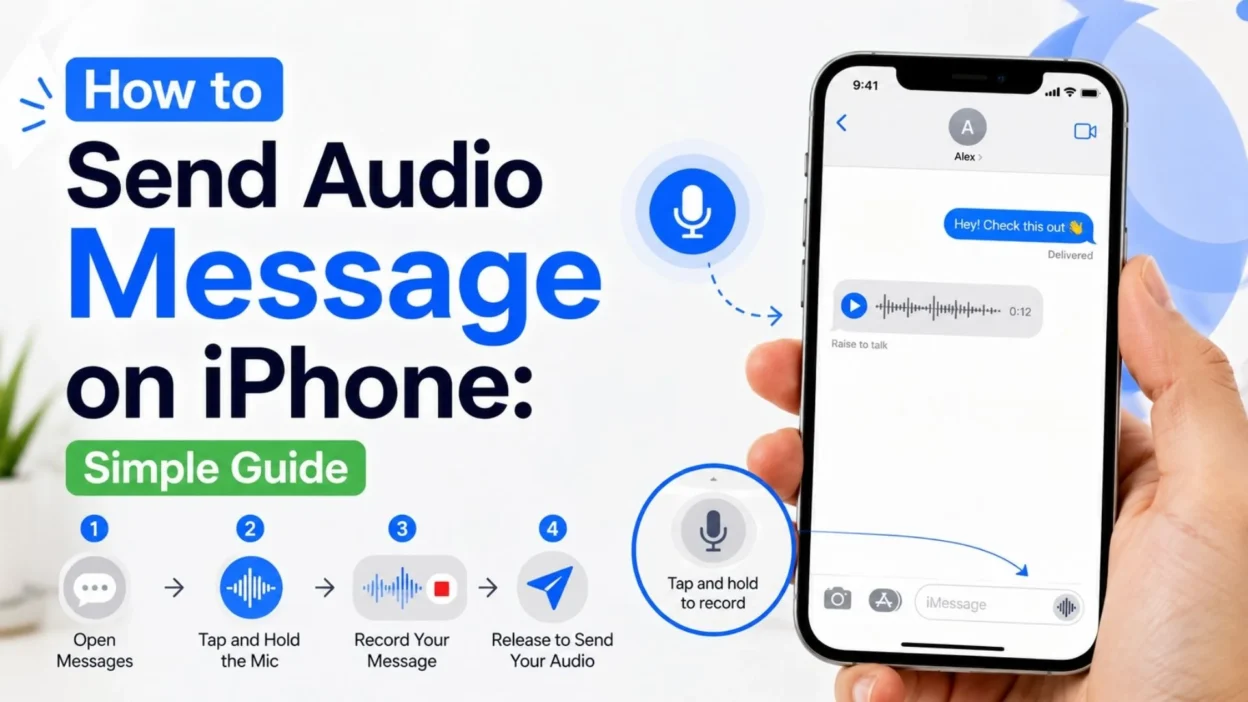
- People searching for how to send audio message on iPhone usually want a quick, easy way to record and send their voice through the Messages app.
- They may also want to know where the audio option is, how to review a recording, how to save audio messages, and why an audio message may disappear.
- This guide explains the process in simple steps and covers the most useful audio message settings on a current iPhone.
How to Send Audio Message on iPhone
- Sending an audio message on an iPhone is simple once you know where the Audio option is.
- Apple currently lets you record an audio message directly inside a Messages conversation.
- Open the Messages app on your iPhone.
- Open an existing conversation or start a new one.
- Tap the Add (+) button beside the text field.
- Tap Audio.
- Start speaking when the recording begins.
- Tap the Stop button when you finish.
- Tap Send to send the audio message.
- That’s it. Your recording will appear in the conversation as an audio message that the recipient can play.
Quick tip: If you send audio messages often, you can touch and hold the audio recording button in the text field for faster access.
How to Record an Audio Message Before Sending
- Sometimes you may want to check your recording before sending it.
- Fortunately, the Messages app gives you a chance to review the audio first.
- Open your conversation in Messages.
- Tap Add (+).
- Choose Audio.
- Speak clearly into your iPhone.
- Tap Stop when you are finished.
- Tap Play to listen to the recording.
- If you like it, tap Send.
- If you want to record more, choose Continue Recording.
- If you do not want to send it, cancel the recording.
- This is useful when your message contains important details. It also helps you catch background noise or a sentence you want to repeat.
How to Send a Longer Audio Message on iPhone
- You can continue recording after pausing an audio message.
- After stopping the recording, use the Continue Recording option to add more audio to the same message.
- Find the conversation where you want to send the recording.
- Tap Add (+) and select Audio.
- Begin speaking.
- Tap Stop when you need a pause.
- Select Continue Recording when you are ready to continue.
- Finish the recording and tap Send.
- For longer messages, consider speaking in a quiet place.
- Keep your phone reasonably close to your mouth.
- Speak at a comfortable pace so the recipient can understand you easily.
How to Listen to an Audio Message on iPhone
- Receiving an audio message is just as easy as sending one.
- You can play the recording directly inside the Messages conversation.
- Open Messages.
- Open the conversation containing the audio message.
- Tap the Play button.
- Listen to the recording directly in the conversation.
- You can also slide across the audio message to move forward or backward.
- Touch and hold the Play or Pause button to adjust playback speed.
How to Save an Audio Message on iPhone
- One important detail can surprise new users: audio messages may not remain permanently in your conversation by default.
- Apple says an audio recording can be deleted from your iPhone after you send or listen to it unless you choose to keep it.
- To keep an audio message, tap Keep after sending or listening.
- You can also change the setting so audio messages stay longer.
- Open Settings.
- Tap Apps.
- Tap Messages.
- Find the Audio Messages section.
- Tap Expire.
- Choose Never.
- This setting helps if you often receive meaningful voice messages that you want to keep.
How to Save an Audio Message to Voice Memos
- You can also move an audio message into the Voice Memos app.
- This can be useful when you want to keep an important recording separately from the conversation.
- Open the conversation in Messages.
- Find the audio message.
- Touch and hold the audio message.
- Tap Save to Voice Memos.
- The recording can then be accessed from the Voice Memos app.
How to Reply to an Audio Message
- You do not always need to type a response after receiving a voice message.
- Your iPhone also supports replying with another audio message.
- Open the conversation.
- Listen to the received recording.
- Use the audio recording option to record your response.
- Review the recording if needed.
- Tap Send.
- Apple also supports a feature called Raise to Listen.
- When enabled, you can raise the iPhone to your ear to listen to an audio message. You can then lower it and raise it again to record a reply.
How to Turn Off Raise to Listen
- Some people prefer to play audio messages by tapping the screen.
- If you do not want your iPhone to react when you raise it toward your ear, you can turn this feature off.
- Open Settings.
- Tap Apps.
- Tap Messages.
- Find Raise to Listen.
- Turn the feature off.
- After that, your audio messages will not automatically use the Raise to Listen behavior.
Why Send an Audio Message Instead of a Text?
- Audio messages can feel more natural than typed texts.
- Your voice can communicate tone and emotion that may be difficult to express through a short message.
- They are helpful when you have a lot to explain.
- They can save time when typing would take too long.
- They are useful when you are walking or otherwise unable to type comfortably.
- They can make conversations feel more personal.
- They can also help when pronunciation matters.
- For example, imagine explaining directions to a friend.
- Recording your voice may be faster than typing every detail.
- Likewise, a quick birthday greeting can feel warmer when the recipient hears your actual voice.
Audio Message vs. Voice Memo on iPhone
- These two features are related, but they serve different purposes.
- An audio message is designed for sending a recording through Messages.
- A Voice Memo is designed for making and keeping recordings in the Voice Memos app.
- Use an audio message when you want to quickly send your voice to someone.
- Use Voice Memos when you want to create a recording for yourself or save it separately.
- You can also save an audio message to Voice Memos when you want to keep it outside the Messages conversation.
Does the iPhone Transcribe Audio Messages?
- On supported iPhones and languages, audio messages can also include a transcription of what was spoken.
- Apple notes that audio message transcription is available only in selected languages.
- This can be helpful when someone cannot listen to the recording immediately.
- It can also make it easier to find the main point of a voice message.
- Availability can depend on language and feature support, so the transcription option may not appear for every user.
What If You Cannot Find the Audio Option?
- The location of features can change as Apple updates iOS.
- On current iPhone software, Apple places audio messages under the Add (+) button in a Messages conversation.
- Open Messages and enter a conversation.
- Tap Add (+) beside the text field.
- Look for Audio in the available options.
- Tap it and begin recording.
- If the interface looks different on your iPhone, check that your device is running a current version of iOS.
- You can also check Apple’s official iPhone guide for the latest interface and feature details.
Tips for Better iPhone Audio Messages
- A few simple habits can make your recordings easier to understand.
- Find a quiet place before recording.
- Keep the phone at a comfortable distance.
- Speak clearly without rushing.
- Pause between important points.
- Listen to important recordings before sending them.
- Avoid covering the iPhone’s microphones while speaking.
- Keep your message focused when the information is not urgent.
- Use a short introduction when sending a longer recording.
- Most importantly, speak naturally.
- You do not need to sound perfect. A clear and genuine voice usually makes a message feel more personal.
Common Problems When Sending Audio Messages
- The Audio option is hard to find: Tap Add (+) in the Messages conversation and look for Audio.
- The recording sounds unclear: Move somewhere quieter and speak closer to the phone.
- You want to check the recording: Tap Play before sending it.
- You want to add more: Use Continue Recording after pausing.
- The audio disappears later: Tap Keep or change the expiration setting to Never.
- You want a permanent copy: Save the audio message to Voice Memos.
- You do not want Raise to Listen: Turn it off under Settings > Apps > Messages.
- These options cover most everyday audio-message needs on iPhone.
Best Times to Use an iPhone Audio Message
- Audio messages are especially useful in everyday situations.
- Send a quick update when typing is inconvenient.
- Share a personal birthday greeting.
- Explain something that would take several texts.
- Send pronunciation help for an unfamiliar word.
- Reply when you want your tone to be clear.
- Share a short story with a friend.
- Leave a thoughtful message for a family member.
- Explain complicated instructions more naturally.
- In each case, the main advantage is simple: your voice can make communication feel more direct.
FAQs About How to Send Audio Message on iPhone
- How do I send an audio message on iPhone?
- Open Messages, enter a conversation, tap Add (+), choose Audio, speak, stop the recording, and tap Send.
- Can I listen to an audio message before sending it?
- Yes. After stopping the recording, tap Play to review it before sending.
- Can I save an audio message on my iPhone?
- Yes. Tap Keep to preserve it in the conversation. You can also set Audio Messages to expire as Never.
- Can I save an audio message to Voice Memos?
- Yes. Touch and hold the audio message, then choose Save to Voice Memos.
- Why do audio messages disappear?
- Audio messages can expire after being sent or listened to. Tap Keep or change the expiration setting if you want to retain them.
Final Thoughts
- Learning how to send audio message on iPhone is much easier than it may seem.
- With the current Messages app, you can open a conversation, tap Add, choose Audio, speak, review the recording, and send it in just a few moments.
- Audio messages are especially useful when typing feels slow or when your tone matters.
- They can also make everyday conversations feel more personal and natural.
- Remember to use Keep when you want to preserve an important recording.
- You can also save meaningful messages to Voice Memos for easier access later.
- So, the next time you have something to say but do not want to type it all out, try sending your voice instead.
- Sometimes, hearing a real voice is the simplest way to make a message feel more human.

Emma Richardson is a content writer passionate about creating heartfelt messages, wishes, and greetings for every occasion. She enjoys helping readers express their emotions with meaningful words that strengthen relationships and celebrate life’s special moments.