
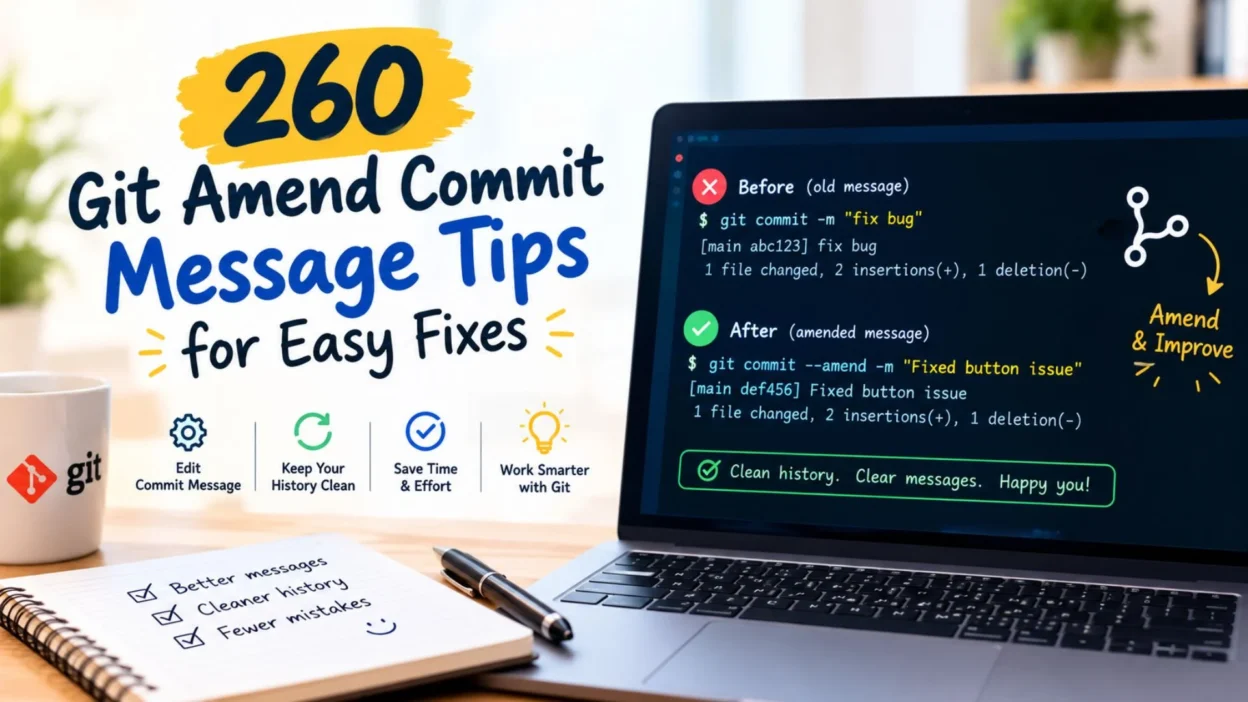
Making a Git commit feels simple until you notice a typo in the message or realize the description does not explain your changes clearly. Fortunately, you do not need to create another commit just to fix that mistake.
The git amend commit message technique lets you update the message attached to your most recent commit. It is useful when you want a cleaner project history, more descriptive commit messages, or consistent formatting across your development work.
Whether you use Git from a terminal, work with GitHub repositories, or manage a software project with teammates, understanding this command can save time. You can edit the previous message, replace it completely, or update the commit without changing its message.
However, amending a commit also has an important detail: Git creates a replacement commit rather than simply editing the existing commit object. This matters when you have already pushed your changes or shared them with other developers.
In this guide, you will learn the essential commands, practical examples, common mistakes, and safe ways to amend your latest commit.
🛠️ What Does Git Amend Commit Message Mean?
Amending a Git commit means replacing your latest commit with an updated version. You can change its message and, when needed, include additional staged changes.
The main command is:
git commit --amendWhen you run this command, Git normally opens your configured text editor. You can then update the existing commit message and save your changes.
For example, suppose your original message says:
fix login erorYou notice the spelling mistake and want to correct it. After running the amend command, you can change the message to:
Fix login errorThe new commit contains the corrected message, while the previous commit is replaced in your current branch history.
This approach is especially useful when you catch a mistake immediately after committing. Instead of adding a separate commit solely to correct the description, you can keep the history focused.
Remember that amending changes the commit’s identity, including its hash. If you have already shared the commit, consider the effect on anyone else using that history before proceeding.
💻 How to Change the Latest Git Commit Message
You can update the most recent commit message with a single command. This is the simplest method when your commit is correct but its description needs improvement.
Run the following command inside your Git repository:
git commit --amendGit opens your configured editor and displays the existing commit message. Replace the old text with your preferred wording, then save and close the editor.
For example, change this message:
updateTo a clearer description:
Update user profile validationYour latest commit now has a more informative message. You do not need to create a separate commit just to correct the wording.
If you use Vim, press i to edit the message. After making your changes, press Esc, type :wq, and press Enter to save and exit.
If your editor is Visual Studio Code, Git opens the commit message in the configured editor when the relevant settings are enabled. Save the file and close the editing session to complete the operation.
Before amending, check your latest commit with:
git log -1 --onelineThis command displays the most recent commit and its message, helping you confirm that you are editing the correct commit.
✏️ Change a Commit Message Without Opening an Editor
Sometimes you already know the exact message you want to use. In that case, you can supply it directly with the -m option.
Use this command:
git commit --amend -m "Update user profile validation"Git amends the latest commit and uses the supplied text as its new message.
This method is convenient when correcting short messages, working in scripts, or using a terminal workflow.
Consider these examples:
- Fix a typo:
git commit --amend -m "Fix payment error" - Improve a description:
git commit --amend -m "Add email validation" - Clarify a change:
git commit --amend -m "Update homepage navigation" - Describe a bug fix:
git commit --amend -m "Fix incorrect date formatting" - Document a feature:
git commit --amend -m "Add password reset flow"
Choose a message that describes the actual change instead of using vague wording such as update, changes, or fix.
You can also use a conventional commit format if your project follows that convention.
git commit --amend -m "fix: correct login validation"The fix: prefix identifies the commit as a bug fix under common Conventional Commits conventions.
One important distinction remains: the -m option replaces the existing message. It does not merely add another sentence to the old message.
🔄 Keep the Existing Message While Amending a Commit
You do not always need to change your commit message when amending a commit. Sometimes, you only want to include additional changes in the latest commit.
To keep the existing message, run:
git commit --amend --no-editThis command amends the latest commit without opening the editor or replacing its message.
For example, imagine you committed a change to your login page but forgot to include a small related file. You edit that file and stage it:
git add login.cssThen run:
git commit --amend --no-editGit incorporates the staged change into the amended commit while retaining the original message.
This technique is helpful when the additional change belongs logically in the previous commit.
However, remember that --no-edit does not mean Git leaves the commit unchanged. Git still creates a replacement commit, which receives a different hash.
Also, only staged changes are included. If you have modified files that you have not staged, those changes will not automatically become part of the amended commit.
Check the staged files before running the command:
git status
git diff --cached
These commands help you verify which changes Git will include.
📦 Amend a Commit Message and Include New Changes
You can combine a corrected commit message with additional staged changes. This is useful when you discover that your latest commit is incomplete and want to correct both the content and its description.
Start by checking your working tree:
git statusStage the relevant files:
git add app.jsThen amend the commit with a new message:
git commit --amend -m "Fix application startup validation"Git creates a replacement commit that includes the staged changes and the updated message.
For a practical example, suppose your original commit adds a form validation function. After committing, you realize that the associated error message is missing.
You can add the missing code, stage the updated file, and amend the previous commit. The resulting commit can contain both the validation function and its error message.
This keeps related work together instead of creating a separate commit for a small omission.
Be careful when staging files. If you accidentally stage unrelated changes, they may become part of the amended commit too.
Review the staged differences before proceeding:
git diff --cachedIf you need to remove a file from the staging area without discarding its changes, use:
git restore --staged filenameReplace filename with the relevant file path. Review your changes again before amending.
🚀 Amend a Commit Message After Pushing to GitHub
You can amend a commit after pushing it to GitHub, but doing so requires extra care.
When you amend a commit, Git creates a replacement commit with a different hash. The remote repository still contains the original commit until you update the remote branch.
If you have already pushed the commit, you may need to push the amended history:
git push --force-with-leaseThis command is safer than a plain force push because Git checks whether the remote branch has changed unexpectedly since your local repository last observed it.
However, it is not risk-free. If another developer has pushed new work to the same branch, the command may be rejected. You should fetch and inspect the changes rather than blindly retrying.
A typical workflow for a branch you control is:
git commit --amend -m "Fix login validation"
git push --force-with-lease
Before using this workflow, consider whether the branch is shared with teammates.
If other people have based their work on the original commit, rewriting that history can cause confusion and require them to reconcile their local branches.
For a shared branch, coordinate with your team first. If rewriting history is not appropriate, create a new commit containing the correction instead.
Important: Avoid casually force-pushing to protected branches or branches used by a deployment workflow. Follow your team’s repository rules.
🧭 Amend an Older Git Commit Message
The regular git commit --amend command changes only the latest commit. If you need to edit an older commit message, interactive rebase is usually the appropriate approach.
Start an interactive rebase with a range that includes the commit you want to edit:
git rebase -i HEAD~4This example opens an editor showing the last four commits, including the oldest commit in that range.
You may see entries similar to these:
pick a1b2c3d Add search feature
pick b2c3d4e Fix search results
pick c3d4e5f Update search layout
pick d4e5f6a Improve search validation
Find the commit whose message you want to change. Replace pick with reword on that line:
pick a1b2c3d Add search feature
reword b2c3d4e Fix search results
pick c3d4e5f Update search layout
pick d4e5f6a Improve search validation
Save and close the editor. Git will prompt you to edit the selected commit message.
Enter the corrected description, save it, and allow the rebase to finish.
Interactive rebase rewrites the selected commit and the commits that follow it in the rebased history. Their hashes may change, even when their file contents remain the same.
Use this method carefully when working with commits that have already been pushed or shared.
🔍 Verify Your Updated Git Commit Message
After amending a commit, check the result to make sure Git saved the correct message.
Start with:
git log -1 --onelineYou should see the new message alongside the latest commit’s abbreviated hash.
For more detail, run:
git show --no-patch --format=fuller HEADThis displays the commit’s metadata, including its message and author information.
You can also inspect the full commit:
git show HEADThis command displays the commit details and its changes.
If you want to compare the current branch with the remote branch, fetch the latest remote information first:
git fetch originThen inspect the branch status:
git statusThese checks help you understand whether your local branch has diverged from the remote branch.
If your latest commit has not been pushed, verifying the local history is usually enough. If you have already pushed the original commit, make sure the remote history is updated appropriately and that you have not overwritten someone else’s work.
⚠️ Common Git Amend Commit Message Mistakes
Amending is straightforward, but a few mistakes can lead to unexpected results. Understanding them helps you keep your repository history reliable.
- Amending the wrong commit: Run
git log -1 --onelinebefore making changes to confirm the commit you intend to replace. - Using vague messages: Replace descriptions such as
updatewith clear summaries that explain the purpose of the change. - Forgetting staged files: Git includes staged changes when amending. Review them with
git diff --cachedfirst. - Assuming the commit hash stays the same: An amended commit receives a new identity, even when you change only its message.
- Force-pushing without checking the remote: Another developer may have updated the branch. Use
git push --force-with-leasecautiously and inspect unexpected rejections. - Trying to amend an older commit with the wrong command: Use interactive rebase when you need to reword a commit that is not the latest one.
- Confusing
--no-editwith a complete cancellation: This option preserves the message but still amends the commit. - Ignoring repository policies: Protected branches and shared workflows may prohibit rewriting published history.
A careful review before and after amending can prevent most of these problems.
📋 Quick Git Amend Commit Message Command Reference
Keep these commands handy when you need to update a commit message or adjust your latest commit.
| Task | Command |
|---|---|
| Edit the latest message | git commit --amend |
| Set a new message directly | git commit --amend -m "New message" |
| Keep the message unchanged | git commit --amend --no-edit |
| Check the latest commit | git log -1 --oneline |
| Review staged changes | git diff --cached |
| Stage a specific file | git add filename |
| Edit an older commit message | git rebase -i HEAD~4 |
| Update a rewritten remote branch cautiously | git push --force-with-lease |
These commands cover common situations, but the right choice depends on whether you are changing the latest commit, editing an older one, or working with a shared remote branch.
For everyday corrections, git commit --amend -m "New message" is often the quickest option.
📝 Best Practices for Writing Clear Git Commit Messages
A commit message should tell other developers what changed and, when useful, why the change matters.
Use these practices to improve the quality of your project history:
- Be specific: Write
Fix checkout validationinstead ofFix issue. - Keep the subject concise: Aim for a short summary that is easy to scan in Git logs.
- Use consistent wording: Follow the style established by your repository or development team.
- Describe the actual change: Do not claim a bug was fixed if the commit only changes documentation.
- Use prefixes when appropriate: Formats such as
feat:,fix:, anddocs:can make commit history easier to navigate. - Avoid unnecessary details: Save extensive explanations for the commit body or pull request description.
- Review before publishing: Correct obvious mistakes before pushing commits to a shared repository.
For example, a message such as docs: clarify installation instructions communicates the purpose more clearly than changes.
If your project follows a specific commit convention, use that convention consistently rather than introducing a different format each time.
❓ Frequently Asked Questions About Git Amend Commit Message
Can I change a Git commit message after committing?
Yes. Run git commit --amend to edit the latest commit message, or use git commit --amend -m "New message" to replace it directly.
Does amending a commit change its hash?
Yes. Git creates a replacement commit with a new hash. Even changing only the message changes the commit object.
Can I amend a commit that I already pushed?
Yes, but updating the remote branch may require a carefully considered force push. Prefer git push --force-with-lease over git push --force, and coordinate with teammates if the branch is shared.
How do I change an older commit message?
Use interactive rebase, such as git rebase -i HEAD~4, and change pick to reword for the commit you want to edit. Choose a range that includes the target commit.
How do I keep the current message while amending?
Run git commit --amend --no-edit. This retains the existing message while incorporating staged changes into the replacement commit.
🎯 Conclusion: Make Git Commit Messages Clearer
Knowing how to use the git amend commit message technique makes everyday Git work easier. You can correct spelling mistakes, improve unclear descriptions, and include missing staged changes without creating an extra commit just for those corrections.
For a quick message update, use git commit --amend -m "Your corrected message". If you prefer to edit the existing text in your editor, use git commit --amend. When you want to keep the current message while incorporating staged changes, choose git commit --amend --no-edit.
Always remember that amending creates a replacement commit with a different hash. This distinction matters when your changes have already reached a remote repository or other developers depend on the existing history.
Before making an amendment, review your staged changes and confirm that you have selected the correct commit. Afterward, verify the result with git log -1 --oneline.
Clear commit messages make project history easier to understand, maintain, and review. With these commands and precautions, you can fix commit descriptions confidently and keep your Git workflow organized.

Emma Richardson is a content writer passionate about creating heartfelt messages, wishes, and greetings for every occasion. She enjoys helping readers express their emotions with meaningful words that strengthen relationships and celebrate life’s special moments.